
Reading width
Wide uses the full column for everything, text, diagrams, code, and exercises. Narrow keeps the standard reading width.
Text size
Scales the body text. Headings and code blocks keep their size.
In this section
Microsoft 365 Log Retention by Default: Audit, Entra ID and Defender XDR
Introduction
Every investigation in a tenant ends up asking the same question at some point: how far back can we see? The honest answer is almost never "as far as we need", and the reasons are set long before the incident by defaults, licenses and settings that nobody thought about at the time.
A tenant does record a great deal without anyone switching anything on. But each kind of record is produced by a different service, kept for a different length of time, and sometimes produced only for users holding a particular license. The result is a patchwork, and an investigator who does not know its shape will promise answers the tenant cannot give.
This lesson maps that patchwork. It covers the unified audit log and its two tiers, mailbox auditing and the item-level records, the Entra ID sign-in and audit logs, the hunting data in Defender XDR, routing records somewhere that keeps them longer, and the two different kinds of absence an investigation meets.
Made by Services, Kept by Licenses
Four sources, four clocksThere is no single log in Microsoft 365. Records are produced by the service where the activity happened and stored by the system that service reports to, and each system has its own retention rule. Four sources matter for nearly every investigation in this course.
Four sources, each produced by a different service, read in a different portal and kept on its own clock.
The four overlap. An Entra ID sign-in appears in the Entra sign-in log and, in summary form, in the unified audit log. A mailbox rule change appears in the unified audit log and in Defender XDR's cloud app events. Overlap helps, because a record expired in one place may survive in another, and it also misleads, because the copies are not always identical and do not all hold the same detail.
The most useful overlap is between Entra ID and the unified audit log. Interactive sign-ins are summarized into the unified audit log as UserLoggedIn and UserLoginFailed records under the Azure Active Directory workload, and they are kept there on the audit log's clock rather than on Entra ID's. When the Entra sign-in log has already expired, the audit log may still hold the fact that a sign-in happened, from which address and when, though without the authentication detail, the device information and the Conditional Access result that the full sign-in record carries.
That pattern repeats across sources. The longer-lived copy is usually the thinner one, and the detailed copy is usually the one that expires first. An investigation that starts late often works from summaries, and the report should say so.
The practical rule is to know, for each question an investigation might ask, which source answers it, and how long that source keeps the answer. In a workspace that collects all of them, one account appears in every source at once:
let u = "c.richardson@ne.com";
union withsource = Source
    (SigninLogs | where UserPrincipalName == u),
    (AADNonInteractiveUserSignInLogs | where UserPrincipalName == u),
    (OfficeActivity | where UserId == u),
    (AuditLogs | where tostring(InitiatedBy) has u),
    (EmailEvents | where RecipientEmailAddress == u
        | extend TimeGenerated = Timestamp)
| summarize Records = count(), Oldest = min(TimeGenerated) by Source
The same person, in five places, each counting different things. Four of the five reach back to 13 February, where the dataset begins, because this workspace keeps everything it collects. The directory audit rows start on 27 February only because the account made no directory changes before then. In a tenant relying on defaults the oldest dates would differ by source, and the Entra ID rows would be the first to go. The rest of this lesson takes the sources one at a time.
The Unified Audit Log
On by default, and two tiersThe unified audit log is the closest thing a tenant has to a central record. Microsoft Purview Audit comes in two tiers. Audit (Standard) is enabled by default for organizations with an eligible subscription, records thousands of user and administrator operations, and keeps them for 180 days.
That 180-day figure is recent. Until October 2023 Standard kept records for 90 days, and Microsoft extended it to 180 days from 17 October 2023. The change was not retroactive: records generated before that date kept their 90-day life. It is a small example of a rule that recurs throughout this course, which is that improving retention today does nothing for records that already expired.
Audit (Premium) keeps Exchange, SharePoint and Entra ID records for one year through a default retention policy, allows custom retention policies, and adds faster API access and some additional record types. A ten-year add-on extends retention further.
The detail that catches investigators out is how Premium is assigned. It is not a tenant setting. The user who performed the audited activity must hold an E5 license or the relevant compliance add-on, so in a tenant with mixed licensing, one person's activity may be kept for a year and their colleague's for 180 days.
The audit log is searched in the Microsoft Purview portal, through the Audit solution:
Microsoft Purview
Microsoft Purview › Solutions › Audit › Search
Set the date range, the activities and the users, then run the search. It runs as a job, so the browser does not need to stay open. Searching needs the Audit Logs or View-Only Audit Logs role.
Records are not there the moment an action happens. Microsoft gives no guarantee, but for Exchange, SharePoint, OneDrive and Teams records typically appear 60 to 90 minutes after the event, and other services can take longer. A search run during an active intrusion is therefore always a little behind it.
Before relying on the audit log, confirm it is actually on. Microsoft enables it by default, but it can be turned off, and the check takes one command in Exchange Online PowerShell:
PS C:\> Connect-ExchangeOnline
PS C:\> Get-AdminAuditLogConfig | Format-List UnifiedAuditLogIngestionEnabled

UnifiedAuditLogIngestionEnabled : True
True means records are being written. Run it in Exchange Online PowerShell specifically: the same cmdlet exists in Security & Compliance PowerShell, and there UnifiedAuditLogIngestionEnabled always reads False, even when the log is on. An investigator who checks in the wrong session reports a gap that does not exist. A tenant where this reads False has a gap starting from the day it was switched off, and nothing done during the incident can fill it. The same session can confirm that mailbox auditing has not been disabled organization-wide, which the next section depends on:
PS C:\> Get-OrganizationConfig | Format-List AuditDisabled

AuditDisabled : False
Both commands only read settings and change nothing in the tenant, so they are safe to run at any point during an incident, including before anyone has decided what to contain. The double negative is easy to misread under pressure: AuditDisabled : False is the good answer. Both values belong on the tenant's configuration record, so nobody has to rediscover them during an incident.
Mailbox Auditing and Item-Level Records
What was read, not just that someone signed inMailbox auditing records actions taken in a mailbox by its owner, by delegates and by administrators. It has been on by default for Exchange Online mailboxes for several years, with a default set of actions logged for each type of access.
For incident response the most important of those actions is MailItemsAccessed. It records that mail items were opened or synchronized, and it carries identifiers for the items involved, which is what lets an investigation say which messages an attacker read rather than only that the mailbox was accessed. Send records messages sent from the mailbox.
Both used to be available only with Audit (Premium). In 2023, after a high-profile intrusion in which affected customers without Premium could not see mail access, Microsoft made them available to Audit (Standard) customers as part of an expansion of default logging, along with search records for Exchange and SharePoint.
Even where MailItemsAccessed is produced, it does not record every item in the same way. Microsoft describes two access types. A bind is an individual message being opened, and it is recorded with that message's identifier. A sync is a mail client such as desktop Outlook downloading a whole folder, and it is recorded once for the folder rather than once per message, so a sync tells you a folder's contents left the service without saying which messages were later read.
There is also a ceiling. When a mailbox generates a very large number of these records in a short period, Microsoft throttles bind records for that mailbox for a time and marks the gap, so the busiest compromises can be the least itemized. Module 5 covers both behaviors in detail; at this stage it is enough to know that the record exists, that it is the one an investigation needs most, and that it can still leave gaps.
Default does not mean every action, though. Some useful mailbox actions are not in the default set and have to be added mailbox by mailbox. The course dataset shows both situations at once:
OfficeActivity
| where Operation in ("MailItemsAccessed", "Send", "SearchQueryInitiatedExchange")
| summarize Records = count(), Users = dcount(UserId) by Operation
Two rows come back: 5,177 MailItemsAccessed records across 86 users, and 2,553 Send records across 85. There is no row for SearchQueryInitiatedExchange, which records what a user searched for in their mailbox. It is not in the default audit set, so in this tenant nobody's searches were ever recorded. An attacker who searched a finance mailbox for "invoice" left no trace of the search itself.
That absence is not a failure of the query. The record type was never produced, and Module 2 covers adding it before it is needed.
Entra ID Logs
Seven days or thirtyEntra ID keeps its own sign-in and audit logs, separate from the unified audit log and governed by Entra ID licensing rather than Purview. The defaults are short.
How far back the Entra admin center can see, by license. Upgrading is not retroactive: a tenant that moves from Free to P1 can still see only the seven days it was already holding.
The audit log is read in the same place as the sign-in log:
Entra Admin Center
Entra ID › Monitoring & health › Audit logs
Set the date range, then filter on Activity or Initiated by. Download exports the full record, whatever columns are showing, and is the quick way to keep a copy before the 7 or 30 days run out.
The page itself, with the columns a responder reads first:
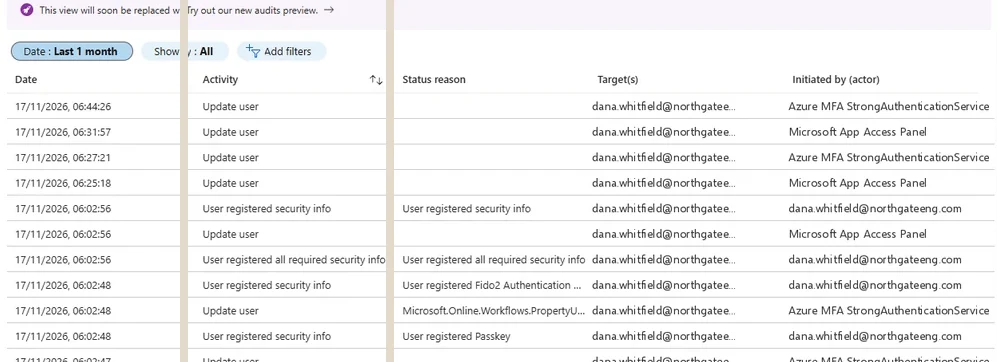
The audit logs page in the Entra admin center, in a different tenant. Each row is a directory change; selecting one opens what was modified, by whom and from where. Select the image to open it full size.
One day of it, in the course dataset, shows how little there is to read and how much a single row can matter:
| Date | Service | Category | Activity | Status | Initiated by (actor) |
|---|---|---|---|---|---|
| 3/1/2026, 5:12:02 PM | Core Directory | DirectoryManagement | Add member to role | Success | p.greaves@ne.com |
| 3/1/2026, 2:27:00 PM | Core Directory | UserManagement | User registered security info | Success | d.foster@ne.com |
| 3/1/2026, 6:03:47 AM | Core Directory | DirectoryManagement | Add member to role completed (PIM activation) | Success | p.greaves@ne.com |
| 3/1/2026, 3:42:14 AM | Core Directory | DirectoryManagement | Remove member from role | Success | s.mitchell@ne.com |
| 3/1/2026, 1:18:47 AM | Core Directory | ApplicationManagement | Add app role assignment to service principal | Success | p.greaves@ne.com |
The sign-in log is also not one log. Entra ID records several categories separately, and each is routed separately. Interactive sign-ins are the ones where a person typed a password, approved a prompt or used a passkey. Non-interactive sign-ins are the ones a client performs on the user's behalf in the background, most often refreshing a token, and they are far more numerous. Service principal and managed identity sign-ins record applications and Azure resources authenticating as themselves.
A stolen session shows up mostly in the non-interactive log, because the attacker's client refreshes tokens rather than typing a password. A tenant that routed only interactive sign-ins to its workspace, which is a common way to save cost, has kept the category least likely to show the attacker.
Thirty days is shorter than the time it takes most organizations to notice a quiet compromise. An attacker who signed in with a stolen session in January and was found in March has, by default, no sign-in record left in Entra ID at all.
Microsoft is explicit that upgrading the license is not retroactive. A tenant that moves from Free to P1 during an incident gains thirty days of retention from that point forward, and can still see only the seven days that the free tier was already holding. The time to buy longer retention is before the incident.
The Graph activity logs deserve special mention because they answer a question nothing else does: what an application or token actually did through the Microsoft Graph API. They exist only if somebody configured routing for them. Module 5 relies on them, and Module 2 is where they get switched on.
Defender XDR and Sentinel
Thirty days to hunt, longer if you keep itDefender XDR collects detailed events from email, endpoints, identities and cloud apps into the advanced hunting tables: EmailEvents, CloudAppEvents, IdentityLogonEvents, DeviceProcessEvents and many more. Advanced hunting can query those tables for 30 days. Incidents and alerts built from them remain visible in the Defender portal for 180 days, but the raw rows behind them are gone from hunting after 30.
Microsoft Sentinel is where most organizations keep records for longer. Data sent to a Sentinel workspace is retained in its analytics tier for 90 days at no extra storage cost for Sentinel tables, and can be kept longer, including in a lower-cost long-term tier, for a charge. Defender XDR tables streamed into Sentinel follow the retention configured in the workspace, which is how an organization gets more than 30 days of hunting data.
The same event on two routes. Without streaming, a six-week-old incident can be opened and read, but nothing around it can be queried.
Email is the area where this bites most often, because phishing is usually where an incident starts and the email that started it is often weeks old by the time anyone looks. Exchange Online keeps its own message trace, separate from the hunting tables, which can show that a message arrived, from whom, to whom and with what delivery result, over a longer window than advanced hunting's thirty days. It does not hold the URL click detail or the detection verdicts that EmailEvents and UrlClickEvents carry. Once again, the longer-lived source is the thinner one.
The course's main incident shows the deadline concretely. The message that started it arrived on 27 February:
EmailEvents
| where RecipientEmailAddress == "c.richardson@ne.com"
| where SenderFromAddress == "invoices@northgateeng-accounts.com"
| project Timestamp, Subject, LeavesHunting = Timestamp + 30d
Without streaming, the message and its click records leave advanced hunting on 29 March, so an investigation that starts in April finds the alert and nothing to query beneath it. For investigation this matters in a specific way. An alert from six weeks ago can be opened, read and closed in the portal, with its evidence list intact. Querying the events around it to see what else the attacker did will return nothing unless the data was streamed. Investigators who find a two-month-old incident should check before promising to reconstruct it.
Routing: The Way Past the Defaults
Copies you controlEvery default retention period in this lesson can be beaten the same way: by sending a copy of the records somewhere you control, as they are produced. Entra ID logs go through diagnostic settings to a Log Analytics workspace, a storage account or an event hub. The unified audit log reaches Sentinel through its Microsoft 365 connector. Defender XDR tables stream through the Defender connector.
For Entra ID the route is a diagnostic setting:
Entra Admin Center
Entra ID › Monitoring & health › Diagnostic settings › Add diagnostic setting
Tick each log category you want, including NonInteractiveUserSignInLogs and MicrosoftGraphActivityLogs, and choose a Log Analytics workspace or storage account as the destination. Collection starts when you save.
The setting is one page, with a checkbox for each category:
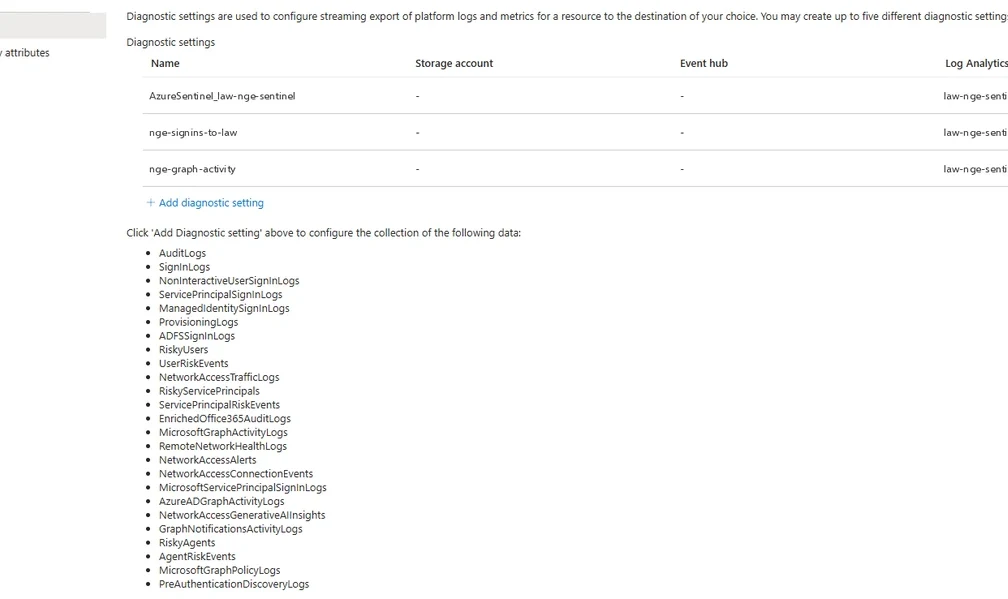
A diagnostic setting, in a different tenant. Each log category is ticked individually; a category left unticked is not collected. Select the image to open it full size.
Routing has two properties worth understanding before relying on it. It is forward-only, so it captures records from the moment it is configured and never fills in the past. And it is selective, so each category of log is chosen individually, and a category that was not selected is not collected.
The course dataset is a workspace where routing was done properly, so it holds thirty days of every source side by side. This query shows what is there and how far back each source goes:
union withsource = Table SigninLogs, AADNonInteractiveUserSignInLogs,
      AuditLogs, OfficeActivity, CloudAppEvents, MicrosoftGraphActivityLogs
| summarize Records = count(), Earliest = min(TimeGenerated),
            Latest = max(TimeGenerated) by Table
| order by Records desc
All six tables return rows, from 13 February to 15 March: 16,276 mailbox and file records in OfficeActivity, 13,586 non-interactive sign-ins, 8,277 cloud app events, 8,203 interactive sign-ins, 2,375 Graph activity records and 532 directory audit records.
Two things in that result are worth noticing. The non-interactive sign-ins outnumber the interactive ones; they are the token refreshes that happen in the background, and they are where stolen sessions show up, which lesson 0.5 explains. And the Graph activity table exists at all, which means somebody routed it, because nothing keeps it otherwise.
Run the same query against a production workspace and the gaps appear immediately: a table missing entirely, or a table whose earliest record is much later than the rest, showing when somebody finally switched it on.
Three Kinds of Absence
Expired, never produced, or missedWhen a search returns nothing, there are three possible explanations, and only one of them means nothing happened. The search might be wrong. The records might have existed and expired. Or the records might never have been produced at all.
Three questions to ask of every empty result, in this order. Only the third can be fixed during the incident.
The distinction matters for what the report says. "We cannot determine which mail was read because mail access records were not retained" invites the question why the response was slow. "We cannot determine which mail was read because this account's searches were never recorded" is a statement about configuration, and it is the correct one when that is the cause.
It also matters for what gets fixed afterwards. A time absence is solved with retention or routing. A category absence is solved by turning something on, and buying longer retention for a record type that was never produced achieves nothing.
A worked case shows all three in one investigation. Suppose a finance user's mailbox was compromised and the investigation starts four months later. The question "when did the attacker first sign in?" hits a time absence in Entra ID, whose thirty days are long gone, but may be answered from the audit log's UserLoggedIn summary, which is still inside its 180 days. The question "what did the attacker search for?" hits a category absence if search auditing was never added. And the question "which items were read?" may first come back empty because the search covered only the user's own sign-in address, which is a search absence, fixed by searching on the attacker's address instead.
Each of those three answers has a different sentence in the report and a different action afterwards. Lumping them together as "the logs did not show it" hides the one that was fixable during the incident itself.
Before writing either, rule out the third explanation. The simplest search absence is a case mismatch. The == operator in KQL is case-sensitive, so an address typed from an email signature finds nothing:
OfficeActivity
| summarize ExactCase = countif(UserId == "C.Richardson@ne.com"),
            AnyCase = countif(UserId =~ "C.Richardson@ne.com")
Zero records one way, 436 the other, and nothing about the first result says it was wrong. Searches fail quietly, and Module 3 covers the ways they do, including the audit search that returns a hundred rows by default without saying there were more.
What Module 2 Builds On It
Preparation is mostly this lesson, done in advanceModule 2, Preparation and Readiness, is the practical half of this lesson. It covers the export that has no retroactive fix, the two retention systems and how to choose a destination, retention per record type, turning on what is off, the permissions an on-call responder needs, and documenting what the tenant actually records so the answer is known before anyone asks.
The habit to carry into it is to state retention as a date, not a duration. "Sign-in logs are kept for thirty days" is a fact about the product. "We can see sign-ins back to 13 February" is a fact about this investigation, and it is the one people need. A one-line query produces it for every source at once:
union withsource = Table SigninLogs, AuditLogs, OfficeActivity
| summarize Earliest = min(TimeGenerated) by Table
| extend DaysBack = datetime_diff('day', now(), Earliest)
On the course dataset each source goes back roughly thirty days, to 13 February. In a production tenant, the row with the smallest DaysBack is the limit of what the investigation can say with every source available, and it belongs in the first status update.
Practice
What can this tenant still answer? prepared evidenceThe prepared evidence below is a tenant's logging configuration and the dates of an incident discovered late. Decide which questions the tenant can still answer, and for each one it cannot, say which kind of absence stops it.
The second path is to produce the same configuration record for a real tenant, so the answers exist before an incident needs them.
- Run the coverage query in section six against the course dataset, then against your own workspace if you have one, and note each table's earliest date.
- Check the audit log is on with
Get-AdminAuditLogConfigandGet-OrganizationConfig, as in section two. - Record the Entra ID license tier and therefore whether sign-in logs are kept for seven days or thirty.
- List which users hold Audit (Premium) licensing, and note any privileged or finance users who do not.
A tenant records a great deal by default, but each source keeps its records on its own clock: 180 days or a year in the unified audit log depending on the acting user's license, seven or thirty days in Entra ID, thirty days in advanced hunting. Some valuable records are not produced until somebody turns them on, and routing is the only way past the defaults, forward from the day it starts.
The next lesson opens the records themselves and reads the fields that answer an investigation's questions.
Resources
Microsoft revises these pages; where a page and this lesson disagree, the page is newer.