
Reading width
Wide uses the full column for everything, text, diagrams, code, and exercises. Narrow keeps the standard reading width.
Text size
Scales the body text. Headings and code blocks keep their size.
In this section
Reading SigninLogs, AuditLogs and OfficeActivity for Incident Response
Introduction
An investigation in a tenant is built out of individual records, and most mistakes in one start with misreading a single field. A sign-in marked successful that never completed multifactor authentication, an audit entry whose actor was an application rather than a person, a mailbox record whose address belongs to a mail client rather than to the user: each looks like one thing and is another.
Three kinds of record carry most of the work in this course. Sign-in records say who authenticated, to what, from where and how. Directory audit records say what changed in Entra ID and who changed it. Mailbox and file records say what an identity did in Exchange, SharePoint and OneDrive.
This lesson reads one of each from the course dataset, field by field. The aim is not to memorize column names, which the table references list, but to build the habit of reading every record against the same set of questions, so that the field that does not fit stands out on its own. It covers the four questions every record answers, how time is recorded, the result codes worth knowing by number, and the identifier difference that silently breaks joins between tables.
Four Questions in Every Record
Who, what, when, from whereEvery record an investigation reads answers the same four questions, and the first skill is knowing which field holds each answer in each table. The names differ between tables because each was designed by a different team for a different service, and nothing about them is consistent enough to guess.
The same four questions, read left to right, in each of the three tables. The column names differ; the order of reading does not.
Two further questions matter almost as often. With what: the client or application used, which separates a person in a browser from a script using a legacy protocol. And with what result: success, failure or interruption, which is easy to skip and changes everything about what the record means.
A query can ask all six at once, by naming each column for the question it answers:
SigninLogs
| where UserPrincipalName == "m.patel@ne.com"
| where IPAddress == "193.32.162.89"
| project When = TimeGenerated, Who = UserPrincipalName, What = AppDisplayName,
          FromWhere = IPAddress, WithWhat = ClientAppUsed, Result = ResultType
The two rows are the account's sign-ins from one address, each answering all six questions. Section three reads them in full.
Reading a record well means answering all six before drawing a conclusion, even when one of them seems to settle the matter on its own. A sign-in from an unusual country that failed is a different event from one that succeeded, and both are different from one that succeeded without anybody completing multifactor authentication.
The "who" deserves particular care, because it is not always a person. In a directory audit record the actor may be an application acting with its own permissions, such as a provisioning connector, an automation account or a third-party tool. In a mailbox record the acting account may be a delegate, an administrator or a service working on the owner's behalf. Writing "the user changed this" when an application did is one of the commonest errors in incident reports, and it sends the investigation looking in the wrong place.
Time
UTC, and recorded when it arrivedAll three tables record time in UTC, and the portals usually display it converted to the viewer's local time zone. That difference is the source of a remarkable number of timeline errors: a responder copies a time from the portal, another copies one from a query result, and the two disagree by the local offset, or by an hour in the weeks around a daylight saving change.
The same sign-in, shown in the three clocks people will use to talk about it:
SigninLogs
| where UserPrincipalName == "c.richardson@ne.com"
| where IPAddress == "185.234.72.18" and ResultType == "0"
| take 1
| project UTC = TimeGenerated,
          London = datetime_utc_to_local(TimeGenerated, "Europe/London"),
          Singapore = datetime_utc_to_local(TimeGenerated, "Asia/Singapore")
The workspace keeps one value; the other two are conversions for whoever is reading. The rule in this course is that every time written in a timeline, a ticket or a report is in UTC and says so. Convert to local time only in the sentence that needs it, such as one telling a user what they were doing at the time.
Why a search window is widened on both sides. TimeGenerated records arrival, so a record can land after the window that should have held it.
Ordering is the other trap. Records from different services arrive with different delays, so sorting a mixed result by TimeGenerated gives the order records arrived, which is usually but not always the order things happened. When two events a minute apart decide a question, such as whether a rule was created before or after a sign-in, check the event time inside each record as well.
Ingestion delay has a second consequence that matters early in an incident. A query run at 10:00 for activity since 09:00 may return less than the same query run at 11:00, because records for the last hour were still arriving. When an early search contradicts a later one, the later one is usually more complete, and a timeline built in the first hour should be rebuilt once the records have settled.
Daylight saving deserves a word of its own. In the weeks between the US and European clock changes, the gap between UTC and a colleague's local time is an hour different from usual, and a responder working from memory will be wrong by exactly that hour. Writing UTC everywhere removes the problem rather than requiring anyone to remember it.
Reading a Sign-In Record
A password spray, and the one that workedThe sign-in record is the richest of the three, and the one most often read too quickly. The course dataset contains a password spray: one address trying a common password against many accounts. Summarizing everything from that address shows its shape:
SigninLogs
| where IPAddress == "193.32.162.89"
| summarize Attempts = count(), Users = dcount(UserPrincipalName),
            Succeeded = countif(ResultType == "0"),
            First = min(TimeGenerated), Last = max(TimeGenerated)
    by IPAddress, UserAgent, ClientAppUsed
One row comes back: 21 attempts against 20 different users on 5 March between 14:02 and 14:33 UTC, two of them successful. The user agent is BAV2ROPC and the client app is Other clients.
Those last two fields carry most of the meaning. BAV2ROPC is the user agent Entra ID records for the resource owner password credentials flow, a legacy way of signing in by sending a user name and password directly rather than through an interactive sign-in page. Ordinary users almost never produce it, and spraying tools commonly do. Other clients is the client category Entra ID gives to legacy and non-browser protocols.
The shape is what distinguishes a spray from other password attacks. A brute-force attack tries many passwords against one account and trips its lockout quickly. A spray tries one or two passwords against many accounts, staying under each account's lockout threshold, and relies on the fact that in any large organization somebody will have chosen the password being tried. Many users, one address, one short window and nearly uniform failures is the spray's signature in the sign-in log.
Legacy authentication flows matter for a further reason. They do not support an interactive multifactor prompt, so in a tenant that has not blocked them, a correct password through a legacy flow can be enough on its own. That is why the spraying tool chose it.
Breaking the same activity down by user shows which account fell:
SigninLogs
| where IPAddress == "193.32.162.89"
| summarize Attempts = count(), Succeeded = countif(ResultType == "0")
    by UserPrincipalName
| where Succeeded > 0
It returns one user, m.patel, with two successful sign-ins and no failures. Every other user in the spray failed with the same result code. One row for that account, read field by field, says what kind of success it was:
In the admin center the same record opens as a panel of tabs, with Basic info first:
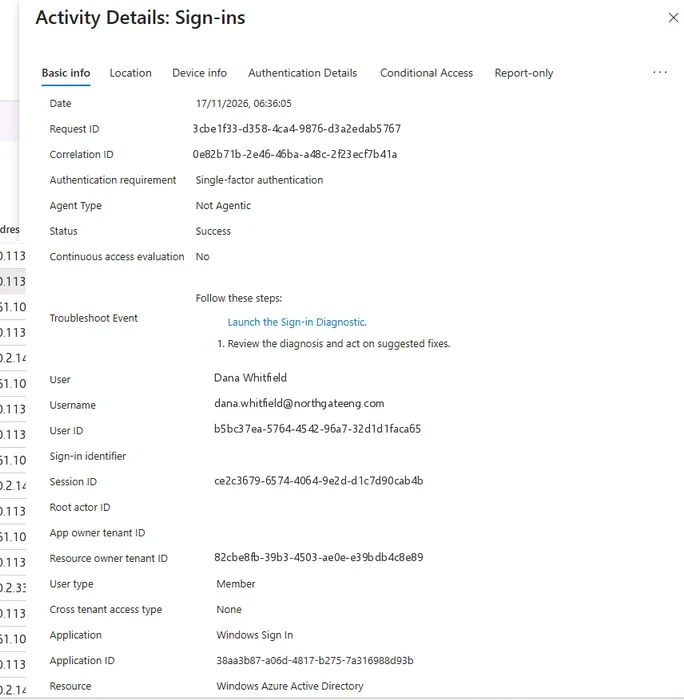
The Basic info tab of one sign-in, in a different tenant. The same fields as the record above, in the order the portal shows them. Select the image to open it full size.
A password succeeded for this account from an address that failed against nineteen others in the same half hour. The account's password is known to the attacker, whatever happens next, and that alone is enough to act on.
Result Codes Worth Knowing
The number says what happenedResultType holds a numeric error code, and ResultDescription holds its text. Zero means the sign-in succeeded. Everything else is a reason it did not, or did not yet, and a handful of codes come up in nearly every investigation.
A sign-in as a sequence of checks, with the code each step writes when it stops the attempt. Every code from the third step down means the password was right.
In the portal each code is a filter:
Entra Admin Center
Entra ID › Monitoring & health › Sign-in logs
Add a Sign-in error code filter, for example 500121, then open a row and read Failure reason and Additional details. Code 50053 has two causes, and the failure reason is where they separate.
Two of these codes carry a message that is easy to miss. A 50074 or 500121 means the password was correct, because Entra ID does not ask for a second factor until the first one has passed. A run of them against an account the user is not signing in to means the password is known to someone else, even though no sign-in succeeded.
A 53003 means the same about the credentials, and something better about the controls: a policy stopped a correct password. Both are evidence of compromise to act on, not reassurance.
The spray in section three produced 19 of code 50126 and two of code 0. Had m.patel's account required multifactor authentication from outside the office, the two successes would have been 50074 instead, and the investigation would still need to reset the password.
The account in section three also shows a code not in the table above. Its own sign-ins from the office include three with code 50076, which, like 50074, means the password was accepted and multifactor authentication was required before access was granted. Seen from the office address during working hours it is routine: the user was asked for a second factor and provided one in the next attempt. The same code from an unfamiliar address with no successful sign-in following it would mean something quite different.
That is the general rule for result codes. A code describes what Entra ID decided at one step of one attempt. Its meaning for the investigation comes from the address, the time, the client and what happened in the attempts on either side of it, so codes are read in sequence, never one at a time.
Reading a Directory Audit Record
What changed, who changed it, and from what to whatThe AuditLogs table records changes to Entra ID: users and groups created or changed, roles assigned, applications registered, permissions granted, authentication methods added. Its records have a different shape from sign-ins, built around an actor, an operation and a target.
OperationName names the change. Category groups it, such as UserManagement, GroupManagement or ApplicationManagement. InitiatedBy holds the actor, as either a user object or an app object, and whichever is empty tells you whether a person or a program made the change. TargetResources holds what was changed, and inside it modifiedProperties holds the old and new values.
The course dataset contains an application consent that changed over time:
AuditLogs
| where OperationName == "Consent to application"
| where tostring(InitiatedBy.user.userPrincipalName) == "e.petrova@ne.com"
| project TimeGenerated, Result,
          App = tostring(TargetResources[0].displayName),
          Change = tostring(TargetResources[0].modifiedProperties)
Two rows come back, both for an application named DocuSync Pro. The first, on 2 March at 21:21, shows the permissions going from nothing to Mail.Read, Files.Read.All, offline_access. The second, on 5 March at 02:02, shows them widening:
AuditLogs, Consent to application, 5 March 2026, 02:02 UTC
InitiatedBy.user
e.petrova@ne.com
TargetResources[0]
DocuSync Pro (ServicePrincipal)
oldValue
Mail.Read, Files.Read.All, offline_access
newValue
Mail.Read, Mail.Send, Files.ReadWrite.All, offline_access
Reading it fully: a user, not an administrator, granted an application the right to read her mail, then three days later in the middle of the night granted it the right to send mail as her and to change every file she can reach. offline_access lets the application keep a refresh token, which means it keeps that access without her signing in again.
Nothing in this record is an alert on its own, because users consent to applications every day; the same table holds dozens of consents to familiar tools in this tenant. The widening, the hour and an application nobody in the organization has heard of are what make it worth an investigation, and lesson 0.7 explains why consent is a favored attack.
Two cautions apply to every directory audit record. First, modifiedProperties is not always populated. Some operations record the full before and after, some record only the new value, and some record nothing beyond the target's name, so an empty change list means the record does not say, not that nothing changed. The current state of the object, read directly from Entra ID, fills the gap for the present, though not for the past.
Second, one action can produce several records. The consent above was accompanied by an Add delegated permission grant record at the same second, and creating a user typically produces an Add user record followed by Update user records as properties are set. Counting records is not counting actions, and a timeline built from audit entries should group the records that share a time and a target before reading them as separate events.
Reading a Mailbox or File Record
The Office activity tableThe OfficeActivity table holds unified audit log records from Exchange, SharePoint and OneDrive as they arrive in a Sentinel workspace. In Purview the same records are searched through the audit log tool or Search-UnifiedAuditLog, where most of the detail sits inside a JSON column called AuditData. In OfficeActivity the commonly used parts of that JSON are already separate columns.
OfficeActivity, New-InboxRule, 27 February 2026, 18:49 UTC
Parameters decide itParameters
- Name: Archive-2026
- SubjectOrBodyContainsWords: invoice;payment;wire;remittance;bank
- MoveToFolder: RSS Subscriptions
- MarkAsRead: True
Lesson 0.1 read an inbox rule's Parameters and found a rule hiding payment mail. The same column is how every Exchange configuration change is read: the cmdlet name is in Operation, and what it actually did is only in Parameters. A Set-Mailbox record means nothing until its parameters show whether it changed a display name or turned on forwarding to an outside address.
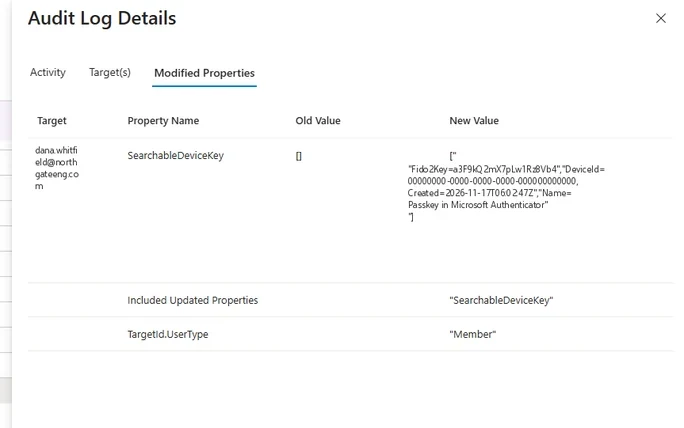
The Modified Properties tab of an audit record, in a different tenant. The before and after values in the record above are read here in the portal. Select the image to open it full size.
ClientIP needs one caution. For mailbox access through a mail client it is usually the client's public address. For some operations performed by Microsoft services on the user's behalf it can be a Microsoft address, or empty. An address that does not belong to the user's organization is not automatically the attacker's, and Module 3 covers how to tell them apart.
Two further columns repay attention. RecordType names the kind of audit record, which matters because the same operation name can appear under different record types with different detail. ResultStatus says whether the operation succeeded, which for administrative cmdlets is not guaranteed: an attacker's attempt to create a forwarding rule that the tenant's policy blocked is recorded too, and a failed attempt is still evidence of intent.
When working in Purview rather than Sentinel, the same information is present but packed inside AuditData. The audit search tool and Search-UnifiedAuditLog return it as a JSON string, and reading it means expanding that string into its fields. Module 3 covers that expansion and the duplicate records the search can return.
The Identifier That Breaks a Join
Two columns called UserIdInvestigations constantly connect one table to another: a sign-in to what the session did next, an audit entry to the account that made it. The connection is made on identifiers, and the tables do not agree on what an identifier is.
In SigninLogs, UserId is the user's object ID, a GUID such as 00000000-0000-4000-8000-000000000007. In OfficeActivity, UserId is the user's user principal name, such as c.richardson@ne.com. They have the same column name and never hold the same value. A join on UserId between the two tables runs without error and returns nothing:
// Runs cleanly and returns zero rows: the two UserId columns never match.
SigninLogs
| where UserPrincipalName == "c.richardson@ne.com" and IPAddress == "185.234.72.18"
| distinct UserId, UserPrincipalName, IPAddress
| join kind=inner (OfficeActivity | where Operation == "New-InboxRule") on UserId
An empty result from that query looks exactly like evidence that the session created no inbox rule. The correct join names both sides explicitly, matching the user principal name on one side to UserId on the other, and the address on both:
SigninLogs
| where UserPrincipalName == "c.richardson@ne.com" and IPAddress == "185.234.72.18"
| distinct UserPrincipalName, IPAddress
| join kind=inner (OfficeActivity | where Operation == "New-InboxRule")
    on $left.UserPrincipalName == $right.UserId, $left.IPAddress == $right.ClientIP
| project TimeGenerated, UserId, ClientIP, Operation
It returns the rule created on 27 February at 18:49 from the Singapore address. Same data, same question, opposite answer. Nothing in either query is unusual, and both would pass a review that checked only whether they ran. The difference is one line, and the wrong version gives no warning.
The lesson generalizes. Before relying on an empty join, run each side on its own and look at the values in the columns being matched. If they are not the same kind of value, the join cannot work, however clean the query looks.
What Module 3 Builds On It
From one record to an investigationModule 3, Detection and Analysis, takes each of these record types into depth. It covers the detection sources in Microsoft 365, the unified audit log's behavior under search, sign-in and risk analysis, email threat detection, Defender XDR incidents, mailbox forensic signals, OAuth consent, collaboration activity, advanced hunting and building a scoped timeline.
All of it assumes the reading habits in this lesson: answer who, what, when, from where, with what and with what result before concluding; write times in UTC; read result codes as statements about the credentials; read the actor in an audit record before the operation; and check identifiers before trusting a join.
A useful first query for any account under investigation applies those habits at once, putting the account's sign-in results side by side so the codes do the talking:
SigninLogs
| where UserPrincipalName == "m.patel@ne.com"
| summarize Signins = count(), First = min(TimeGenerated), Last = max(TimeGenerated)
    by IPAddress, ResultType, ClientAppUsed
| order by First asc
For m.patel it separates the two successes from the spraying address, with their legacy client, from the account's ordinary office sign-ins. That separation is the start of every account investigation in Module 3.
The same habits make an investigator faster, not slower. Reading six answers per record sounds laborious, but most of the time five of them are routine and the sixth is the finding. The discipline is in not skipping the routine five, because the one record where the client app, the authentication requirement or the actor type is not what it seems is the one that decides the case.
Practice
Read one record completely prepared evidenceThe prepared evidence below is one sign-in by an administrator account, with the same account's usual sign-in beside it for comparison. Answer the six questions for each record, then decide what the difference between them means.
The second path is to read real records yourself, in the course dataset or your own workspace, and to practice the join that fails quietly until you recognize it on sight.
- Pick one sign-in, one directory audit record and one mailbox record for the same user, and write the six answers for each.
- Find every ResultType other than 0 for that user in the last thirty days and say what each one means about the credentials.
- Run the failing join in section seven, then the correct one, and compare the row counts.
- In your own workspace, check whether any saved query or rule joins
SigninLogstoOfficeActivityonUserId.
UserId is worth fixing the same day.Sign-in records answer how an identity authenticated, directory audit records answer what changed in Entra ID and who changed it, and mailbox and file records answer what an identity did in its data. Each answers who, what, when, from where, with what and with what result, in fields with different names. Times are UTC, result codes are statements about the credentials, and a join is only as good as the identifiers it matches.
The next lesson turns from reading records to keeping them: what makes a record evidence, and how to preserve it in a tenant you do not own.
Resources
Microsoft revises these pages; where a page and this lesson disagree, the page is newer.