
Reading width
Wide uses the full column for everything, text, diagrams, code, and exercises. Narrow keeps the standard reading width.
Text size
Scales the body text. Headings and code blocks keep their size.
In this section
Microsoft 365 Containment Actions: Revoke, Reset, Disable, Block and Remove
Introduction
In a data center, containment means isolating machines: pulling a cable, blocking a subnet, shutting down a server. A tenant has none of that. Containment there is a set of administrative actions on identities, mailboxes and applications, each of which closes one kind of access and leaves the others exactly as they were.
The previous lesson showed why. Access in Microsoft 365 is layered, and a competent attacker establishes several layers quickly so that closing one does not end the intrusion. Responders who know only "reset the password" find the attacker back the next morning, through a layer nobody touched.
This lesson sets out the actions a tenant offers: ending sessions, changing credentials and methods, blocking sign-in, removing mailbox footholds, and removing applications and shared links. For each it covers what it stops, what it leaves running and what it costs, and it works them against one intrusion in the course dataset that set up six separate footholds in its first sixteen minutes.
Six Footholds in Sixteen Minutes
Why containment is pluralThe finance account compromised in the course dataset makes the point better than any diagram. The attacker's first sign-in, a replayed session from Singapore, came at 18:47 on 27 February. The directory audit log shows what the session did over the next quarter of an hour:
AuditLogs
| where TimeGenerated between (datetime(2026-02-27T18:47:00Z)
                            .. datetime(2026-02-28T00:00:00Z))
| where tostring(InitiatedBy.user.userPrincipalName) == "c.richardson@ne.com"
| project TimeGenerated, OperationName,
          Target = tostring(TargetResources[0].displayName),
          Change = tostring(TargetResources[0].modifiedProperties)
Four rows come back. At 18:55 the account consented to an application called Mail Reader Pro, with Mail.Read, Mail.ReadWrite, Contacts.Read and offline_access. At 18:58 a new Authenticator registration was added to the account. At 19:00 its alternate email address was set to an outside mailbox at protonmail.com. At 19:03 the account was added to a group called Helpdesk Admins.
The mailbox audit records add two more. An inbox rule hiding payment mail was created at 18:49, and on 3 March, from the same address, the mailbox was set to forward a copy of every message to another outside address. Together that is six footholds, each of which survives at least one of the obvious containment actions:
Six footholds in sixteen minutes on 27 February, each with what it survives. Forwarding to an outside address followed on 3 March.
In the admin center, filtering the audit log on the account as the actor shows the directory half on one screen:
| Date | Service | Category | Activity | Status | Target |
|---|---|---|---|---|---|
| 2/27/2026, 7:03 PM | Core Directory | GroupManagement | Add member to group | Success | Helpdesk Admins |
| 2/27/2026, 7:00 PM | Core Directory | UserManagement | Update user | Success | Catherine Richardson |
| 2/27/2026, 6:58 PM | Core Directory | UserManagement | User registered security info | Success | Catherine Richardson |
| 2/27/2026, 6:55 PM | Core Directory | ApplicationManagement | Consent to application | Success | Mail Reader Pro |
None of these needed any special privilege, and none of them raised an alert by itself. Each is a normal thing a user can do. Containment has to find and remove every one, and the rest of this lesson takes them in turn.
The timing is worth noticing too. All four directory changes happened while the user was almost certainly unaware, within minutes of a phishing click, and long before anyone in security looked at the account. By the time an alert reaches an analyst, the footholds are usually already in place. Containment is planned on the assumption that they are, and the inventory below proves or disproves it for each layer.
Ending Sessions
Revocation, and what it cannot reachRevoking sign-in sessions invalidates the refresh tokens and browser session cookies issued to a user, so every client the user, or the attacker, is signed in on has to sign in again. It is done from the user's page in the Entra admin center or with one command:
PS C:\> Connect-MgGraph -Scopes 'User.RevokeSessions.All'
PS C:\> Revoke-MgUserSignInSession -UserId c.richardson@ne.com

Value
-----
 True
True means the request was accepted, not that every session has ended. The revocation takes effect for new token requests, and access tokens already issued remain valid until they expire, unless the service supports continuous access evaluation and honors the revocation sooner. Lesson 0.5 put that window at up to about an hour for clients that do not support it.
Revocation on its own is also nearly useless if the attacker can simply sign in again. Here they could: they had a registered Authenticator of their own and, potentially, the password captured by the phishing page. That is why revocation is paired with the credential actions in the next section, and why the order between them matters.
Revocation does have one property that makes it worth doing early. It is cheap and quickly undone in practice, since the user just signs in again on their own devices, and it removes the attacker's existing session at the cost of a few minutes of the user's time. Few containment actions offer so much for so little.
Revocation needs a role that can manage the user's authentication, such as User Administrator for ordinary users or Privileged Authentication Administrator for administrators. That detail matters at two in the morning, when the person on shift may hold only a security reader role. Module 2 covers making sure the people who will need these actions during an incident hold the roles for them before the incident starts. One limit sits outside Entra ID altogether: an application that issued its own session cookie after sign-in keeps honoring it until the application itself ends it, because Entra ID cannot revoke a session token it did not issue.
Credentials and Methods
Password, authentication methods and recovery detailsResetting the password stops sign-in with the old one and ends most refresh tokens. Where the reset happens depends on where the account comes from. A cloud-only account is reset in Entra ID. An account synchronized from on-premises Active Directory is reset in Active Directory, unless password writeback is configured, and resetting it only in the cloud may be overwritten by the next synchronization.
A reset does nothing to the attacker's authentication methods. An attacker who registered their own Authenticator, as this one did at 18:58, can satisfy multifactor authentication on the next sign-in with the new password if they obtain it, and can sometimes use the method to reset the password themselves through self-service password reset. Listing the account's methods is part of every account containment:
PS C:\> $m = Get-MgUserAuthenticationMethod -UserId c.richardson@ne.com
PS C:\> $m.AdditionalProperties.'@odata.type' -replace '#microsoft.graph.'

passwordAuthenticationMethod
microsoftAuthenticatorAuthenticationMethod
microsoftAuthenticatorAuthenticationMethod
fido2AuthenticationMethod
Two Authenticator registrations where the user expects one is the finding. The audit log's User registered security info record at 18:58 identifies which one is new, and the user can confirm which phone is theirs before the other is removed.
The recovery details are the third part. The attacker set the account's alternate email address to an outside mailbox at 19:00. That field is used in account recovery flows, so it is a way back in that touches neither the password nor the methods. It is cleared as part of the same step, and the audit record's old value shows what it should be returned to, which in this case was empty.
Entra Admin Center
Entra ID › Users › All users › (user) › Authentication methods
Compare each registered method with what the user says they own, and delete the ones they do not recognize. The same page has Require re-register multifactor authentication.
The page lists each method with its type and detail:
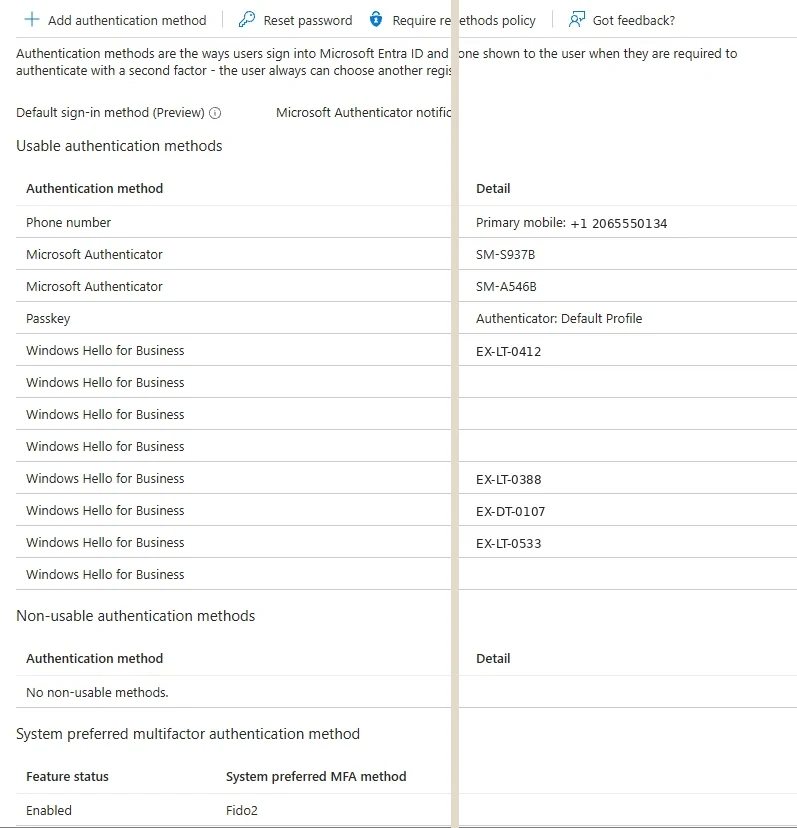
A user's authentication methods, in a different tenant. An attacker's Authenticator appears here as one more row. Select the image to open it full size.
Once the attacker's methods are gone, the user still has to get back in, and their own methods may have been removed or distrusted too. A Temporary Access Pass solves that: a time-limited passcode an administrator issues so the user can sign in once and register fresh methods, without the helpdesk ever handling a password the attacker might intercept. It also closes a quieter gap. If the user resets their own password through self-service reset while an attacker's method is still registered, the attacker may be the one who receives the verification prompt.
Every one of these changes is itself recorded in the directory audit log, under the administrator who made it. That is useful evidence afterwards, showing exactly when each foothold was removed, and it is the record Module 6 uses to prove containment rather than assert it.
Blocking Sign-In
Disable the account, or block with policySometimes the right answer is to stop the account signing in at all while the investigation catches up. There are two ways, and they differ in what they cost and how precisely they can be aimed.
Disabling the account blocks every new sign-in and token request for it, everywhere. For services that support continuous access evaluation it is a critical event, so existing access tokens stop being honored close to real time. It is the strongest identity action available, and the bluntest: the user cannot work at all until it is reversed, and for a synchronized account it has to be done in Active Directory or it may be undone by the next sync.
An emergency Conditional Access policy can be aimed more narrowly. It can block the account only from outside named locations, block particular applications, require a compliant device, or force a fresh sign-in with strong authentication. A policy that blocks sign-in for one user except from the corporate network stops a remote attacker while the user keeps working in the office.
Two ways to stop sign-in, read left to right. The choice turns on whether the attacker's access can be described narrowly.
Disabling from Microsoft Graph PowerShell is one command, and reading the property back confirms it took:
PS C:\> Update-MgUser -UserId c.richardson@ne.com -AccountEnabled:$false
PS C:\> Get-MgUser -UserId c.richardson@ne.com -Property AccountEnabled |
    Select-Object AccountEnabled

AccountEnabled
--------------
         False
The change is recorded in the directory audit log as an update to the user, under the administrator who ran it. Emergency policies live in the same list as every other policy:
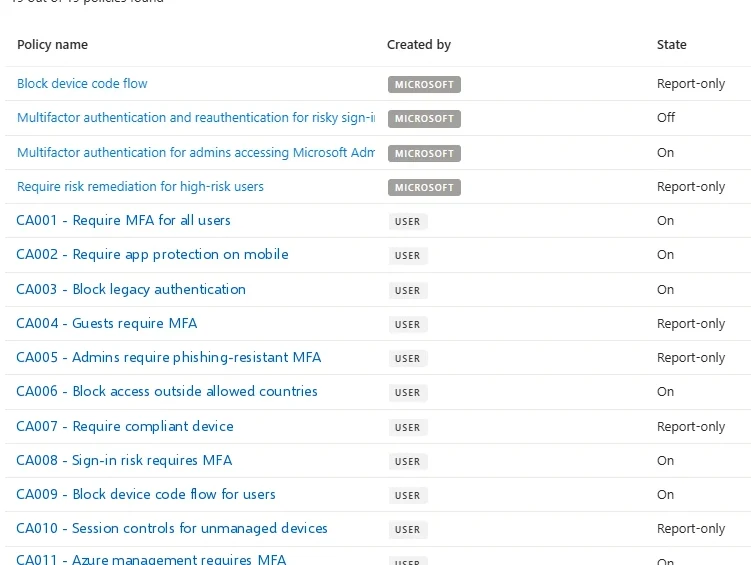
Conditional Access policies, in a different tenant. An emergency block is one more policy here, and its exclusions decide whether it works. Select the image to open it full size.
Both have a common trap. Conditional Access policies routinely exclude emergency access accounts and sometimes service accounts, and an attacker who controls an excluded account is untouched by any policy. Module 6 covers writing a policy under pressure without leaving that gap, and deleting it afterwards so it does not outlive the incident.
For the account in this lesson, the addition to Helpdesk Admins at 19:03 changes the calculation. Membership of an administrative group means the next person to control the account controls whatever that group administers. That is a strong argument for disabling the account outright until every foothold is removed, and for removing the membership before the account is re-enabled.
Identity protection offers a further option. Marking a user as compromised in Entra ID raises the user's risk to high, and a tenant with a risk-based Conditional Access policy will then block the account or force a secure password change, depending on how the policy is written. It is a useful way to apply the tenant's existing policy to one account quickly. It is only as strong as that policy, though, and in a tenant without one it records a judgment without enforcing anything.
Mailbox Footholds
Settings that work with nobody signed inInbox rules, forwarding, delegate permissions and transport rules are settings, not sessions. Once set, they keep working without anyone signed in, so no identity action touches them. They have to be found and removed directly, after capturing what they said.
The mailbox audit records show which ones an attacker created. For the addresses involved in the course dataset's incidents, one query lists every mailbox configuration change made from them:
OfficeActivity
| where Operation in ("New-InboxRule", "Set-InboxRule", "Set-Mailbox",
                      "Add-MailboxPermission", "New-TransportRule",
                      "Set-TransportRule")
| where ClientIP startswith "185.234.72."
| project TimeGenerated, UserId, Operation, Parameters
Two rows: the inbox rule at 18:49 on 27 February, and a Set-Mailbox on 3 March at 21:18 whose parameters set ForwardingSmtpAddress to an outside address at protonmail.com with DeliverToMailboxAndForward set to True. Note the dates. The forwarding was set five days after the first sign-in, from the same address, which means the attacker still had working access on 3 March. The second is the more damaging of the two. The rule hid payment mail from the user; the forwarding sent a copy of every message to the attacker, and because it delivered to the mailbox as well, the user saw nothing missing.
Four mailbox footholds, each captured before it is removed. None of them needs anyone signed in to keep working.
Transport rules deserve the most attention when an administrator account is involved, because they work at the level of the whole organization rather than one mailbox. The course dataset records only a handful of transport rule changes in a month, against hundreds of inbox rule changes, which makes any new one worth reading.
One property of inbox rules catches investigators out. A rule can be created through interfaces other than Outlook, and some rules created that way do not appear in the Outlook rules list or in the default output of Get-InboxRule. The -IncludeHidden parameter lists them as well, and a foothold inventory should always use it. An attacker who knows this creates the rule a user cannot see and an administrator checking in a hurry does not either.
The capture step from lesson 0.4 applies to every item in this section. The rule's conditions, the forwarding address and the delegate's identity are what the investigation needs to scope what was intercepted, and once removed they exist only in the audit record's parameters, if they were captured there at all.
Applications and Shared Links
Access that belongs to something elseApplication grants are the foothold most often missed, because nothing about the user changes when they are removed and nothing about them changes when the user is contained. The application consented to at 18:55 read the compromised mailbox through Microsoft Graph for a week, as lesson 0.5 showed, and every action in sections two to five would have left it running.
Containment for an application means removing the user's grant to it and, if the application is malicious, stopping it from signing in to the tenant at all. Listing the user's grants comes first:
PS C:\> $sp = Get-MgUserOauth2PermissionGrant -UserId c.richardson@ne.com -All
PS C:\> $sp | Format-List ClientId, Scope

ClientId : 4b1d7e2a-9c36-4f85-a0d2-7e6b3c9f1a58
Scope    : openid profile User.Read

ClientId : c9a2f6e1-3b84-4d7c-9e05-2a6f8b1d4e37
Scope    : Mail.Read Mail.ReadWrite Contacts.Read offline_access
The second grant matches the consent record. Its client ID identifies the application's service principal, which can then be disabled so it can no longer obtain tokens for anyone in the tenant, and the grant itself removed. Module 6 covers the difference between those two steps and when each is right.
Shared links are the other access that outlives identity. A link created with anyone-with-the-link access to a file or folder works for whoever holds the URL, with no sign-in at all. The course dataset records over a hundred AnonymousLinkCreated operations in a month, most of them legitimate. Any created from an attacker's session have to be found and removed, because containing the account does nothing to a link already sent outside.
Disabling a malicious application's service principal and removing one user's grant are different scales of action. Removing the grant ends that application's access to that user's data. Disabling the service principal stops the application from obtaining tokens in the tenant at all, which matters when other users may also have consented, and in a consent-phishing campaign several usually have. The audit log's consent records, searched for the application's name, show who else granted it.
An application's grants are read on its enterprise application page:
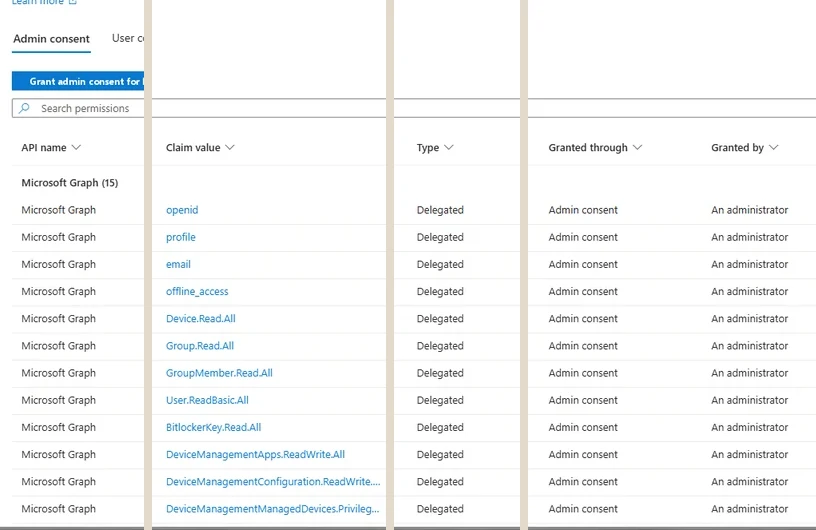
Permissions for one enterprise application, in a different tenant. The User consent tab lists each user's grant, which is where a consent-phishing grant is removed. Select the image to open it full size.
Preventing the next one is a tenant setting. Entra ID can restrict which applications users may consent to on their own, for example only to applications from verified publishers asking for low-risk permissions, with everything else routed to an administrator for approval. That is a preparation decision rather than a containment action, and it belongs in the improvements the incident produces.
Choosing and Ordering
A decision someone can make in a minuteWith the actions laid out, containment becomes a sequence rather than a single step, and the sequence matters. The aim is to close each layer in an order that stops the remaining layers from reopening it, while capturing everything before it is removed.
The containment order. Each step makes the next one safe: nothing reopens while the footholds come out.
Applied to the finance account, the sequence becomes a plan somebody can approve line by line:
Containment plan: c.richardson@ne.com
Prepared exampleIn order
- 1. Export inbox rules, forwarding, permissions, methods and grants; hold the mailbox
- 2. Disable the account: the admin group makes a narrow block too weak
- 3. Remove the Authenticator added at 18:58 and clear the recovery address
- 4. Remove from Helpdesk Admins; remove Archive-2026 and the forwarding
- 5. Remove the Mail Reader Pro grant; disable its service principal
- 6. Reset the password, then revoke sessions
- 7. Re-enable; watch sign-ins and Graph requests for 48 hours
The first step is the one that gets skipped in a hurry, and lesson 0.4 explained what it costs. The second is the one that makes the rest safe, because removing footholds while the attacker still has a live session invites them to add new ones. The last is the one that proves containment happened, and Module 6 treats it as a step in its own right rather than an afterthought.
Every action also has a cost to somebody, and the incident lead's job is to put that cost in front of whoever has to accept it. "Disabling the finance director's account stops her working for about an hour; leaving it means an account in an administrative group stays reachable" is a decision. Presented that way, it is usually made in a minute, and recorded in the decision log with the time and the name of the person who made it.
There is one deliberate exception to containing quickly. When an attacker's access is understood, low in privilege and being watched, an investigation may choose to leave it running for a short time to learn more: which other accounts it reaches, which infrastructure it uses, what it is looking for. That is a decision for the incident lead and the business together, made explicitly with its risk recorded, never a default arrived at by not getting round to containment. For an account in an administrative group, as here, it is almost never the right choice.
What Module 6 Builds On It
Containment and eradication in practiceModule 6, Containment and Eradication, takes each action into depth. It covers containment without infrastructure, revocation and the four populations it misses, the emergency policy written under pressure, choosing between disabled, contained and left running, the reset that leaves a method behind, application and workload identity containment, mailbox footholds and the limits on removing them, sharing links that outlive identity, proving containment landed, and the synchronization boundary with on-premises Active Directory.
The habit to take into it is to start every containment with a foothold inventory, not an action. For any compromised account, one query lists the directory changes the account made since the attacker arrived, which is where most of the footholds are recorded:
AuditLogs
| where TimeGenerated > datetime(2026-02-27T18:47:00Z)
| where tostring(InitiatedBy.user.userPrincipalName) == "c.richardson@ne.com"
| summarize Changes = count(), First = min(TimeGenerated) by OperationName
| order by First asc
Each operation in the result is a candidate foothold to read, capture and remove. Combined with the mailbox query in section five and the grant listing in section six, it covers every layer this lesson described.
Practice
What did containment miss? prepared evidenceThe prepared evidence below is a containment log for a compromised account, followed by the activity the tenant recorded over the next two days. Find what the containment missed and say which action would have closed it.
The second path is to build the foothold inventory for an account yourself, from the course dataset or your own tenant, before deciding on any action.
- Run the query in section one and list every directory change the stolen session made.
- Run the mailbox query in section five and add every rule, forwarding and permission change.
- List the account's application grants and authentication methods, in your own tenant with the commands in sections three and six.
- Write the containment sequence from section seven against your list, with the cost of each step to the user.
Containment in a tenant is a set of actions, each closing one layer of access: revocation ends sessions, a reset ends the password, method and recovery changes end the ways back in, disabling or a policy blocks sign-in, and mailbox, application and link footholds are removed directly because no identity action reaches them. Capture first, block second, remove and reset, then prove it in the logs.
The next lesson steps back to the attacks themselves, and how each common pattern on Microsoft 365 unfolds from first contact to these footholds.
Resources
Microsoft revises these pages; where a page and this lesson disagree, the page is newer.