
Reading width
Wide uses the full column for everything, text, diagrams, code, and exercises. Narrow keeps the standard reading width.
Text size
Scales the body text. Headings and code blocks keep their size.
In this section
0.2 Users and Groups
Introduction
A user is what an attacker signs in as, and a group is how that user reaches things. Almost every route into a tenant in this course starts with one account, and almost every piece of access in a tenant is granted to a group rather than to a person.
Before you can defend either, you need to know where an account comes from, what it can do on its first day without anyone granting it anything, and who decides what a group grants.
This lesson covers the three places a user can come from, what the User type field does and does not tell you, what an ordinary member can do by default, the group and membership types, the full list of who can change a group's members, the protected kind of group built for roles, and the audit operations that record all of it.
It ends with Copilot answering who can reach a group's resources, and you checking it.
Where a User Comes From
Cloud, synced or invitedEvery person in a tenant is a user object with a user principal name, an object ID and a set of properties. What the portal list does not show at a glance is where that object is maintained, and that matters more than anything else on it.
A cloud-only user is created in Entra ID, by an administrator, a script or a provisioning application, and its password and properties live there. A synced user is created in on-premises Active Directory and copied up by Entra Connect; its source of authority is on-premises, so its properties, and with password hash sync its password, are changed there and flow up.
A guest is invited from outside: the user object sits in your tenant, but the credential belongs to the guest's own organization or identity provider.
Three users that look alike in the portal. Where each one's password lives, and where its properties are changed, decides where an attacker has to be to take it over.
This is the first thing to establish about any account in an investigation, because it tells you where the attacker had to be. A synced account can be taken over by an attacker who owns on-premises Active Directory without ever touching the cloud, and the change arrives in Entra ID as ordinary synchronization; Module 10 follows that route.
A guest's password is reset in a tenant you do not control, although your own Conditional Access policies still apply when the guest signs in to yours.
Microsoft records the guest side in two separate properties. User type is Member or Guest.
Microsoft describes Member as an employee of the host organization and Guest as someone who isn't considered internal, such as an external collaborator, partner or customer, and it is explicit that the user type has no relation to how the user signs in or to the user's directory role. Identities records the primary identity provider: another Entra organization, a Microsoft account, your own domain, a one-time passcode sent by email, or an external SAML or WS-Federation provider.
The two are independent. A guest can be given User type Member, and Microsoft's advice is to change it only when the person's relationship to the organization changes. Until an invitation is redeemed the guest account has no credentials at all, and the admin center shows its invitation state as Pending acceptance.
Entra Admin Center
Entra ID › Users › All users › Alex Morgan › Properties
User type
MemberOn-premises sync enabled
NoRead User type for member or guest, Creation type (Invitation for an invited account, empty for a cloud user) and On-premises sync enabled for an account whose source of authority is Active Directory. Yes there means change it on-premises.
In PowerShell, one query sorts the whole tenant by the two properties that matter. The Microsoft Graph PowerShell module returns only a few properties unless you ask for more, so the command names them:
PS C:\> $s = 'User.Read.All', 'Group.Read.All', 'AuditLog.Read.All', 'Policy.Read.All'
PS C:\> Connect-MgGraph -Scopes $s
PS C:\> $p = 'DisplayName', 'UserType', 'OnPremisesSyncEnabled', 'ExternalUserState'
PS C:\> Get-MgUser -All -Property $p | Group-Object UserType, OnPremisesSyncEnabled |
    Select-Object Count, Name

Count Name
----- ----
  214 Member,
   37 Member, True
   12 Guest,
Thirty-seven members are synced from Active Directory and twelve accounts are guests. The guest list is worth reading on its own, because a guest that never accepted its invitation has no credential yet and is a standing offer to whoever controls that email address:
PS C:\> Get-MgUser -Filter "userType eq 'Guest'" -All -Property $p |
    Sort-Object ExternalUserState |
    Select-Object DisplayName, ExternalUserState -First 4

DisplayName   ExternalUserState
-----------   -----------------
Jo Kim        Accepted
Lee Brandt    Accepted
Sam Okafor    PendingAcceptance
Dana Ito      PendingAcceptance
For one account at a time, the user's Overview page in the admin center puts the same facts beside the counts that show how far the account reaches:
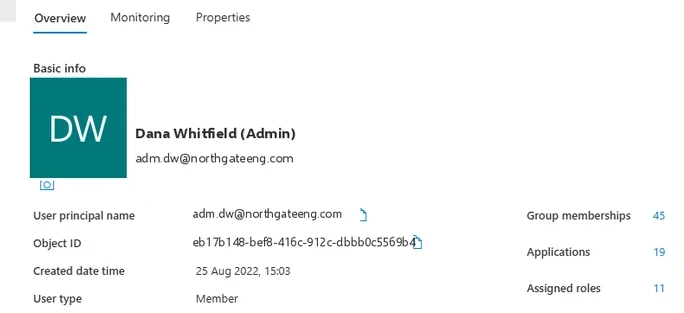
A user's Overview page. User type, the creation date and the four counts on the right (groups, applications, roles, licenses) are the first things to read about any account. Select the image to open it full size.
On a user's Overview page, read User type and the creation date first, then the counts on the right. An account with forty-five group memberships, nineteen applications and eleven assigned roles, like this one, is an administrator in all but name, whatever its display name says, and it is worth knowing why before anything else.
What Every User Can Do on Day One
The default member permissionsAn ordinary member user is not powerless, and the defaults are generous. Microsoft lists them: member users can register applications, manage their own profile photo and mobile phone number, change their own password and invite B2B guests, and they can read all directory information with a few exceptions.
That reading includes enumerating every user and contact, every public property of them, and every group. Members can also create security groups and Microsoft 365 groups.
Put that next to the first step of most intrusions.
An attacker who signs in as any single user, the receptionist as readily as the finance director, can list every account and group in the tenant, find the administrators by their group memberships, invite an outside account of their own as a guest, and register an application. Each of those is useful reconnaissance or a foothold, and none needs any privilege.
Entra Admin Center
Entra ID › Users › User settings
Users can register applications
YesUsers can create security groups
YesUsers can register applications and Users can create security groups are Yes in a new tenant. Guest invitation settings are under External Identities, External collaboration settings.
The same settings sit in one Graph object, the tenant's authorization policy:
PS C:\> $a = Get-MgPolicyAuthorizationPolicy
PS C:\> $a.DefaultUserRolePermissions |
    Format-List AllowedToCreateApps, AllowedToCreateSecurityGroups
PS C:\> $a | Format-List AllowInvitesFrom, GuestUserRoleId

AllowedToCreateApps           : True
AllowedToCreateSecurityGroups : True

AllowInvitesFrom : everyone
GuestUserRoleId  : 10dae51f-b6af-4016-8d66-8c2a99b929b3
Microsoft documents the values. AllowInvitesFrom set to everyone means everyone in the organization, including guests, can invite guests, and it is the default in every cloud except US Government; the stricter values limit invitations to administrators and the Guest Inviter role.
The GuestUserRoleId shown is the default Guest User role; the Restricted Guest User role has its own ID. A tenant that has never been reviewed usually shows exactly this output.
Several of these defaults can be turned off in the user settings: registering applications, creating security groups and creating Microsoft 365 groups each have a setting, and the application one can be granted back to specific people through the Application Developer role. Guest invitations have their own settings in External collaboration. One setting does less than its name suggests.
Microsoft states that Restrict access to Microsoft Entra administration portal limits access to some admin center pages and is not a security measure, and that the stronger control is a Conditional Access policy on the Windows Azure Service Management API. Directory reading cannot practically be removed from members; Microsoft does not recommend the Graph setting that does it.
Guests start from less. By default a guest can read its own properties and limited properties of other users, and the Guest user access restrictions setting decides whether guests have the same access as members, the limited default, or access only to their own directory objects. Microsoft adds one sentence worth remembering: guest users can still be added to administrator roles regardless of this setting.
Accounts to Treat Differently
Administrators, break-glass, disabled and deletedSome accounts carry more than their owner's daily work, and Microsoft's guidance treats them separately. Its advice on protecting Microsoft 365 from on-premises attacks is direct: use cloud-only accounts for Microsoft Entra ID and Microsoft 365 privileged roles, and no on-premises account should have administrative privileges in Microsoft 365. The reason follows from the first section.
An administrator account synced from Active Directory can be changed, password and all, by whoever controls Active Directory, so a synced administrator puts the whole tenant within reach of an on-premises intrusion. Microsoft extends the same advice to groups: synchronized objects should hold no privileges beyond those of an ordinary user.
Finding the privileged accounts that are synchronized from on-premises takes the role assignments and the sync flag together:
PS C:\> $ids = (Get-MgRoleManagementDirectoryRoleAssignment -All).PrincipalId |
    Sort-Object -Unique
PS C:\> $ids | ForEach-Object {
    Get-MgUser -UserId $_ -Property UserPrincipalName, OnPremisesSyncEnabled `
        -ErrorAction SilentlyContinue } |
    Where-Object OnPremisesSyncEnabled |
    Select-Object UserPrincipalName
Each name it returns is an administrator whose password and account can be changed from the domain, which is the exposure the guidance above tells you to remove.
Two more habits follow from it. An administrator's privileged account should be separate from the account they read mail and browse with, so that a phishing link or a malicious attachment lands on an account that holds no role. And every tenant needs emergency access accounts, sometimes called break-glass accounts: cloud-only accounts kept outside the normal sign-in policies for the day those policies lock every administrator out.
Because they sit outside the controls, Microsoft's guidance is to monitor them closely, alerting on their sign-ins, credential changes, group membership updates and application assignments. An emergency access account that signs in on an ordinary Tuesday is an incident until proven otherwise.
The life of an account matters as much as its start. A disabled account keeps all its memberships and assignments and cannot sign in until someone enables it again. A deleted account is not gone: Microsoft keeps it suspended for 30 days, during which it, and its properties and licenses, can be restored from Deleted users by an administrator with at least the User Administrator role.
After 30 days, or sooner if someone chooses Delete permanently, it is gone for good and nobody, Microsoft Support included, can bring it back. A synced account deleted only in the cloud may simply reappear at the next synchronization if it still exists in Active Directory.
Each state is something an attacker can use. Re-enabling a dormant account, or restoring a deleted one, revives an identity that nobody is watching any more, along with whatever access it still holds, and both are single audit entries that are easy to overlook. Lesson 0.5 returns to administrator accounts, and Module 9 to the persistence built from forgotten ones.
Groups: Two Types, Two Ways to Fill Them
Security and Microsoft 365; assigned and dynamicEntra ID manages two group types. Security groups manage access to shared resources; their members can be users, devices and service principals, and they can be nested inside other security groups. Microsoft 365 groups provide collaboration: a shared mailbox, calendar, SharePoint site and Teams team. Their members can only be users, and people outside the organization can be members.
Distribution lists and mail-enabled security groups exist too, but they are managed in Exchange, not in the Entra admin center.
The two types, and how each group is filled, are readable for every group in one pass:
PS C:\> Get-MgGroup -All -Property DisplayName, GroupTypes, SecurityEnabled |
    Select-Object DisplayName,
        @{ n = 'Type'; e = { if ($_.GroupTypes -contains 'Unified') {
            'Microsoft 365' } else { 'Security' } } },
        @{ n = 'Dynamic'; e = { $_.GroupTypes -contains 'DynamicMembership' } }
The dynamic column matters most for defense: a dynamic group grants whatever it grants to anyone whose attributes match its rule, so whoever can edit those attributes decides its membership.
Each group is filled one of two ways. An assigned group has members someone adds and removes. A dynamic group has a rule, and Entra ID adds and removes users, or devices, automatically as their attributes match it. A dynamic group holds users or devices, never both.
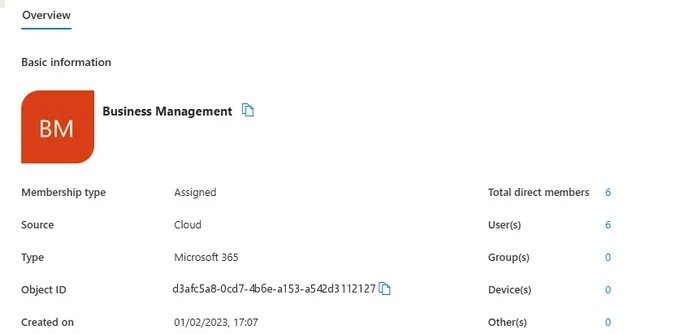
A group's Overview page. Membership type and Source answer the first two questions about any group: who maintains its members, and where. Select the image to open it full size.
Two fields on a group's Overview page answer the questions an investigator asks first. Membership type says whether people add members or a rule does. Source says whether the group is maintained in the cloud or synced from on-premises Active Directory, and a synced group can only be managed on-premises, so a membership change to it was made in Active Directory and synchronized up.
Nesting changes who is really in a group. When one security group is nested in another, its members get whatever the parent group grants. A group with four people on its member list can grant access to fourteen, and the Direct members tab will show only the four.
Who Decides What a Group Grants
Every path into the member listAccess is granted to the group once, by whoever owns the resource: a SharePoint site, an application assignment, a license, a Conditional Access exclusion, an Azure role.
From then on the resource checks membership and nothing else. It does not check who added the member, when or why. The real question about any group that grants something valuable is therefore who can change its membership, and the list is longer than most tenants assume.
The resource trusts the group, and the group trusts everyone who can change it. Securing the resource means knowing the bottom and top rows, not only the members.
Owners can add and remove members, and Microsoft's own guidance is to give each group at least two. Owners can be users or service principals, so an application can own a group, and anyone holding that application's credential can change the group with no person signing in. Administrators in roles such as Groups Administrator and User Administrator can change most groups in the tenant. Applications granted Microsoft Graph permission to write groups can change them through the API. A synced group's membership is whatever on-premises Active Directory says it is. And a dynamic group's membership is decided by its rule, which is only as trustworthy as the attributes it reads and the people and systems that can write those attributes. A rule that adds everyone whose department is Finance hands membership to whoever can set the department field.
Entra Admin Center
Entra ID › Groups › All groups › Finance Files
Membership type
AssignedSource
CloudOpen Owners first, then Members. Direct members lists the group's own entries; All members adds everyone who arrives through a nested group.
The PowerShell reads both lists in one pass. Get-MgGroupTransitiveMember returns members at every level of nesting, which is the list the resource actually honors; Get-MgGroupMember returns only the direct ones:
PS C:\> $g = Get-MgGroup -Filter "displayName eq 'Finance Files'"
PS C:\> $name = { $_.AdditionalProperties.displayName }
PS C:\> Get-MgGroupOwner -GroupId $g.Id | ForEach-Object $name
PS C:\> Get-MgGroupTransitiveMember -GroupId $g.Id -All | ForEach-Object $name

Priya Raman
Marcus Hale
HR Sync Connector
Priya Raman
Marcus Hale
Elena Novak
Tom Reyes
Finance Contractors
Owen Hughes
Jo Kim
Three owners, one of them an application, then seven names in the transitive list where the Direct members tab shows five, because the nested group's two members appear as well.
Each of these is a route, and attackers take whichever is least watched. Membership of a group that excludes accounts from MFA, or grants an administrative role, is worth as much as the role itself.
Groups That Hold Roles
The protected kindDirectory roles can be assigned to a group instead of to individual users, and Microsoft built a separate kind of group for it, because the risk is plain: if an ordinary group held a role, anyone who could manage the group could give themselves the role.
A role-assignable group is created with the setting Microsoft Entra roles can be assigned to the group, isAssignableToRole in Graph, and that setting can only be chosen when the group is created; it can never be added to an existing group or removed afterwards.
The protections are specific. A role-assignable group must have assigned membership; it cannot be dynamic, because a rule would hand the role to whoever could change the attributes. It cannot contain another group, so its full membership is always on its own member list. By default only Privileged Role Administrators manage its members, and that can be delegated to named owners.
Through Graph, its membership needs the RoleManagement.ReadWrite.Directory permission, and Group.ReadWrite.All does not work. And to change the credentials, reset the MFA or change sensitive attributes of any member or owner, an administrator needs at least the Privileged Authentication Administrator role, so a helpdesk role cannot take over a member account and inherit the role through it.
Role-assignable groups need Entra ID P1, and a tenant can have at most 500 of them.
Listing them is one filter, because Graph supports filtering on isAssignableToRole. Every group it returns guards a directory role, so its owners and members belong on the same review as the role itself:
PS C:\> Get-MgGroup -Filter 'isAssignableToRole eq true' -All |
    Select-Object DisplayName, MembershipRule

DisplayName                 MembershipRule
-----------                 --------------
Tier 0 Admins
Helpdesk Operators
Security Readers
They can also be made eligible for a role through Privileged Identity Management instead of holding it permanently, and here Microsoft gives a warning in its own documentation: require approval for eligible member assignments, because without it a less privileged administrator could reset a member's credentials and activate the role on their behalf. Lesson 0.5 takes roles and PIM in full.
The Record It Leaves
User and group operations in the audit logEvery change described in this lesson is an operation in the audit log, recorded under Core Directory with a category of UserManagement or GroupManagement, the target, and the actor who made it.
Add member to group and Remove member from group record membership; Add owner to group records a new owner; Add user, Update user, Delete user and Restore user record accounts, and Disable account and Enable account record an account switched off or back on; and an invitation is recorded by the Invited Users service as Invite external user.
The actor is the field to read first. A membership change made by a group's named owner during working hours, a change made by an application at two in the morning, and a change made by Microsoft's synchronization from on-premises are three different stories with the same activity name.
Read the target as carefully: an Add member to group entry names both the member added and the group it joined, so a single filter on a sensitive group's name returns every route into it, whichever actor took it.
The same search in PowerShell filters on the activity and on the target's display name, both of which Graph supports for directory audit records, and prints the actor whether it was a person or an application:
PS C:\> $f = "activityDisplayName eq 'Add member to group' and " +
    "targetResources/any(t: t/displayName eq 'Finance Files')"
PS C:\> $who = { $i = $_.InitiatedBy; $i.User.UserPrincipalName + $i.App.DisplayName }
PS C:\> Get-MgAuditLogDirectoryAudit -Filter $f -All |
    Select-Object ActivityDateTime, @{n='Actor'; e=$who}

ActivityDateTime      Actor
----------------      -----
11/9/2026 2:14:07 AM  HR Sync Connector
11/3/2026 10:12:44 AM priya.raman@example.com
Lesson 0.10 covers the audit log in full, and Module 9 builds the persistence detections on these operations.
Asking Copilot Who Can Reach a Group
Delegate, then verifyThe question a defender asks of any group that guards something valuable is who can reach it and who can change that. Asked of the group that grants the finance team's SharePoint site, Copilot in the admin center gives a prepared example like this one:
- Finance Files has 4 members, all of them finance staff. (Group members)
- Membership can be changed by the group's owner, Priya Raman. (Group owners)
- The group is a security group with assigned membership. (Group properties)
- No external users have access through this group. (Group members)
This is the prompt lesson 0.9 rewrote from the original question: it names both neighbors, nested members and every kind of owner, and asks for lines rather than a verdict. The answer cites the members page for claims 1 and 4, which is where the fifth row it skipped is waiting.
Check it against the group itself. The Direct members tab lists four people, and a fifth row:
| Name | User principal name | Type | User type |
|---|---|---|---|
| Priya Raman | priya.raman@example.com | User | Member |
| Marcus Hale | marcus.hale@example.com | User | Member |
| Elena Novak | elena.novak@example.com | User | Member |
| Tom Reyes | tom.reyes@example.com | User | Member |
| Finance Contractors | (group, 2 members) | Group | Security |
Claim 1 counts four members and calls them all finance staff, but Finance Contractors is a nested group, and its members reach the site as well; one of them is a guest from a partner organization, which is where claim 4 fails too. Claim 2 names one owner.
The Owners tab has three, and the third is HR Sync Connector, a service principal, so the group can be changed by anyone holding that application's credential, as well as by administrators in the group roles. Only claim 3 survives: the group is a security group with assigned membership.
None of Copilot's sentences is badly written, and each answers a narrower question than the one asked. It counted direct members, read the first owner and checked for guests on the group's own list. The record you keep names what it missed: the nested group, the application owner and the guest inside the nest.
What This Module Builds On It
Users and groups in every later moduleUsers and groups come back in every module. The password attacks of Module 2 target user accounts, and the response to them is reset in the right place, cloud or on-premises. The Conditional Access exclusions of Module 3 are groups, and their membership is an attack path.
Module 7 follows role-assignable groups and PIM. Module 9 detects the quiet membership changes and guest invitations attackers use for persistence. Module 10 follows synced users and groups back to the Active Directory they come from.
The membership changes later modules hunt for are already in the lab tenant's audit log, by the account that made them:
AuditLogs
| where TimeGenerated > ago(30d) and Category == "GroupManagement"
| summarize Changes = count(), Operations = make_set(OperationName)
    by Actor = tostring(InitiatedBy.user.userPrincipalName)
| order by Changes desc
Two administrators make almost all of them, which is the baseline: a membership change made by anyone else is worth a question, and Module 7 shows one that was made from an attacker's address.
Practice
Who is really in this group? prepared evidenceThe scenario below holds Copilot's answer about the Finance Files group, the group's members and owners, and a month of membership and invitation entries from the audit log. Work it as delegate, verify, record: check each of Copilot's claims, find everyone who reaches the finance site through the group, and find the change that brought an outsider into reach.
If you have a tenant of your own, open Groups, pick a group that grants access to something that matters, and read its Owners tab and both its Direct members and All members views, then filter the audit log to the GroupManagement category with that group as the target. Ask Copilot the same question first and compare.
A user's risk is set by where its credential lives, and a group's by everyone who can change its members: owners, administrators, applications, on-premises Active Directory and the attributes behind a dynamic rule.
Ordinary members can enumerate the directory, invite guests and register applications on their first day unless the settings stop them. Role-assignable groups exist because a group that holds a role is worth the role, and every change to any of this lands in the audit log under an actor worth reading first.
Resources
Microsoft revises these pages; where a page and this lesson disagree, the page is newer.
- Microsoft Learn: Learn about groups and access rights in Microsoft Entra ID
- Microsoft Learn: B2B guest user properties
- Microsoft Learn: Use Microsoft Entra groups to manage role assignments
- Microsoft Learn: What are the default user permissions in Microsoft Entra ID?
- Microsoft Graph: authorizationPolicy resource type
- Microsoft Graph: group resource type
- Microsoft Graph: directoryAudit resource type