
Reading width
Wide uses the full column for everything, text, diagrams, code, and exercises. Narrow keeps the standard reading width.
Text size
Scales the body text. Headings and code blocks keep their size.
In this section
0.3 Applications and Service Principals
Introduction
Applications are the identities nobody watches. A person signs in with a password and MFA, is challenged by Conditional Access and is noticed when they behave strangely.
An application signs in with a secret or a certificate, has no MFA to satisfy, works at three in the morning without anyone finding it odd, and can be granted access to every mailbox and every file in the tenant. When Microsoft's own corporate mail was read in 2024, it was read by applications.
This lesson covers the two objects behind every application, the kinds of service principal, how an application signs in as itself, the two kinds of permission and what each really reaches, who can consent to what, how to read what any application holds in the portal and in Graph PowerShell, and the audit record.
It ends with Copilot answering which applications can read mail without a user, and you checking it.
One Application, Two Objects
The registration and the service principalMicrosoft defines an application by its one and only application object, which lives in the tenant where the application was registered, its home tenant. That object, shown in the admin center under App registrations, is the definition: the name, the addresses tokens are sent to, the permissions it asks for, and its credentials.
What acts in a tenant is the second object, the service principal, shown under Enterprise apps. Microsoft describes it as the local representation, or application instance, of the application object in a single tenant, and it defines what the app can actually do there, who can access it and what resources it can reach.
One application object can have many service principals, one in each tenant that uses it, and a multitenant application gets a service principal in every tenant where someone has consented to it. Each service principal holds only the permissions that tenant granted.
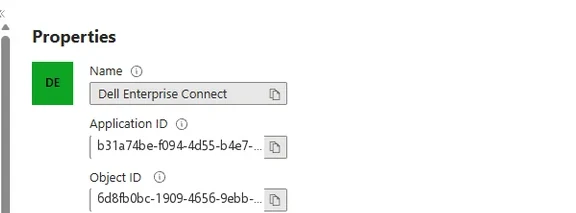
An enterprise application, the service principal, in the admin center. Application ID is the same in every tenant that uses the app; Object ID belongs to this tenant's service principal alone. Select the image to open it full size.
Two IDs on the enterprise application's Overview page tell you which object you are looking at. Application ID, also called the client ID, identifies the application and is the same in every tenant. Object ID identifies this tenant's service principal and nothing else. Logs, PowerShell output and Microsoft's own guidance use both, and confusing them is the most common mistake in an application investigation.
Entra Admin Center
Entra ID › Enterprise apps › All applications › Invoice Scanner
Application ID
same in every tenantObject ID
this tenant onlyThis is the service principal: its permissions, users, sign-ins and owners in this tenant. If the app was registered here, App registrations holds the second object, with its credentials and requested permissions.
Start every application question from the enterprise application, because that is the object the tenant's access hangs on, and move to the registration only when the question is about credentials or what the application asks for.
Not every service principal has an application object behind it. Microsoft lists three kinds. An application service principal is the instance of a registered application. A managed identity represents an Azure resource, has no application object, and exists to remove the need for anyone to manage its credentials.
A legacy service principal was created before app registrations existed or through an older experience, has no registration, and works only in the tenant where it was created.
The kinds matter in an investigation because each is reached differently. An application service principal for a multitenant app answers to a registration in someone else's tenant: its publisher can add a credential you will never see, and the only control you hold is the grant on your side, which you can remove.
An application registered in your own tenant answers to you, and so do the owners and administrators who can change it. A managed identity can only be used from the Azure resource it belongs to, so taking it over means taking over that resource. A legacy service principal sits outside the registration model entirely, which makes it easy to forget and therefore worth listing.
How an Application Signs In
Secrets, certificates and no MFAAn application signs in as itself with a credential: a client secret, which is a password the tenant generated, or a certificate, whose private key the application holds. It presents the credential to Entra ID, receives an access token naming the application, and calls the API with it.
No person is involved, no MFA prompt is possible, and the sign-in appears in the service principal sign-ins log rather than any user's.
That makes every credential on an application as valuable as the permissions it unlocks, and credentials can live in two places. They are normally added to the application object under App registrations, Certificates & secrets. They can also be added directly to a service principal, where the App registrations page never shows them.
An attacker who can add a credential to an application that already holds broad permissions inherits all of those permissions without creating anything new, which is why the roles that can do it, Application Administrator, Cloud Application Administrator and the application's own owners, matter as much as the permissions themselves.
Inventory both places. In PowerShell, one pass over the service principals finds credentials added there, where the portal is least likely to show them:
PS C:\> $s = 'Application.Read.All', 'Directory.Read.All', 'Policy.Read.All'
PS C:\> Connect-MgGraph -Scopes $s
PS C:\> $p = 'DisplayName', 'PasswordCredentials', 'KeyCredentials'
PS C:\> Get-MgServicePrincipal -All -Property $p |
    Where-Object { $_.PasswordCredentials -or $_.KeyCredentials } |
    Select-Object DisplayName, @{n='Secrets'; e={ $_.PasswordCredentials.Count }},
        @{n='Certificates'; e={ $_.KeyCredentials.Count }}

DisplayName          Secrets Certificates
-----------          ------- ------------
Invoice Scanner            1            0
And the same pass over application objects finds the ordinary ones:
PS C:\> Get-MgApplication -All -Property $p |
    Where-Object { $_.PasswordCredentials -or $_.KeyCredentials } |
    Select-Object DisplayName, @{n='Secrets'; e={ $_.PasswordCredentials.Count }},
        @{n='Certificates'; e={ $_.KeyCredentials.Count }}

DisplayName          Secrets Certificates
-----------          ------- ------------
Backup Sync Service        2            0
HR Sync Connector          1            1
Invoice Scanner            1            0
Report Builder             0            1
Invoice Scanner appears in both lists: it has a secret on its registration and another added straight to its service principal. Two credentials in two places for one application is worth an explanation, and the audit log will show who added the second. Managed identities are absent from both lists by design, because Azure manages their credentials and nobody can copy one out.
Who can add a credential is the question that follows. An application's owners, listed on both objects' Owners pages, can manage it, credentials included, and owners are often the developer who registered it, a former employee, or nobody.
Directory roles add more: Application Administrator and Cloud Application Administrator can manage all aspects of app registrations and enterprise apps across the tenant, which lesson 0.1 noted Microsoft marks as privileged. So the real exposure of an application holding Mail.Read as an application permission is everyone who can add a credential to it: its owners on either object, every holder of those two roles, and Global Administrators.
An ordinary user who owns a powerful application is, in effect, as powerful as the application. Secrets add one more weakness of their own: a secret is a string that can be pasted into a script, a pipeline or a chat message and copied from there, while a certificate's private key can be kept where it cannot be copied.
Microsoft's guidance prefers certificates or managed identities to secrets for that reason, and Module 6 returns to it.
Two Kinds of Permission
Acting as a user, or acting aloneAn application reaches data through permissions on an API, usually Microsoft Graph or Exchange Online, and every permission comes in one of two kinds.
Microsoft is precise about the difference. Delegated permissions allow the application to act on a user's behalf, and the application isn't able to access anything the signed-in user couldn't access. Application permissions, also called app roles, are used without a signed-in user, and the application can access any data that the permission is associated with.
Both kinds are visible on any service principal, side by side, in Graph PowerShell:
PS C:\> $sp = Get-MgServicePrincipal -Filter "displayName eq 'Mail Archiver'"
PS C:\> # delegated: what it can do as a signed-in user
PS C:\> Get-MgServicePrincipalOauth2PermissionGrant -ServicePrincipalId $sp.Id |
    Select-Object ConsentType, PrincipalId, Scope
PS C:\> # application: what it can do as itself
PS C:\> Get-MgServicePrincipalAppRoleAssignment -ServicePrincipalId $sp.Id |
    Select-Object ResourceDisplayName, AppRoleId
The first list is bounded by the users who consented; the second is bounded only by the permission itself, which is why the second list is the one to read first.
The same word, Mail.Read, means two different things. As a delegated permission it reaches one user's mail while that user uses the app; as an application permission it reaches every mailbox, with nobody signed in.
The effect is easy to underestimate because the names are the same. For a delegated permission, Microsoft notes that both the client and the user must be authorized separately: the application needs the permission and the user needs the underlying access. Mail.Read granted as a delegated permission lets an app read the mail of whoever is using it.
Mail.Read granted as an application permission lets the app read every mailbox in the tenant, at any time, with only its own credential. Exchange Online's full_access_as_app, the permission Midnight Blizzard granted to its applications, is the same kind of grant on a different API.
Both kinds are dangerous in an attacker's hands, in different ways. A delegated grant with offline_access lets an application keep acting as the user between their sign-ins, so a user tricked into consenting has handed over ongoing access to their mailbox. An application permission needs no user at all, and survives every password reset in the tenant.
Consent: Who Can Grant What
The rule that decides most application attacksPermissions are granted through consent, and the rules are short. For delegated permissions, Microsoft states that users can consent for their own data and admins can consent for all users. For application permissions, only an administrator can consent, specifically an administrator or the owner of the API's service principal. Some delegated permissions are high-privilege enough to require an administrator too.
Every grant of access to an application is one of two records, and each has its own audit activity. Reviewing an application means reading both.
Whether ordinary users may consent at all is a tenant setting, and it is the setting most consent phishing depends on.
Microsoft offers three choices: do not allow user consent; allow it only for apps from verified publishers, and apps registered in your own tenant, for permissions you classify as low impact; or allow user consent for apps, which lets every user consent to any permission that doesn't require admin consent, for any application. Microsoft recommends the middle option.
Entra Admin Center
Entra ID › Enterprise apps › Consent and permissions › User consent settings
Three choices: do not allow user consent; allow it for apps from verified publishers for permissions you classify as low impact; or allow it for all apps. The last is the one attackers rely on.
In PowerShell the setting is the list of permission grant policies assigned to the default user role, on the authorization policy lesson 0.2 read:
PS C:\> $d = (Get-MgPolicyAuthorizationPolicy).DefaultUserRolePermissions
PS C:\> $d.PermissionGrantPoliciesAssigned

ManagePermissionGrantsForSelf.microsoft-user-default-legacy
ManagePermissionGrantsForOwnedResource.DeveloperConsent
microsoft-user-default-legacy is the third choice: any user may consent to any application for any permission that does not need an administrator. The verified-publisher choice shows as microsoft-user-default-low, and no ManagePermissionGrantsForSelf entry at all means user consent is off. Module 4 follows the consent phishing that works against the legacy setting.
Reading What an Application Holds
Requested is not grantedAn application's registration lists what it asks for; its service principal records what it was given. The two pages are easy to confuse:
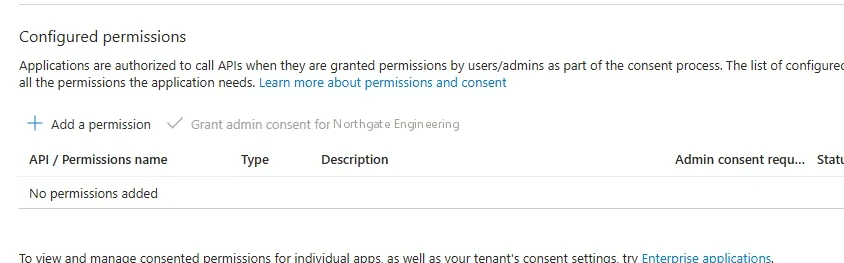
An app registration's API permissions page lists what the application asks for. What it has actually been granted is on the enterprise application's Permissions page. Select the image to open it full size.
This registration requests nothing at all. Configured permissions are only a request: the access is the grant, recorded on the service principal and read on the enterprise application's Permissions page.
Entra Admin Center
Entra ID › Enterprise apps › All applications › Meeting Notes AI › Permissions
Admin consent lists grants made for the whole organization, User consent lists each user who consented and to what. Type says Delegated or Application on every row.
Open on an application that has been in the tenant for a while, the Admin consent tab often holds more than anyone remembers granting:
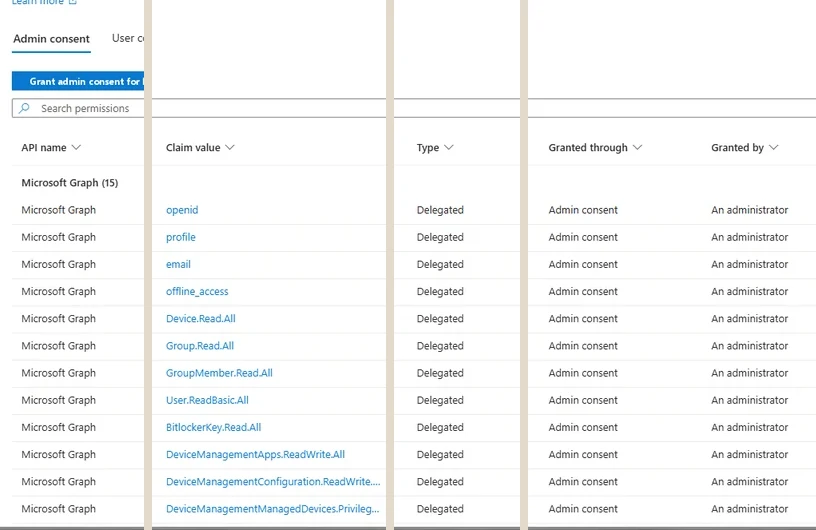
An enterprise application's Permissions page, Admin consent tab: fifteen delegated Microsoft Graph permissions granted for every user in the tenant. Select the image to open it full size.
These fifteen grants are all delegated, made by an administrator for every user, so the application can act as any user who signs in to it, within that user's own access. BitlockerKey.Read.All as a delegated permission reaches a recovery key only when the signed-in user is allowed to read it. The same permission as an application permission would reach every key in the tenant.
Reviewing one application at a time does not scale, so the tenant-wide view comes from PowerShell, one query for each kind of grant. Application permissions are app role assignments made on the API's service principal; for Microsoft Graph, whose application ID is the same everywhere, this lists every application holding one, with the permission's name:
PS C:\> $f = "appId eq '00000003-0000-0000-c000-000000000000'"    # Microsoft Graph
PS C:\> $graph = Get-MgServicePrincipal -Filter $f
PS C:\> $name = @{}; $graph.AppRoles | ForEach-Object { $name[$_.Id] = $_.Value }
PS C:\> Get-MgServicePrincipalAppRoleAssignedTo -ServicePrincipalId $graph.Id -All |
    Select-Object PrincipalDisplayName, @{n='Permission'; e={ $name[$_.AppRoleId] }}

PrincipalDisplayName Permission
-------------------- ----------
Backup Sync Service  Mail.Read
HR Sync Connector    User.ReadWrite.All
Report Builder       Sites.Read.All
Delegated grants are separate objects, each recording the application, the consent type and the scope. AllPrincipals means an administrator consented for everyone; Principal means one user consented for themselves:
PS C:\> $sp = @{}
PS C:\> Get-MgServicePrincipal -All | ForEach-Object { $sp[$_.Id] = $_.DisplayName }
PS C:\> Get-MgOauth2PermissionGrant -All |
    Select-Object @{n='App'; e={ $sp[$_.ClientId] }}, ConsentType, Scope

App              ConsentType   Scope
---              -----------   -----
Meeting Notes AI AllPrincipals Mail.Read Calendars.Read offline_access
Survey Hub       Principal     Mail.Read offline_access
Doc Signer       Principal     Files.Read
Microsoft Graph is not the only API. Exchange Online has its own permissions, and the application Midnight Blizzard abused held one of them, so the review has to cover every API, not only Graph:
| Client application | Permission | Type | Granted through |
|---|---|---|---|
| Invoice Scanner | full_access_as_app | Application | Admin consent |
| Shared Mailbox Archiver | Mail.ReadWrite | Delegated | Admin consent |
| Outlook Add-in Hub | EWS.AccessAsUser.All | Delegated | Admin consent |
The same query pattern covers it. Office 365 Exchange Online has its own application ID, 00000002-0000-0ff1-ce00-000000000000, and its own app roles; run the app role query against that service principal, and against SharePoint's, and the tenant-wide picture is complete.
In a tenant that has never been reviewed the usual finding is the one above: an application holding an Exchange application permission that no Graph-only report would list, owned by a project that ended years ago.
The review produces four questions for every application on the lists, and a defender should be able to answer each from the evidence rather than from memory. Who owns it, and do they still work here? What does it need, and does it hold more?
Where are its credentials, and when were they added? When did it last sign in? An application nobody can account for on all four is a candidate for removal, and Module 6 builds the review into a recurring process.
Why Attackers Want Applications
Access that outlives every passwordFrom an attacker's side, an application with an application permission is the ideal foothold. It needs no user, so there is no MFA to bypass and no Conditional Access policy that applies to users to satisfy.
It is unaffected when every user's password is reset and every session is revoked. Its sign-ins go to a log fewer teams read. And in most tenants nobody can say who owns each application or why it holds what it holds.
Those sign-ins land in their own log, and in the lab tenant most of them are automation nobody looks at:
AADServicePrincipalSignInLogs
| where TimeGenerated > ago(30d)
| summarize SignIns = count(), Addresses = dcount(IPAddress)
    by ServicePrincipalName
| order by SignIns desc
Hundreds of sign-ins for each connector, and a handful for two applications Modules 4 and 6 investigate. A review of that log that starts from the smallest rows rather than the largest is where an attacker's application tends to surface.
That is how Midnight Blizzard's 2024 intrusion worked once it had a foothold: it used an existing legacy test application with elevated access to grant its own applications full_access_as_app on Exchange Online, and read corporate mail through them.
The three moves an attacker makes against applications are the same three records this lesson has shown: add a credential to an application that already holds access, consent a new application into the tenant, or grant an application a new permission. Module 4 covers consent phishing, and Module 6 covers application abuse and the hunt for it.
Each move also leaves a pattern beyond its single audit entry, and the patterns are what detection is built on. A credential added to an application is normally followed, soon afterwards, by that application signing in from somewhere it has never signed in from before, and the two records sit in different logs: the addition in the audit log, the sign-in in the service principal sign-ins log.
A new application consented by one user and then granted a Mail permission reads very differently from an application the IT team registered through a change request. And an application that held a permission for years without using it, then suddenly reads hundreds of mailboxes, has changed hands even though its configuration has not.
Reading applications well means joining what changed with what the application then did, and the course builds that join module by module.
The Record It Leaves
Application operations in the audit logEach of those moves is an audit operation under the ApplicationManagement category. Consent to application records a consent, by a user or an administrator. Add app role assignment to service principal records an application permission granted. Add service principal credentials, and an update to an application's certificates and secrets, record a new credential. Add owner to application and Add owner to service principal record a new owner, who can then add credentials. Add service principal records a new application appearing in the tenant, including a multitenant one arriving through consent.
The lab tenant's month of those operations, by activity:
AuditLogs
| where TimeGenerated > ago(30d) and Category == "ApplicationManagement"
| summarize Records = count() by OperationName
| order by Records desc
Consents and app role assignments dominate, and the rare rows, a new credential or a new owner, are the ones an attacker needs to keep an application, so they deserve an alert of their own.
As with groups, the actor is the field to read first. A credential added by an application administrator during a change window is maintenance; a credential added at night by an account that has never touched an application is the start of an investigation. Lesson 0.10 reads these entries in full.
Asking Copilot Which Apps Read the Mail
Delegate, then verifyThe question every defender should be able to answer about a tenant is which applications can read mail with nobody signed in. Here is the question asked of Copilot in the admin center, and a prepared example of the kind of answer it gives:
- Two applications can read mail without a user: Backup Sync Service and Meeting Notes AI. (Enterprise applications, permissions)
- Meeting Notes AI was granted Mail.Read by an administrator for all users. (Enterprise applications, permissions)
- Application permissions always need an administrator to consent. (Microsoft documentation)
- Survey Hub can read every user's mailbox. (Enterprise applications, permissions)
The prompt separates the records from the conclusion: every mail permission, its type and its consent first, then the subset that works without a user. Asking for the type of each permission is what makes claim 2 checkable, because the type is the fact the claim gets wrong.
Check each claim against the two kinds of grant. Meeting Notes AI holds Mail.Read, but as a delegated permission, consented by an administrator for all users: it reads each user's mail as that user, not every mailbox with nobody present, so claim 1 has one wrong name. It also has a missing one.
The Exchange Online grants above include Invoice Scanner holding full_access_as_app, which reaches every mailbox, and a question about Graph permissions alone would never find it. Claim 4 is wrong too: Survey Hub's grant has the consent type Principal, one user, Tom Reyes, consenting for his own mailbox.
Claims 2 and 3 hold: the administrator's grant to Meeting Notes AI is for all users, and application permissions do need an administrator. The record you keep says what Copilot got right and what it missed: the difference between delegated and application permissions, and every API that is not Microsoft Graph.
Practice
Which applications can read the mail? prepared evidenceThe scenario below holds Copilot's answer, the tenant's app role assignments and delegated grants, and two weeks of application audit entries. Work it as delegate, verify, record: check each claim, find every application that reads mail with no user, and find the change that put one of them within reach of whoever made it.
If you have a tenant of your own, run the two PowerShell queries in section 5 and the credential inventory in section 2, then open Enterprise apps, Consent and permissions, User consent settings. Ask Copilot the same question first and compare its answer with what you find.
Every application is two objects, a definition in its home tenant and a service principal in each tenant that uses it, and what it can reach is set by the grants on that service principal.
A delegated permission reaches what the signed-in user can; an application permission reaches everything it names with no user at all, through a credential that may sit on either object. Consent decides who can hand those grants out, and every grant, credential and owner change is an audit entry whose actor tells you whether to worry.
Resources
Microsoft revises these pages; where a page and this lesson disagree, the page is newer.
- Microsoft Learn: Application and service principal objects in Microsoft Entra ID
- Microsoft Learn: Overview of permissions and consent in the Microsoft identity platform
- Microsoft Learn: Configure how users consent to applications
- Microsoft Graph: defaultUserRolePermissions resource type
- Microsoft Security Blog: Midnight Blizzard, guidance for responders on nation-state attack