
Reading width
Wide uses the full column for everything, text, diagrams, code, and exercises. Narrow keeps the standard reading width.
Text size
Scales the body text. Headings and code blocks keep their size.
In this section
0.5 Roles and Privileged Access
Introduction
Lesson 0.1 asked who controls the tenant and found the answer in one role. This lesson widens it to all of them: the built-in roles and which of them Microsoft marks privileged, the three parts of every role assignment, Privileged Identity Management and the settings that decide whether just-in-time access protects anything, administrative units, and the numbers Microsoft gives as guidance.
Roles are where an intrusion becomes a takeover, and where a defender's review pays most.
The lesson ends with Copilot answering whether Global Administrator is protected the way Microsoft recommends, and you checking it against the role's own settings.
Roles and the PRIVILEGED Label
Over 65 built-in roles, a handful that matter mostA directory role is a named set of permissions over Entra ID and the services that use it. Microsoft notes that Entra RBAC supports over 65 built-in roles, from Global Reader and Directory Readers, which can only look, to Global Administrator, which can do anything. Custom roles can be built from individual permissions where no built-in role fits.
Not all roles are equal, and Microsoft says so in the portal. Roles and permissions that can lead to elevation of privilege carry a PRIVILEGED label, and Microsoft's guidance is to keep privileged role assignments to fewer than ten in a tenant; the Roles and administrators page shows a warning above ten. The obvious members are Global Administrator, Privileged Role Administrator and Privileged Authentication Administrator.
The less obvious ones are the roles that reach a privileged role indirectly: Application Administrator and Cloud Application Administrator can add a credential to an application that holds a privileged role or broad permissions, and User Administrator and Helpdesk Administrator can reset the passwords of some users, which is why lesson 0.2 showed role-assignable groups protecting their members from exactly that.
Entra Admin Center
Entra ID › Roles & admins › All roles
Sort by Assignments, and look for the PRIVILEGED label beside a role's name. Microsoft displays a warning on this page when a tenant has more than ten privileged role assignments.
The count by role comes from Graph in two steps, because an assignment holds the role's ID and the name lives on the role definition:
PS C:\> $s = 'RoleManagement.Read.Directory', 'RoleManagementPolicy.Read.Directory'
PS C:\> Connect-MgGraph -Scopes $s
PS C:\> $def = @{}
PS C:\> Get-MgRoleManagementDirectoryRoleDefinition -All |
    ForEach-Object { $def[$_.Id] = $_.DisplayName }
PS C:\> Get-MgRoleManagementDirectoryRoleAssignment -All |
    Group-Object { $def[$_.RoleDefinitionId] } | Sort-Object Count -Descending |
    Select-Object Count, Name -First 5

Count Name
----- ----
    9 Directory Readers
    4 User Administrator
    3 Global Administrator
    3 Application Administrator
    2 Privileged Role Administrator
Read the list from the top for hygiene and from the bottom for risk. Nine Directory Readers is harmless. Three Global Administrators, three Application Administrators and two Privileged Role Administrators are eight privileged assignments before anyone has looked at the rest, and each of them is a route to all the others.
Two kinds of role are easy to forget because they are not in the built-in list's top rows. Custom roles are assembled from individual permissions, and their names say nothing reliable about their power: a custom role called Helpdesk Tier 2 that includes the permission to update application credentials is an Application Administrator in disguise, so a review reads the permissions, not the name.
And roles can be held by service principals, which lesson 0.1 showed holding Global Administrator itself. An application in a privileged role signs in with a secret or certificate, so no MFA prompt, no PIM activation and no approval ever stands between its credential and the role.
Who, What and Where
The three parts of every assignmentA role assignment joins three things: who holds the role, which role it is, and the scope it applies to.
All three parts of every assignment come back from one Graph query:
PS C:\> Get-MgRoleManagementDirectoryRoleAssignment -All `
    -ExpandProperty RoleDefinition |
    Select-Object PrincipalId, DirectoryScopeId,
        @{ n = 'Role'; e = { $_.RoleDefinition.DisplayName } } |
    Sort-Object DirectoryScopeId, Role
A scope of a single slash is the whole tenant; anything else names an administrative unit or one object, and a tenant whose every assignment is a slash has not used scope at all.
Every role assignment is three choices. Most over-privilege in a tenant is the widest option taken on all three: a person, a privileged role, the whole tenant, permanently.
Who is a user, a role-assignable group or a service principal, and lesson 0.1 showed why the last of those is the easiest to miss. What is the role. Where is the scope: the whole tenant, written as /, an administrative unit, or a single object such as one application, so that a person can be made Application Administrator of one application instead of all of them. Narrowing any one of the three narrows the access, and Microsoft's first best practice is to do exactly that: avoid assigning broader roles at broader scopes even if it seems more convenient.
The fourth choice is time. An assignment is active, in force now, or eligible, which with Privileged Identity Management means the holder can activate it when they need it. Microsoft's guidance is to use PIM so that privileged access is removed automatically when the activation's time runs out, and to run access reviews that find and remove assignments nobody needs any more.
An access review asks a named reviewer, often the person's manager or the role holder themselves, to confirm each assignment is still needed, and removes the ones nobody confirms.
Its value is less in what it catches on the day than in the drift it prevents: roles granted for a project, a migration or an incident tend to outlive them by years, and each forgotten privileged assignment is an account an attacker can take over without anyone noticing that it still holds anything. Reviews of the PRIVILEGED roles, on a short cycle, are the cheapest control in this lesson.
Azure has the same structure and its own copy of it. Azure roles such as Owner and User Access Administrator are assigned on subscriptions, resource groups and resources, PIM manages them the same way, and they are separate from directory roles, with the one bridge lesson 0.1 described: a Global Administrator can elevate to User Access Administrator at the root of every subscription.
A role review that covers only Entra ID covers half of the cloud's administration.
Privileged Identity Management
What just-in-time actually checksPIM turns a standing role into one that must be requested. The settings that govern a request are per role, under ID Governance, Privileged Identity Management, Microsoft Entra roles, Settings, and Microsoft documents each of them: the activation maximum duration, from one to 24 hours.
Whether activation requires MFA, or a Conditional Access authentication context. Whether it requires a business justification. Whether it requires a ticket number, which Microsoft notes is information only and not checked against any ticketing system. And whether it requires approval. On the assignment side, whether eligible and active assignments may be permanent or must expire.
What just-in-time access actually checks. The workflow protects a role only for the people who have to go through it; permanent active holders and activations without approval never do.
Read the picture for what it leaves out. An activation with MFA and a justification protects the role from someone who has only a password, but an attacker holding the eligible user's session can satisfy both.
Approval puts a second person in the path, and Microsoft recommends at least two approvers; with no approvers chosen, the active Privileged Role Administrators and Global Administrators become the approvers. And none of the workflow applies to anyone with a permanent active assignment, who holds the role all the time.
Entra Admin Center
ID Governance › Privileged Identity Management › Microsoft Entra roles › Settings › Global Administrator
Activation maximum duration (hours)
8Require approval to activate
NoAllow permanent active assignment
YesRead Activation and Assignment. The two settings to check first are Require approval to activate and Allow permanent active assignment.
The same settings are rules on the role's management policy in Graph. Each rule has an ID that says what it governs, and four of them answer the questions in the picture:
PS C:\> $ga = '62e90394-69f5-4237-9190-012177145e10'
PS C:\> $u = 'v1.0/policies/roleManagementPolicyAssignments' +
    '?$filter=scopeId eq ''/'' and scopeType eq ''DirectoryRole''' +
    " and roleDefinitionId eq '$ga'" +
    '&$expand=policy($expand=rules)'
PS C:\> $res = Invoke-MgGraphRequest -Uri $u -OutputType PSObject
PS C:\> $r = $res.value[0].policy.rules
PS C:\> $v = {
    switch -Wildcard ($_.id) {
        'Approval*'   { $_.setting.isApprovalRequired }
        'Enablement*' { $_.enabledRules -join ', ' }
        default       { "$($_.maximumDuration), $($_.isExpirationRequired)" }
    }
}
PS C:\> $want = 'Expiration_EndUser_Assignment', 'Approval_EndUser_Assignment',
    'Enablement_EndUser_Assignment', 'Expiration_Admin_Assignment'
PS C:\> $r | Where-Object id -in $want | Select-Object id, @{n='Value'; e=$v}

id                            Value
--                            -----
Expiration_EndUser_Assignment PT8H, True
Approval_EndUser_Assignment   False
Enablement_EndUser_Assignment MultiFactorAuthentication, Justification
Expiration_Admin_Assignment   P365D, False
An activation lasts up to eight hours (PT8H, with expiry required), needs no approval, and asks for MFA and a justification; and an administrator's active assignment is not required to expire (the False after P365D), which is the setting that allows permanent active holders. In Microsoft's own language this role is under PIM, and an attacker with one eligible account still needs nobody's permission to use it.
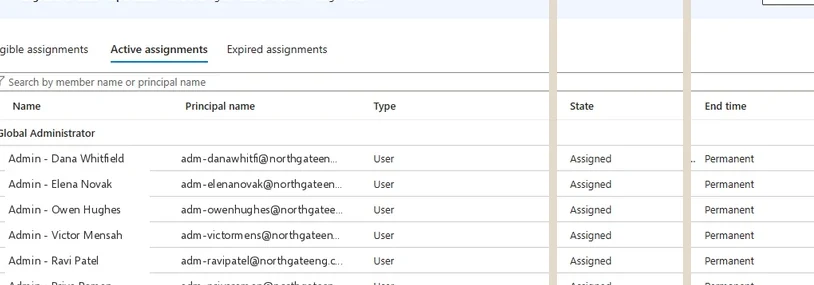
Global Administrator, Active assignments, in the classic PIM view. Six people hold the role permanently: every row with End time Permanent is a standing Global Administrator. Select the image to open it full size.
The classic Active assignments view above makes the cost of that last setting visible: six rows, each with End time Permanent, are six standing Global Administrators that no PIM setting will ever ask a question of.
PIM also watches its own configuration and raises security alerts, under Privileged Identity Management, Microsoft Entra roles, Alerts.
Microsoft documents them by name and severity. Roles are being assigned outside of Privileged Identity Management is rated high: it fires when someone assigns a role directly, bypassing the workflow, which is exactly what an attacker does to make access last. Potential stale accounts in a privileged role, rated medium, finds privileged accounts that have not signed in for a configurable number of days, from 1 to 365. There are too many Global Administrators needs two thresholds met together, a minimum count and a percentage of all privileged users. Roles don't require multifactor authentication for activation, Administrators aren't using their privileged roles and Roles are being activated too frequently cover the rest.
They are worth reading before any review, because they are Microsoft's own list of the ways PIM is most often undermined, and the high-severity one is the pattern this lesson's scenario ends on.
Groups, Units and Emergency Accounts
The rest of the privileged estateThree more pieces complete the picture. PIM for Groups lets a group be made eligible for membership of another, so one activation can bring several roles at once, in Entra ID and in Azure; Microsoft lists it among its best practices, and lesson 0.2 explained why the group's own membership then matters as much as any role.
Administrative units are containers that can hold users, groups or devices, and Microsoft describes them as restricting a role's permissions to the portion of the organization you define. A Helpdesk Administrator scoped to the Finance unit resets passwords only for the users in it. Two details catch people out: adding a group to a unit brings the group into scope but not its members, and units restrict only management permissions, not the default ability every member has to read the directory. A restricted management administrative unit goes further. Microsoft states that only administrators with an explicit assignment at that unit's scope can change the Entra properties of its members, and that roles at tenant scope, Global Administrator included, cannot modify those objects, though they can still manage the unit itself. The setting is chosen when the unit is created and cannot be changed, a tenant can have 100 of them, and applications cannot modify their members by default. They are built for exactly the accounts an attacker most wants to reset: executives and emergency access accounts.
PS C:\> $p = 'DisplayName', 'IsMemberManagementRestricted'
PS C:\> Get-MgDirectoryAdministrativeUnit -All -Property $p | Select-Object $p

DisplayName       IsMemberManagementRestricted
-----------       ----------------------------
Finance                                  False
Executives                                True
Emergency Access                          True
Emergency access accounts are the exception to every rule above. Microsoft recommends two cloud-only emergency access accounts permanently assigned Global Administrator and not assigned to specific individuals, so that an outage in MFA, federation or Conditional Access cannot lock every administrator out. They are the only permanent Global Administrators the guidance allows for, which makes them the accounts to watch most closely, as lesson 0.2 described. Microsoft also gives the number for everyone else: assign Global Administrator to fewer than five people, a count above which the Entra overview page shows an alert card.
Why Attackers Go After Roles
Activation, persistence and the quiet second roleAn attacker who reaches a privileged role rarely keeps using it the way it was given. An activation expires; a role held by a watched account may be noticed.
So the usual move, minutes after gaining a privileged role, is to make the access last somewhere quieter: assign a role directly to an account the attacker controls, add a credential to an application that already holds one, add their own account to a role-assignable group, or make a new account eligible. Each turns a few hours of access into an indefinite one, and each is a single audit entry.
Each of those moves is a role or credential record, and the lab tenant's role records for the month are short enough to read:
AuditLogs
| where TimeGenerated > ago(30d) and Category == "RoleManagement"
| summarize Records = count() by OperationName,
    Actor = coalesce(tostring(InitiatedBy.user.userPrincipalName),
        tostring(InitiatedBy.app.displayName))
| order by Records desc
Almost all of them are PIM recording activations. The rare rows, a direct assignment by a person and PIM's report that it happened outside PIM, are exactly the move this section describes, and Module 7 reads them in full.
That is why the most useful reading of the role audit log is not the activations, which are expected, but what each activation was used for. An activation followed by a direct role assignment to a new account is the pattern the scenario at the end of this lesson asks you to find. Module 7 covers privilege escalation in full, and Module 9 the persistence that follows it.
The defender's counter is to make each of those moves either impossible or loud. Approval on activation puts a second person in the path. No permanent active assignments, apart from the two emergency accounts, means any new standing assignment is an anomaly by definition, and the high-severity PIM alert names it.
Restricted management administrative units keep executives and emergency accounts out of reach of tenant-wide administrators who might be compromised. Cloud-only administrator accounts, which Microsoft's best practices insist on, keep on-premises compromise from reaching any of it. And a short list of privileged holders, reviewed often, means a new name on it is noticed the same day.
Put together, a role review that a defender can run in an afternoon has a fixed order. Start with the count by role from section 1, and mark every role with the PRIVILEGED label. For each privileged role, list both the active and the eligible holders, resolve every group to its members and every service principal to its owners, and note who is permanent.
Compare the people against Microsoft's numbers: fewer than five Global Administrators, fewer than ten privileged assignments, two emergency accounts. Read each privileged role's PIM settings for approval and permanent assignment. Check which holders are synced from Active Directory rather than cloud-only.
Open the PIM alerts. And finish with the role management entries in the audit log since the last review, looking for direct assignments made outside PIM. Every step has a portal page and a Graph query in this lesson, and each finding is one of the moves an attacker would make, already made or waiting to be.
The Record It Leaves
Role management in the audit logRole changes are recorded under the RoleManagement category. Direct assignments made in the directory appear as Add member to role and Remove member from role from Core Directory.
PIM's own operations come from the PIM service: an activation appears as Add member to role completed (PIM activation), and its end as a removal when the activation expires. Changes to a role's PIM settings and to eligible assignments are recorded there too.
The PIM entries and the directory entries are filtered together on the service and the activity:
PS C:\> $f = "loggedByService eq 'PIM' or activityDisplayName eq 'Add member to role'"
PS C:\> $who = { $i = $_.InitiatedBy; $i.User.UserPrincipalName + $i.App.DisplayName }
PS C:\> Get-MgAuditLogDirectoryAudit -Filter $f -Top 3 |
    Format-List ActivityDateTime, ActivityDisplayName, @{n='Actor'; e=$who}

ActivityDateTime    : 11/12/2026 11:41:09 PM
ActivityDisplayName : Add member to role
Actor               : riley.chen@example.com

ActivityDateTime    : 11/12/2026 11:30:52 PM
ActivityDisplayName : Add member to role completed (PIM activation)
Actor               : riley.chen@example.com

ActivityDateTime    : 11/10/2026 10:02:17 AM
ActivityDisplayName : Add member to role completed (PIM activation)
Actor               : jordan.lee@example.com
Two entries eleven minutes apart from the same account: an activation, then a direct role assignment made with it. The second entry is the one that outlives the first, and it is the line every role review should find.
Three details in these records are worth knowing before Module 7 relies on them. The actor of an activation is the person who activated, so a compromised eligible account looks exactly like its owner doing their job; the time, the location of the sign-in behind it and what follows are what distinguish them.
The expiry of an activation is recorded with MS-PIM as the actor, because PIM removed the role itself. And a direct assignment made during an activation is what the high-severity PIM alert, roles assigned outside of PIM, exists to catch, so the alert and the audit entry describe the same event from two different sides, and either one should start the same investigation.
Asking Copilot Whether the Role Is Protected
Delegate, then verifyAn auditor's question about Global Administrator is a good test of Copilot, because the answer lives in two places, the role's PIM settings and its assignments:
- Activating Global Administrator requires approval. (PIM role settings)
- Activation requires MFA and a justification. (PIM role settings)
- The tenant has fewer than five Global Administrators, as Microsoft recommends. (Roles and administrators)
- Nobody holds Global Administrator permanently. (PIM assignments)
The prompt breaks protected into the settings and assignments that define it, and asks for Microsoft's recommendation beside each, so every claim has a page and a standard to be held to. The settings claims cite the settings page, which is the right one, and claim 4 cites the assignments page, which shows the permanent assignments it denies.
Check the settings first, on the role's own settings page in PIM:
| Setting | State |
|---|---|
| Activation maximum duration | 8 hours |
| On activation, require multifactor authentication | Yes |
| Require justification on activation | Yes |
| Require approval to activate | No |
| Allow permanent eligible assignment | Yes |
| Allow permanent active assignment | Yes |
Claim 1 is contradicted on the fourth row: approval is not required. Claim 2 holds: MFA and a justification are. Claim 3 needs the assignments from lesson 0.1.
Two people hold the role actively and three more are eligible, five people in all, which is not fewer than five, and an application holds it as well. Claim 4 fails on the same assignments: Alex Morgan, Sam Patel and Backup Sync Service hold the role permanently, which the last settings row allows.
What Copilot read were the settings it was pointed at, and it answered from what a well-run tenant would show. The record you keep names what it missed: the approval gap, the permanent holders, and the count against Microsoft's number.
The pattern is the one lessons 0.1 to 0.4 kept finding: Copilot answers the question from the object it was pointed at, and the honest answer depends on objects next to it: the eligible tab beside the active one, the nested group beside the direct members, the Exchange permissions beside the Graph ones, and here the assignments beside the settings.
Asking a better question helps; checking the neighbors is what makes the answer safe to act on.
Practice
Is Global Administrator protected? prepared evidenceThe scenario below holds Copilot's answer, the role's PIM settings, its active and eligible assignments, and a week of role management entries. Work it as delegate, verify, record: check each claim, find the setting that lets one compromised account take the role alone, and find the entry that turned an activation into lasting access.
If you have a tenant of your own, run the role count in section 1, then open the PIM settings for Global Administrator and Privileged Role Administrator and read Require approval and Allow permanent active assignment for each. Ask Copilot the same question first and compare.
Every role assignment is who, what, where and for how long, and least privilege narrows all four. Microsoft's own numbers give the bar: fewer than five Global Administrators, fewer than ten privileged assignments, two cloud-only emergency accounts.
PIM protects a role only as far as its settings reach, which means approval for the roles that matter and no permanent active holders but the emergency accounts. And the audit entry that matters most is rarely the activation; it is what the activation was used to create.
Resources
Microsoft revises these pages; where a page and this lesson disagree, the page is newer.
- Microsoft Learn: Best practices for Microsoft Entra roles
- Microsoft Learn: Configure Microsoft Entra role settings in Privileged Identity Management
- Microsoft Learn: Administrative units in Microsoft Entra ID
- Microsoft Learn: Restricted management administrative units
- Microsoft Learn: Configure security alerts for Microsoft Entra roles in PIM
- Microsoft Learn: Microsoft Entra built-in roles