
Reading width
Wide uses the full column for everything, text, diagrams, code, and exercises. Narrow keeps the standard reading width.
Text size
Scales the body text. Headings and code blocks keep their size.
In this section
0.10 The Evidence a Defender Reads
Introduction
Every lesson in this module ended in a record: a sign-in, an audit entry, a role assignment, a report-only result. This lesson is about the records themselves: which logs exist, what each holds, how to read an entry in full, how long the admin center keeps them, and how to keep them longer.
It matters more than it sounds, because an investigation can only find what was recorded, kept and sent somewhere it can be searched, and most tenants find out which of those they skipped on the day they need it.
It ends with Copilot answering whether the evidence for an investigation exists, and you checking it against the tenant's own settings.
Five Logs, Six Kinds of Event
Where each one landsEntra ID records two things: sign-ins and changes. Sign-ins are split four ways. Microsoft names them: interactive user sign-ins, non-interactive user sign-ins, service principal sign-ins and managed identity sign-ins, and notes that the legacy sign-in experience shows only the interactive ones.
Changes go to the audit log, which Microsoft describes as capturing changes to applications, groups, users and licenses, with entries that are system generated and cannot be changed or deleted. A sixth kind of event, every call made to Microsoft Graph, is recorded in the Graph activity logs, which do not appear in the admin center at all.
The lab tenant collects four of them, and their relative size says where the volume is:
union withsource = Table SigninLogs, AADNonInteractiveUserSignInLogs,
    AADServicePrincipalSignInLogs, AuditLogs
| where TimeGenerated > ago(30d)
| summarize Records = count() by Table
| order by Records desc
The non-interactive table is the largest and the audit log the smallest, which is the usual shape: the changes worth investigating are few, and the sign-ins around them are many.
Six kinds of event, five logs in the admin center and six tables in Log Analytics. An investigation that reads only the first row sees a fraction of what happened.
The first three rows are where the attacks in this module show. An AiTM or device code session starts as an interactive sign-in and then lives in the non-interactive log as the attacker's tools refresh tokens. An application abused with a stolen credential appears only in the service principal log.
The audit log holds every change in lessons 0.2 to 0.5. And what an application or a user actually did with Graph, which mailboxes were read and which users were listed, is only in the Graph activity logs. An investigation that reads the interactive sign-ins alone is reading the smallest log about the least interesting part of the attack.
Around these sit a few more records a defender meets. The provisioning logs show users created, updated and removed in connected applications, which matters when an attacker's account is pushed out to a SaaS application.
ID Protection's risky users and risk detections reports carry the verdicts lesson 0.8 described. And the sign-in logs themselves have more depth than the list shows: every row carries the device, the client application, the authentication protocol, each Conditional Access result and the risk at the time, so most questions about a sign-in are answered by reading one row fully rather than by finding more rows.
Reading an Audit Entry
Activity, target, and old and new valuesThe audit log list shows when, which service, which category, which activity, the status, the target and the actor:
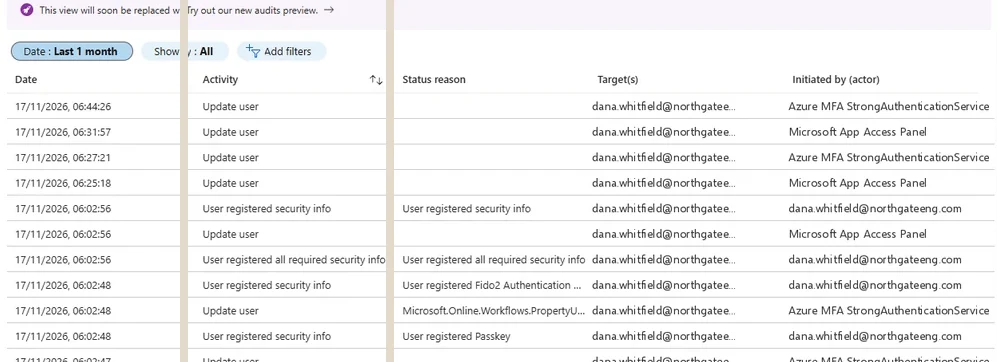
The audit log list. Activity, Target(s) and Initiated by (actor) answer what changed, on what, and by whom; Status reason adds detail for many security info entries. Select the image to open it full size.
Each row opens into the full record, and the order in which to read it is worth fixing as a habit:
Entra Admin Center
Entra ID › Monitoring & health › Audit logs
Filter on Category, Activity or Target, open a row, and read Activity (who and how), Target(s) (on what), and Modified Properties (old and new values) in that order.
Opening an entry shows three tabs. Activity holds the date, the correlation ID that groups related operations, and the actor: Microsoft describes the details as covering the actor or target resource associated with the activity. The actor can be an application, such as Microsoft's own MFA service updating a user's methods:
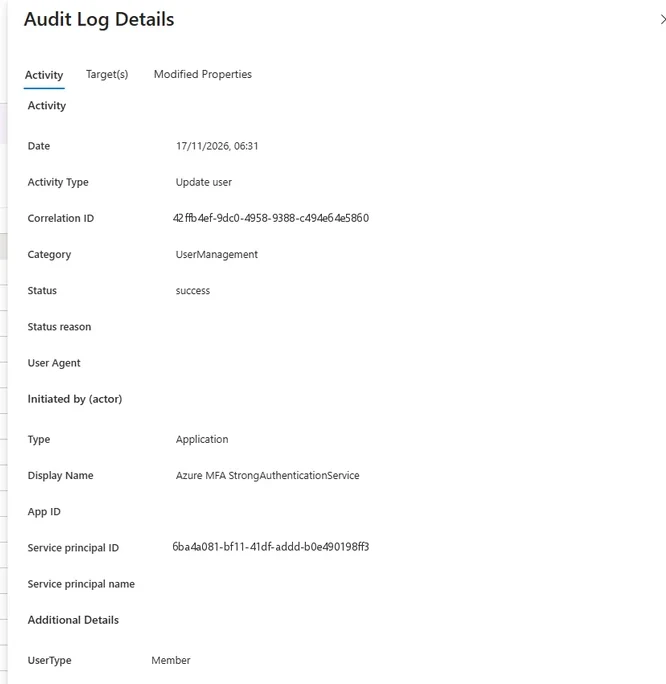
An audit entry initiated by an application, here Microsoft's own MFA service updating a user. The actor's Type tells you whether to look for a person or a credential. Select the image to open it full size.
Or a user acting through an application, with their object ID, user principal name and IP address. Microsoft notes that the IP address in audit details is the OAuth client's address, which for a user working in a browser is usually the user's own:
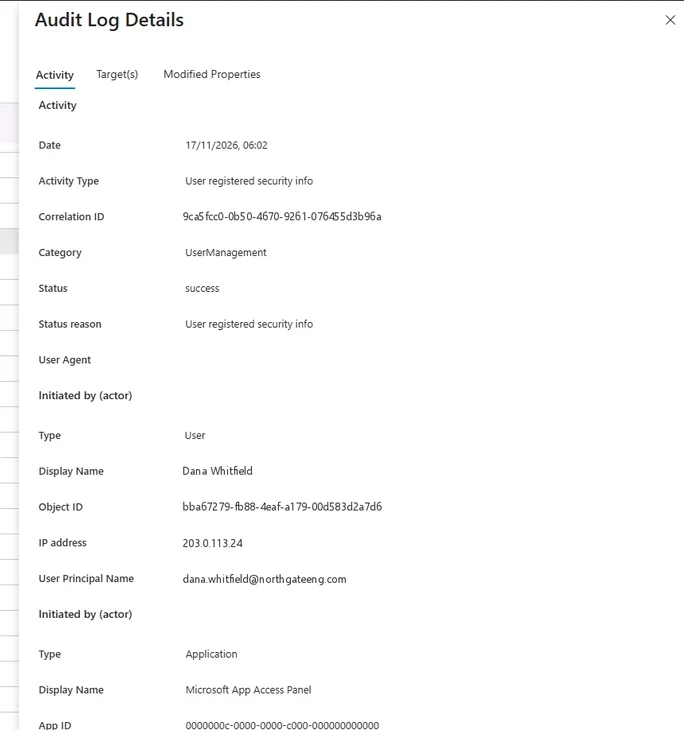
An entry initiated by a user through an application: the user's object ID, UPN and IP address, and the app they used. Microsoft notes the IP is the OAuth client's. Select the image to open it full size.
Target(s) names the object changed, by type, ID, display name and, for a user, UPN:
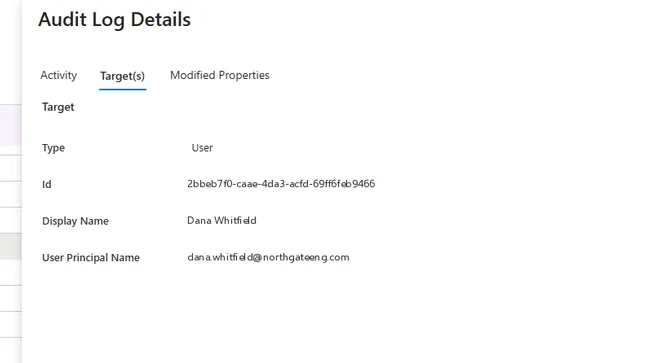
The Target(s) tab: what the change was made to. Select the image to open it full size.
And Modified Properties shows, where applicable, the old and new values of what changed, which is often the only place the substance of a change is recorded:
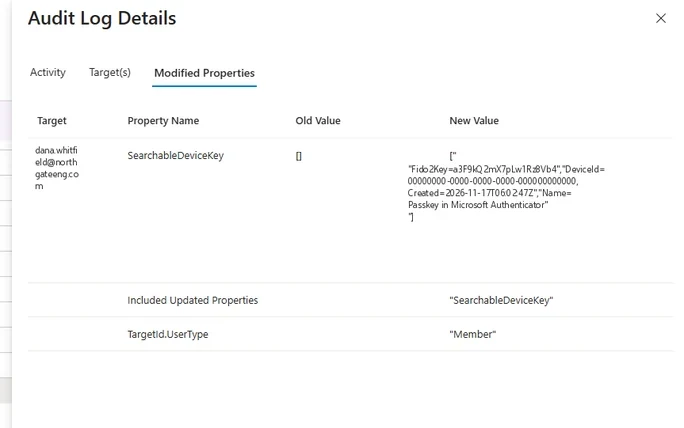
Modified Properties shows old and new values. A new SearchableDeviceKey is a passkey or device key added to the account. Select the image to open it full size.
Status and status reason deserve a glance on every entry too.
A failure is not harmless: a failed attempt to add an owner or assign a role shows someone trying something they were not allowed to do, and attackers testing which of their footholds work leave failures before successes. And many security info entries carry their real meaning in the status reason, such as which method a user registered, which the list view shows without opening the entry.
A new SearchableDeviceKey, empty before and populated after, is a passkey or device key registered on the account. On its own it is an ordinary event. Ten minutes after a suspicious sign-in in the same session, it is an attacker making the takeover permanent, the persistence lesson 0.8 warned about.
The same values come from Graph, on each target's modifiedProperties:
PS C:\> Connect-MgGraph -Scopes 'AuditLog.Read.All'
PS C:\> $f = "activityDisplayName eq 'Update user' and " +
    "targetResources/any(t: t/displayName eq 'Tom Reyes')"
PS C:\> $e = Get-MgAuditLogDirectoryAudit -Filter $f -Top 1
PS C:\> $e.TargetResources[0].ModifiedProperties | Select-Object DisplayName, OldValue

DisplayName                 OldValue
-----------                 --------
SearchableDeviceKey         []
Included Updated Properties
The new value is omitted from the output above because it holds the key record itself; the old value, an empty list, is enough to show that the key did not exist before this entry. Filtering on activity and target in Graph is the same search as in the portal, and Microsoft documents both as supported filters for audit records.
How Long the Admin Center Keeps It
Retention, and why it is not retroactiveMicrosoft publishes the retention periods by license. Audit logs and sign-in logs are kept for seven days on Entra ID Free and 30 days on P1 and P2. Risky sign-ins are kept for 7 days on Free, 30 on P1 and 90 on P2, and risky users are kept until the risk is remediated.
Microsoft adds two warnings. Retention changes are not retroactive: a tenant that upgrades from Free to P1 has only the last seven days, and anything already expired cannot be recovered unless it was archived. And Graph activity logs are not retained at all unless they are archived to storage or integrated with an analytics tool.
What the admin center shows depends on the license, and the tenant's license is on its Overview page:
Entra Admin Center
Entra ID › Overview
Field
LicenseRead the License field. Free keeps audit and sign-in logs for seven days; P1 and P2 keep them for 30. Anything older exists only where a diagnostic setting sent it.
Checking it before an incident is the point, because an upgrade on the day of the incident restores nothing that has already expired.
The consequence is blunt. On P1, an intrusion that began 35 days ago left records the admin center no longer has, and Microsoft cannot restore them. Attackers who persist through applications or registered devices routinely outlast 30 days before anyone looks. The only defense is to have sent the logs somewhere longer-lived before the incident started.
During an incident, the admin center's own window is still useful, and worth using quickly. The sign-in and audit lists can be downloaded, filtered first to the users, applications and period in question, so that what the admin center holds today is preserved before it ages out tomorrow.
The order matters as much as in lesson 0.6's response: preserve the evidence before revoking sessions or deleting objects, because a deleted application takes its own details with it, and a responder who acts first and exports second may find the records referring to an object that no longer exists.
Keeping the Evidence
Diagnostic settings and where they send itLogs leave the admin center through diagnostic settings, under Entra ID, Monitoring & health. Microsoft documents the steps: add a diagnostic setting, select the log categories to stream, choose a destination such as a Log Analytics workspace, and save; creating one needs at least the Security Administrator role, and integrating Entra logs with Azure Monitor automatically enables the Microsoft Entra data connector in Microsoft Sentinel.
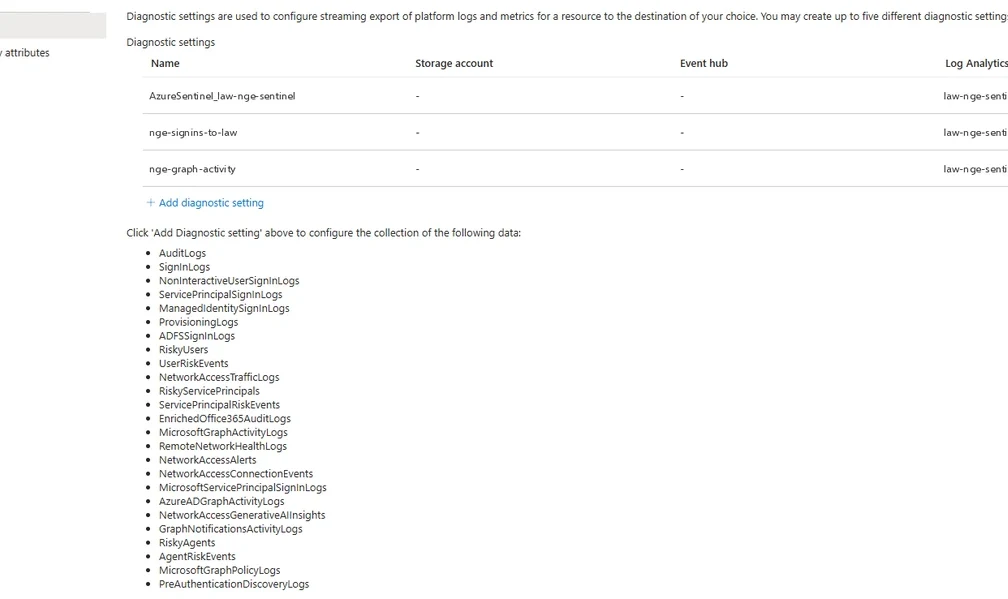
Diagnostic settings, the only way Entra ID's logs leave the admin center. The list below the settings is every category a setting can send; each one is chosen separately. Select the image to open it full size.
The detail that matters is in the list beneath the settings: every category is chosen separately. AuditLogs and SignInLogs are the two everyone ticks. NonInteractiveUserSignInLogs, ServicePrincipalSignInLogs, ManagedIdentitySignInLogs and MicrosoftGraphActivityLogs are the ones that are skipped, often because the non-interactive and Graph logs are large, and they are exactly the ones the token and application attacks of this module live in. Risk categories, RiskyUsers and UserRiskEvents, carry ID Protection's verdicts.
Entra Admin Center
Entra ID › Monitoring & health › Diagnostic settings
Open each setting with Edit setting and read which categories are ticked and where they go. Changing them needs at least Security Administrator.
The settings are an Azure resource at the tenant level, so they are read with Azure PowerShell rather than the Graph module:
PS C:\> $path = '/providers/microsoft.aadiam/diagnosticSettings' +
    '?api-version=2017-04-01'
PS C:\> $r = Invoke-AzRestMethod -Method GET -Path $path
PS C:\> ($r.Content | ConvertFrom-Json).value | ForEach-Object {
    $on = ($_.properties.logs | Where-Object enabled).category -join ', '
    '{0}: {1}' -f $_.name, $on
}

to-sentinel: AuditLogs, SignInLogs
One setting, two categories. This tenant's workspace has every interactive sign-in and every change, and nothing of the sign-ins this module has spent most of its time on.
In the workspace each category becomes a table, SigninLogs, AADNonInteractiveUserSignInLogs, AADServicePrincipalSignInLogs, AADManagedIdentitySignInLogs, AuditLogs and MicrosoftGraphActivityLogs, and those are the tables the KQL in every later module queries. For audit records beyond the workspace's retention, Microsoft also notes that organizations with the right Microsoft 365 or Purview licenses can use Purview Audit (Premium).
The destinations serve different purposes, and many tenants use two. A Log Analytics workspace is for searching and detecting: Sentinel's analytics rules and the queries in this course run there, and its retention is set per table. A storage account is for keeping: cheaper per gigabyte and suited to archives that must last years but are rarely read.
An event hub is for sending the logs on to another SIEM. The categories most often left out for cost, non-interactive sign-ins and Graph activity, are the largest; the usual compromise is to send them to the workspace with shorter retention and to storage for the long tail, rather than to leave them out.
A diagnostic setting is also a target. Removing or narrowing it is the cheapest way to blind an investigation, needs only a role that lesson 0.5 would class among the powerful, and leaves the admin center looking normal. A change to diagnostic settings is therefore worth an alert of its own, and Module 9 includes it among the persistence and defense evasion steps it detects.
Reading Across the Logs
One intrusion, five records, three keysNo log shows an intrusion on its own; the identifiers the logs share do. A sign-in's Session ID is the same for every interactive and non-interactive sign-in from one session, so it joins a stolen session to its theft.
An actor's object ID joins what a user's account did in the audit log to that account's sign-ins. An application's application ID joins the credential added to it in the audit log to its own sign-ins and to its calls in the Graph activity log.
The session ID join is one query in the lab tenant, and it finds the stolen session from Module 4:
union withsource = Table SigninLogs, AADNonInteractiveUserSignInLogs
| where TimeGenerated > ago(30d) and isnotempty(SessionId)
| summarize Tables = make_set(Table), Addresses = make_set(IPAddress, 4)
    by SessionId, UserPrincipalName
| where array_length(Addresses) > 1
One session, two addresses, in both tables: the join does the work that no single log can, which is the habit this section asks for.
An AiTM session that becomes an application foothold, read as records. No single log shows the intrusion; the identifiers they share do.
Read left to right, the picture is lesson 0.7's AiTM route ending in lesson 0.3's application foothold. A sign-in with MFA from a proxy address at 9:02. The same session refreshing from a different address at 9:09.
The user's account adding a certificate to Invoice Scanner at 9:14, the Update application entry in this lesson's scenario. Invoice Scanner signing in as itself at 9:20, and reading mailboxes through full_access_as_app at 9:21. Every record is ordinary alone, and the investigation is the joins.
Two practical details decide whether the joins work. The first is time. The admin center can show dates in local time, which the list views in this lesson's screenshots do, while Graph and Log Analytics return UTC, so a timeline built from both must convert one way or the other before anything is compared. The second is which identifier is which.
An application's Application ID is the same in every tenant and appears in sign-in records, while its service principal's Object ID appears in audit targets and role assignments, lesson 0.3's distinction; a join on the wrong one returns nothing, and an empty result is not proof that nothing happened. Module 11 builds the full timeline, and Modules 2 to 9 each build the detection for one link in it.
What the Evidence Cannot Show
Limits worth knowing before an incidentThree limits shape every investigation in this course. The audit log records that something changed and who changed it, not why; whether a change was maintenance or an intrusion is a judgment the record supports and cannot make.
Microsoft's own note that the audit IP is the OAuth client's address means an IP in an audit entry describes the client used, which for a change made through an application or a script may not be the person's location.
And the sign-in logs see only what Entra ID saw: a session cookie stolen by malware leaves no record of the theft, only of the use, and an inbox rule created with a stolen session is in the mailbox audit log, not Entra's.
The audit IP limit shows in the lab tenant's own records, where the address a change came from is often absent or belongs to the client used:
AuditLogs
| where TimeGenerated > ago(30d)
| extend HasAddress = tostring(AdditionalDetails) has "ipaddr"
    or tostring(AdditionalDetails) has "IpAddress"
    or tostring(AdditionalDetails) has "ClientIP"
| summarize Records = count() by HasAddress
Most audit entries carry no address at all, so a change is tied to a place through the actor's sign-ins, not through the entry itself.
None of these is a reason to trust the logs less. Each is a reason to know which question each log answers, and to send the ones that answer the later questions somewhere they will still be when the question is asked.
The practical habit that follows is to write down, at the start of every investigation, which question each log will answer and which it cannot. Who signed in, from where and how: the sign-in logs. What was changed and by which account: the audit log. What a token was used to read: the Graph activity log, if it was sent.
What happened inside a mailbox: Exchange's audit, outside Entra ID. On a device: the endpoint's own telemetry. A gap in that list is a gap in the findings, and saying so in the report is part of the work, because a conclusion drawn from missing evidence is the one most likely to be wrong.
Put together, the lessons of this module set a minimum evidence standard that any tenant can check against in an afternoon. Send all four sign-in categories and the audit log to a workspace, not two of them.
Add Graph activity logs, because they are the only record of what a token was used to read. Add the risk categories where the tenant has P2. Keep the workspace's retention well beyond the admin center's 30 days, long enough to cover the time an attacker typically stays hidden, and archive to storage for longer.
Alert on any change to the diagnostic settings themselves. And test the whole chain once, by searching the workspace for a known sign-in from each of the four sign-in tables, because a setting that was saved with the wrong workspace or the wrong categories looks exactly like one that works until the day it is needed.
The standard is the precondition for every detection in the rest of the course. A rule that looks for a session ID used from two places needs the non-interactive table; a rule that looks for an application signing in from somewhere new needs the service principal table; a rule that looks for mail read through Graph needs the activity log.
Without the data, the rule cannot fire, and a rule that cannot fire looks exactly like a quiet tenant.
Asking Copilot Whether the Evidence Is There
Delegate, then verifyBefore an investigation is scoped, the question is whether the evidence for it exists. Asked of Copilot:
- Sign-ins from 45 days ago can still be read in the admin center. (Microsoft retention documentation)
- All sign-ins are streamed to Log Analytics, so Sentinel has the full record. (Diagnostic settings)
- Audit log entries can't be changed or deleted, so the record is reliable. (Microsoft documentation)
- Invoice Scanner's own sign-ins will be in the SigninLogs table. (Diagnostic settings)
The prompt asks where each record lives and for how long, per category and per identity, instead of asking whether the evidence exists. Claims 2 and 4 cite the diagnostic setting, whose categories are the evidence that two of them are missing.
Check claim 2 against the diagnostic setting's own categories:
| Category | Sent to Log Analytics |
|---|---|
| AuditLogs | Yes |
| SignInLogs | Yes |
| NonInteractiveUserSignInLogs | No |
| ServicePrincipalSignInLogs | No |
| ManagedIdentitySignInLogs | No |
| MicrosoftGraphActivityLogs | No |
Claim 2 fails: two categories are sent, and the non-interactive and service principal sign-ins are not. Claim 4 fails twice over: an application signing in as itself is recorded in the service principal log, which lands in AADServicePrincipalSignInLogs, not SigninLogs, and this tenant does not send it at all.
Claim 1 fails on Microsoft's retention table: on P1 the admin center keeps sign-ins for 30 days, so days 31 to 45 are gone. Claim 3 holds: audit entries are system generated and cannot be changed or deleted.
Copilot's mistakes here were the quantity and the neighbor again. It answered from what Entra ID can record rather than what this tenant sends and keeps, and it put the application's sign-ins in the user table beside the one where they actually land. The real answer was in two settings pages and one retention table, each a minute's reading.
The record you keep is an evidence plan: export the last 30 days of non-interactive and service principal sign-ins from the admin center now, add the missing categories to the diagnostic setting today, and note in the case file that the first fifteen days of the period cannot be investigated from Entra ID's logs.
That last line is not a failure of the investigation; it is an honest boundary on its findings, and it is the reason the minimum evidence standard in section 6 exists. A tenant that meets the standard before its first incident never has to write that line in any of its case files at all.
Practice
Is the evidence there? prepared evidenceThe scenario below holds Copilot's answer, the diagnostic setting's categories, the tenant's retention facts and three audit entries from the day of the suspicious session. Work it as delegate, verify, record: check each claim, find which logs are missing, and find the entry that changed what an application can sign in with.
If you have a tenant of your own, open Diagnostic settings and read the ticked categories of each setting, then filter the audit log to one user's Update user entries and read their Modified Properties. Ask Copilot the same question first and compare.
Entra ID records sign-ins in four logs and changes in the audit log, and Graph calls only where they are streamed. The admin center keeps them for 7 days on Free and 30 on P1 and P2, retention is not retroactive, and only a diagnostic setting, one category at a time, keeps them longer and sends them where they can be joined.
The attacks in this module live in the logs most often left unsent, non-interactive, service principal and Graph activity, and an investigation is the joins between them: session ID, object ID and application ID.
Resources
Microsoft revises these pages; where a page and this lesson disagree, the page is newer.