
Reading width
Wide uses the full column for everything, text, diagrams, code, and exercises. Narrow keeps the standard reading width.
Text size
Scales the body text. Headings and code blocks keep their size.
In this section
0.8 What Entra ID Gives a Defender
Introduction
Lesson 0.7 paired every attack route with a control that closes it. This lesson is the defender's side of the same map: what Entra ID actually gives you to work with, layer by layer, and, because a control a tenant has not licensed is a control it does not have, which license each one needs.
The licensing is part of the security design, not an afterthought, and it decides which of the controls in the rest of the course a given tenant can use.
The lesson ends with Copilot answering which controls a tenant's licenses cover, and you checking it against Microsoft's own requirements.
The Defender's Layers
From the sign-in outwardEntra ID's security controls sit in layers around the sign-in. The first decides who may sign in, to what, from where. The second decides how they must prove it. The third judges how risky the sign-in and the user look.
The fourth governs who holds administrative power and for how long. The fifth limits what a session can do once it exists. Around all of them sit the logs that show what each layer did.
The first layer is the tenant's set of Conditional Access policies, and their state is one line each:
PS C:\> Get-MgIdentityConditionalAccessPolicy -All |
    Select-Object DisplayName, State |
    Sort-Object State, DisplayName
A policy in report-only is a plan, not a control. Reading the state column before reading any policy's settings saves the most common mistake in this course: describing a control that is not switched on.
The defender's toolkit in Entra ID, from the moment of sign-in outward, with the license each layer needs. A tenant's licenses decide which layers it actually has.
Every route in lesson 0.7 is closed in one of these layers: password spray in the first, prompt abuse and AiTM in the second, unusual sign-ins in the third, privilege escalation in the fourth, token theft in the fifth.
A tenant that has the layer, licensed, configured and enforced, has the control. A tenant that has the license but leaves the policy in report-only mode has a record of the attacks it did not stop.
The layers also depend on one another, which is why the order in which they are built matters. Risk policies need users who can complete MFA, so methods come before risk.
PIM's activation checks lean on Conditional Access and authentication strengths, so the base layer comes before privileged access. Session controls assume devices that are joined and managed, which lesson 0.4 covered. And every layer is only as visible as the logs it writes.
A defender who reviews a tenant layer by layer, rather than control by control, finds the gaps where one layer assumes another that was never built: a risk policy that requires MFA from users who never registered it, or a compliant device requirement in a tenant where nothing is managed.
The Base Layer
Security defaults or Conditional AccessEvery tenant starts with one of two base layers. Security defaults are a fixed set of protections, including MFA registration and challenges, that Microsoft makes available for all customers at no cost.
They cannot be scoped, excepted or tuned. Conditional Access is the policy engine that replaces them: policies that target users, applications, devices, locations and risk, start in report-only mode, and grant, block or require controls such as MFA or a compliant device. Microsoft's licensing page states that Conditional Access requires Entra ID P1, and that Microsoft 365 Business Premium also includes it.
The base layer is one of two things. Security defaults protect a tenant that cannot write policies; Conditional Access replaces them where it can. The dangerous state is neither.
A Conditional Access policy has the same shape however complex it gets. Its assignments say who and what it covers: the users, groups, roles and guests it includes and excludes; the target resources, applications or user actions such as registering security information; and the conditions, which narrow it by device platform, location, client application, authentication flow, and the sign-in and user risk levels ID Protection supplies.
Its access controls say what happens: block, or grant with requirements such as MFA, an authentication strength, a compliant or hybrid joined device, or approved client apps, and session controls such as sign-in frequency.
A policy is only as good as the narrowest part of its assignments, and the exclusions are where most tenants' gaps live: the break-glass accounts that must be excluded, and then the service account, the executive and the traveling team that were excluded for convenience and never reviewed. Module 3 reads exclusions as an attacker would.
The two do not run together, and the dangerous state is the one in between: a tenant that has turned security defaults off to write its own policies, and then has policies that do less. Graph answers both questions at once:
PS C:\> (Get-MgPolicyIdentitySecurityDefaultEnforcementPolicy).IsEnabled
PS C:\> Get-MgIdentityConditionalAccessPolicy -All | Group-Object State |
    Select-Object Count, Name

False

Count Name
----- ----
   11 enabled
    6 enabledForReportingButNotEnforced
    2 disabled
Security defaults are off, eleven policies are enforced, six are in report-only and two are disabled. Each report-only policy is a control the tenant has paid for and decided, for now, not to use; lesson 0.7's device code policy was one of them. Module 3 covers designing and testing Conditional Access, and every module after it uses a policy to close the route it teaches.
Proving Who You Are
Methods and strengthsLesson 0.7 covered this layer in detail: the authentication methods policy decides which methods users may register, and authentication strengths let a Conditional Access policy require a set of methods, such as phishing-resistant MFA, rather than any MFA.
The methods policy is available to every tenant; requiring a strength is a Conditional Access control, so it comes with P1. The value of this layer is that it is the one place where an AiTM proxy or a phished approval can be defeated outright, rather than detected afterwards.
The methods policy that sets this layer is one page:
Entra Admin Center
Entra ID › Authentication methods › Policies
Page
PoliciesColumn
Enabled, TargetRead each method's Enabled state and target. A phishable method left enabled for everyone is the one an attacker will steer users toward.
What is enabled there is what an attacker can ask a user to use, which is why the course keeps returning to this page.
Two parts of this layer are easy to overlook because they are about recovery rather than sign-in. Self-service password reset lets a user reset their own password with methods they registered, which means the reset is only as strong as the weakest of those methods: a reset by SMS code is a takeover by SIM swap.
And registering security information is itself a sensitive action, since an attacker who has a session and can register their own phone or passkey on the account has made the takeover permanent. Conditional Access can protect both, requiring a strong sign-in or a trusted location for the Register security information user action, and Module 9 watches the audit entries those registrations leave.
Judging Risk
ID ProtectionMicrosoft describes ID Protection as helping organizations detect, investigate and remediate identity-based risks. During each sign-in it runs its real-time detections and gives the sign-in a risk level; a user becomes a risky user when they have risky sign-ins or other detections against them, such as leaked credentials.
Risk-based Conditional Access then acts on those levels, requiring a strong authentication method, MFA or a secure password reset, and if the user completes it, the risk is remediated automatically.
The license line is sharp. Using ID Protection requires Entra ID P2, and risk-based policies are a P2 feature.
Free and P1 tenants see a limited view: risky users only at medium and high risk, with no details or history, risky sign-ins with no risk detail or level, and no Graph access to the risk reports. A tenant without P2 can see that something is risky and cannot automate a response to it.
The detections fall into two families, and the difference shapes how a defender uses them. Sign-in risk belongs to one sign-in and is mostly judged in real time: a sign-in from an anonymous IP address, unfamiliar sign-in properties for this user, atypical travel between two sign-ins that no one could have made, or an anomalous token. User risk belongs to the account and accumulates: leaked credentials found by Microsoft in a breach dump, a run of risky sign-ins, or an administrator confirming the user compromised.
A policy on sign-in risk asks for MFA in the moment; a policy on user risk asks for a secure password reset, because the account itself is in doubt. Both need the user to be able to satisfy them, which is why risk policies sit on top of MFA registration, not in place of it.
Risk is also evidence. A defender investigating a session reads the risk detections on the sign-ins as readily as the addresses, because ID Protection may already have recognized the pattern, a token used from a new place, before anyone else looked. Module 5 uses the anomalous token detection that way.
Entra Admin Center
ID Protection › Risky users
Filter Risk state to At risk and Risk level to High. With P1 or Free the list shows only medium and high risk users, with no details or history.
With P2, the same list comes from Graph, which is how a SIEM or a script picks it up:
PS C:\> Connect-MgGraph -Scopes 'IdentityRiskyUser.Read.All'
PS C:\> Get-MgRiskyUser -Filter "riskState eq 'atRisk'" |
    Select-Object UserPrincipalName, RiskLevel, RiskLastUpdatedDateTime

UserPrincipalName        RiskLevel RiskLastUpdatedDateTime
-----------------        --------- -----------------------
tom.reyes@example.com    high      11/16/2026 11:21:04 AM
owen.hughes@example.com  medium    11/12/2026 6:44:30 PM
Tom Reyes at high risk, five minutes after the Amsterdam sign-ins in lesson 0.6, is what ID Protection is for: with a P2 license on his account and a risk policy enforced, his next sign-in would have demanded a secure password reset, and the session would have been interrupted without anyone opening a ticket.
Holding Power
PIM, access reviews and governanceLesson 0.5 covered Privileged Identity Management. Microsoft's licensing page states that PIM and all of its settings need either Entra ID P2 or Entra ID Governance, and that access reviews and entitlement management need Entra ID Governance for the organization's member users, with some capabilities working on P2. It also documents what happens when the license lapses: PIM features are removed, and permanent role assignments are unaffected.
The roles that PIM manages, and how each is held, are listed in one place:
Entra Admin Center
ID Governance › Privileged Identity Management › Microsoft Entra roles › Roles
Page
RolesRead each privileged role's eligible and active counts. Active assignments with no end date are the ones PIM is not controlling.
A role with many active and few eligible holders is a role PIM has been licensed for and not applied to, which is common and worth fixing before anything more elaborate.
That last sentence deserves a second reading. A tenant that built its privileged access on eligible assignments and lets P2 lapse loses the workflow, and with it every eligible path to the role; the permanent assignments, the ones lesson 0.5 told you to keep to the two emergency accounts, are all that remain. Licensing is part of the privileged access design for exactly that reason.
Access reviews and entitlement management are the governance half of the same layer. A review asks a named reviewer to confirm each member of a group, each application assignment or each role holder at a set interval, and removes those nobody confirms.
Entitlement management packages access into requests with approvals and expiry, so that access arrives with an end date. Neither stops an attack in progress. Both shrink the number of accounts holding access nobody remembers granting, which is the material most intrusions in this course are built from.
Limiting the Session
Sign-in frequency, token protection and CAEThe fifth layer limits what a session is worth once it exists, which is the layer that answers token theft. Sign-in frequency is a Conditional Access session control that forces a fresh sign-in after a set time, so a stolen token stops refreshing. Token protection is a Conditional Access session control that Microsoft describes as accepting only device-bound sign-in session tokens, such as the PRT, when applications request access, so that a stolen token cannot be used from another device. Its coverage is specific: native applications on Windows, iOS and iPadOS, and macOS for Exchange Online, SharePoint Online and Teams, with browser support in preview for selected web apps that access Azure Resource Manager, and Microsoft itself calls it one part of a broader defense in depth against token theft. Continuous access evaluation, lesson 0.6, needs no policy at all for its critical events, which Microsoft notes makes it available in any tenant.
Sign-in frequency is set on a policy's Session controls:
Entra Admin Center
Entra ID › Conditional Access › Policies › New policy
Session
Sign-in frequencyUnder Session, set Sign-in frequency for the users and applications where a stolen token would cost most, such as administrators and the admin portals.
A shorter frequency for administrators costs them a sign-in a day and caps how long any token taken from them keeps working.
Each of these trades convenience for safety, and the trade is worth making selectively. A short sign-in frequency for every user generates prompts people learn to approve without reading, which helps the prompt abuse of lesson 0.7.
The same frequency for administrators on the admin portals, or for any user on an unmanaged device, costs little and limits a stolen session to hours. Token protection is strongest where it applies, so the useful question is which sessions it covers, mail, files and Teams on supported platforms, and which it leaves to the compliant device requirement.
Seeing It All
The logs, and where to startThe last layer is visibility. Sign-in and audit logs exist in every tenant; how long they are kept, which of the four sign-in logs a tenant can export, and where they go for long-term analysis is lesson 0.10's subject. Two portal features summarize the rest. The admin center home page shows the tenant's plan, its Identity Secure Score and the users at high risk:
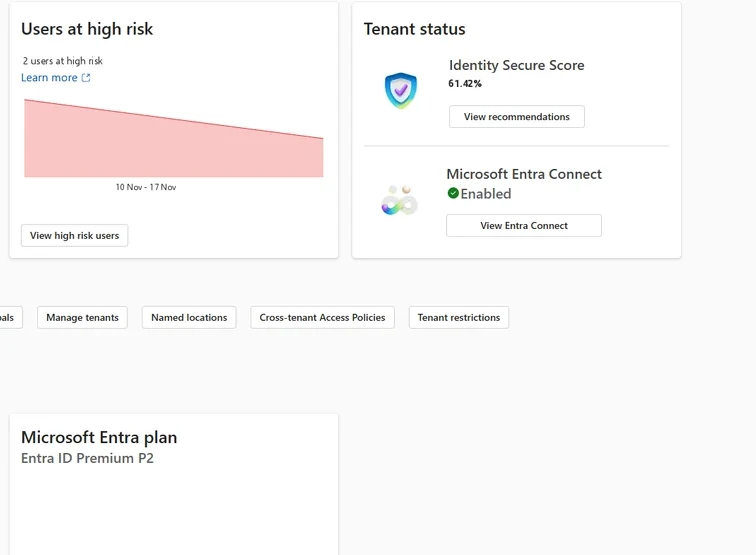
The admin center home page shows three of this lesson's answers at once: the tenant's Entra plan, its Identity Secure Score, and the number of users ID Protection currently rates at high risk. Select the image to open it full size.
Identity Secure Score grades the tenant against Microsoft's recommended identity settings and lists the improvements, which makes it a reasonable first to-do list and a poor substitute for the analysis in this lesson, because it scores whether a setting exists, not whether it covers the accounts that matter.
Entra Admin Center
Entra ID › Overview
The Overview page names the tenant's Entra plan. The full list of subscriptions, with how many licenses are assigned, is in the Microsoft 365 admin center under Billing, Licenses.
The subscriptions themselves come from Graph, with how many licenses are bought and how many are assigned:
PS C:\> Connect-MgGraph -Scopes 'Organization.Read.All', 'Policy.Read.All'
PS C:\> Get-MgSubscribedSku | Select-Object SkuPartNumber, ConsumedUnits,
    @{n='Enabled'; e={ $_.PrepaidUnits.Enabled }}

SkuPartNumber  ConsumedUnits Enabled
-------------  ------------- -------
SPB                      300     300
AAD_PREMIUM_P2            25      25
FLOW_FREE                 12   10000
Three hundred users on Business Premium, which brings Conditional Access to all of them, and twenty-five P2 licenses, which bring ID Protection and PIM only to the people who hold one. The rest of a security plan has to be written for that tenant, not for the one in the marketing material.
The logs also leave Entra ID. Diagnostic settings stream them to a Log Analytics workspace, where Microsoft Sentinel and the queries in later modules of this course read them, or to storage or an event hub for other tools, and Microsoft Defender XDR brings the identity signals together with endpoint and mail.
ID Protection's own data can be exported the same ways. Where the evidence goes, and how long it stays, decides whether an investigation three months from now has anything to read.
It is just as important to know what these layers do not cover. Conditional Access policies written for users do not evaluate an application signing in with its own credential, which lesson 0.6 noted needs workload identity policies and their own license; a stolen application secret meets none of the user controls.
Entra ID sees sign-ins and directory changes, not what happens inside a mailbox or on a laptop: the inbox rule an AiTM attacker creates is in Exchange's audit log, and the information stealer that took the cookie is on an endpoint that Defender for Endpoint, not Entra ID, can see. And no layer judges intent.
An administrator using a legitimate role to make a legitimate-looking change passes every control here, which is why the audit log, and someone reading it, is part of the defense rather than an archive.
Put the layers and the licenses together and a sequence follows for any tenant. Start with the base layer, because nothing above it works without it: security defaults where there is no P1, Conditional Access where there is, with MFA for everyone and legacy authentication blocked.
Then move administrators to phishing-resistant methods and require them with an authentication strength, because the accounts that can change everything should be the hardest to phish. Then close the specific routes from lesson 0.7: device code flow, user consent, device registration. Then buy P2 for the people whose compromise would cost most, administrators and those who move money, and turn on risk policies and PIM for them.
Session controls and governance come after, scoped to where they pay. A plan in that order spends each license where it closes the most risk, and leaves nothing paid for and switched off.
Asking Copilot What the Licenses Cover
Delegate, then verifyBefore a plan goes to budget, the question is which controls the current licenses cover. Asked of Copilot in the admin center:
- Conditional Access is available to every user through Business Premium. (Licenses, subscriptions)
- Risk-based Conditional Access can protect all 300 users. (Licenses, subscriptions)
- Privileged Identity Management is available for the users licensed for P2. (Licenses, subscriptions)
- Access reviews are fully included with Entra ID P2. (Microsoft licensing documentation)
The prompt pairs each feature with the license it needs and a user count, which turns can we use into arithmetic. Claim 2 cites the subscriptions page for a feature whose license requirement is on Microsoft's licensing page, and the count on the subscriptions page is what contradicts it.
Check it against the subscriptions, which take one view to read:
| Product | SKU | Assigned | Purchased |
|---|---|---|---|
| Microsoft 365 Business Premium | SPB | 300 | 300 |
| Microsoft Entra ID P2 | AAD_PREMIUM_P2 | 25 | 25 |
| Power Automate Free | FLOW_FREE | 12 | 10000 |
Claim 1 holds: Business Premium includes Conditional Access, and all 300 licenses are assigned. Claim 3 holds as worded: PIM works for the 25 users who hold P2. Claim 2 fails: risk-based policies need ID Protection, a P2 feature, and 275 of the 300 users have no P2 license. Claim 4 fails on Microsoft's licensing page: access reviews need Entra ID Governance, with only some capabilities on P2.
Copilot's two mistakes have the same source. It answered from what the products include in general, and the question was about this tenant's quantities: P2 exists here, for 25 people, and Governance does not exist here at all. A license question is always a count question, and the count is one Graph query away, so check it before any plan is priced or promised to anyone.
The record you keep turns into the budget line: P2 for everyone the risk policy must cover, Entra ID Governance if access reviews are to run as planned, and nothing more for Conditional Access, continuous access evaluation or security defaults, which the tenant already has.
Practice
What can we actually use? prepared evidenceThe scenario below holds Copilot's answer, the tenant's subscriptions and the license each planned control needs. Work it as delegate, verify, record: check each claim and find which parts of the plan need something the tenant does not own.
If you have a tenant of your own, run the subscription and Conditional Access queries in sections 2 and 7, then open ID Protection, Risky users and see how much detail your license shows. Ask Copilot the same question first and compare.
Entra ID gives a defender six layers: who may sign in, how they prove it, how risky it looks, who holds power, what a session can do afterwards, and the logs that show it all.
Conditional Access needs P1, ID Protection's risk policies need P2, PIM needs P2 or ID Governance and access reviews need ID Governance, while security defaults and continuous access evaluation are available to every tenant. A control the tenant has not licensed, or has left in report-only mode, is a control it does not have.
Resources
Microsoft revises these pages; where a page and this lesson disagree, the page is newer.