
Reading width
Wide uses the full column for everything, text, diagrams, code, and exercises. Narrow keeps the standard reading width.
Text size
Scales the body text. Headings and code blocks keep their size.
In this section
0.6 How a Sign-In Works
Introduction
Every attack in this course ends in a sign-in, and every defense is a decision made during one. Lesson 0.1 gave the short version: the checks run once, then applications trust a token.
This lesson gives the full one: the steps a sign-in goes through, the decisions Conditional Access makes, the tokens that come out and how long each lasts, how to read a sign-in in the portal and in Graph PowerShell, and what each response action really ends.
It ends with Copilot answering whether a user's sign-ins were protected by MFA, and you checking the one field that tells.
A Sign-In, Step by Step
From the app to the tokensA sign-in starts when an application sends the user to Entra ID.
Entra ID checks the first factor, a password, a passkey or a certificate. Then Conditional Access evaluates every policy that applies to this user and this application, against the conditions it can see: the device, the location, the client and the risk Entra ID Protection attached. Each policy decides to block, to grant, or to grant on conditions such as MFA or a compliant device.
If MFA is required, the user completes a second factor, unless the session already carries a claim that MFA was done, in which case the requirement is satisfied by that claim and nobody is prompted. Only then does Entra ID issue tokens.
Every step leaves its result on the sign-in record, policy by policy:
SigninLogs
| where TimeGenerated > ago(30d)
| where UserPrincipalName == "p.greaves@ne.com"
| top 1 by TimeGenerated
| mv-expand P = parse_json(tostring(ConditionalAccessPolicies))
| project Policy = tostring(P.displayName), Result = tostring(P.result)
One row per policy, each with the decision it reached for this sign-in, which is the evaluation this section describes written down after the fact.
A sign-in from start to tokens. The dashed branch is the one attackers use: a session that already holds an MFA claim satisfies a policy that requires MFA without anyone being prompted.
The dashed branch is the one to understand before anything else in this course. A session that has completed MFA once carries a claim saying so, and later sign-ins in that session meet an MFA requirement with the claim rather than with a prompt.
That is what makes single sign-on bearable for users, and it is also why an attacker who steals a session, in any of the ways Modules 4 and 5 cover, arrives with MFA already done.
What Comes Out
Four kinds of token and how long each lastsA successful sign-in produces several things at once. An ID token tells the application who signed in. An access token is what the application presents to an API such as Microsoft Graph or Exchange Online; Microsoft documents that the API validates it and accepts only tokens whose audience, the aud claim, is itself.
A refresh token lets the application get new access tokens without another sign-in. In the browser, a session cookie keeps the user signed in to Entra ID itself. On a joined device, lesson 0.4's Primary Refresh Token sits above all of them.
The refresh token's work shows as sign-ins nobody saw, recorded in a separate table:
union withsource = Table SigninLogs, AADNonInteractiveUserSignInLogs
| where TimeGenerated > ago(30d)
| summarize SignIns = count() by Table
The non-interactive table is the larger of the two, because each refresh token is redeemed many times for every time a person signs in. A defender who reads only the interactive table reads the minority.
Their lifetimes are documented and worth knowing exactly. An access token gets a random lifetime of 60 to 90 minutes, 75 on average, and tenants that do not use Conditional Access give clients such as Teams and Microsoft 365 a two-hour default. A refresh token lasts 90 days, or 24 hours for single-page applications and for the email one-time passcode flow.
Microsoft notes that refresh tokens replace themselves with a fresh token on every use, and that they are bound to the combination of user and client, but not to a resource or a tenant. Where continuous access evaluation is in use, which section 6 covers, access tokens can be long-lived, up to 28 hours, because the service can revoke them when something changes.
The binding has a consequence that matters later in the course. Because a refresh token is tied to a user and a client rather than to one API, the client holding it can use it to ask for access tokens for any resource that client is permitted to call, Exchange, SharePoint or Graph alike.
A refresh token stolen from one application is therefore not limited to the API the user happened to be using when it was taken. It carries the whole reach of the client it was issued to, for as long as it keeps being refreshed, which is why Module 5 treats a stolen refresh token as a stolen session rather than a stolen permission, and responds to it accordingly.
The lifetimes decide what a stolen token is worth. An access token is good for about an hour against one API. A refresh token is good for up to ninety days, renews itself as it is used, and buys new access tokens for any resource the client is allowed to reach. Attackers want the refresh token, or the cookie or PRT that produces one.
Inside, an access token is a signed set of claims, and a handful of them are worth recognizing because the logs and the tools in this course read them. aud is the API the token is for. tid is the tenant and oid the object that signed in, user or service principal. scp lists the delegated permissions the token carries and roles the application permissions, the two kinds lesson 0.3 separated. amr records how the user authenticated, password, MFA or both.
None of these can be altered by whoever holds the token without breaking its signature, which is why an attacker steals tokens rather than forging them, and why a stolen token carries exactly the permissions and the MFA status of the session it came from.
Reading a Sign-In
The list, then the detailsThe sign-in logs record every decision in the procedure. The list view gives one row per sign-in:
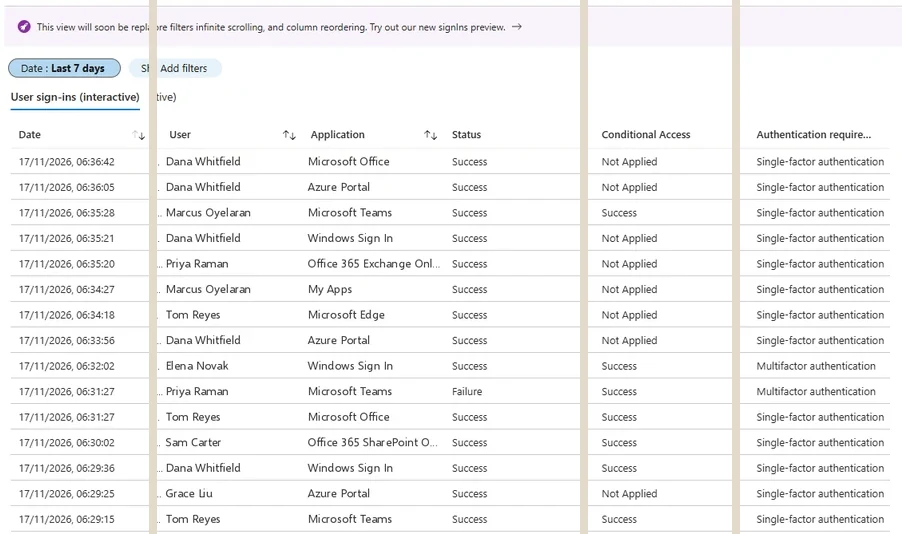
The interactive sign-ins list. Conditional Access and Authentication requirement are the two columns that say how hard each sign-in was checked. Select the image to open it full size.
The interactive list holds sign-ins where the user took part; Microsoft separates out three more logs, for non-interactive user sign-ins, service principal sign-ins and managed identity sign-ins, and lesson 0.10 reads all four. Most of a user's day is non-interactive: once they have signed in, their applications quietly refresh tokens in the background, and each of those refreshes is a non-interactive sign-in with its own row.
That log is far larger than the interactive one and is where a stolen refresh token shows its use, because the attacker's application refreshes from the attacker's address while the user is nowhere near it. In the list, two columns say how hard a sign-in was checked: Conditional Access, which is Success, Failure or Not Applied, and Authentication requirement, which is single-factor or multifactor.
Entra Admin Center
Entra ID › Monitoring & health › Sign-in logs › User sign-ins (interactive)
Filter on the user, open a row, then read Basic info, Authentication Details and Conditional Access in that order: who and what, how they proved it, and what the policies decided.
Opening a row shows the details, a tab at a time. Basic info names the user, the application and three identifiers that link this sign-in to others. Request ID identifies this one sign-in. Correlation ID groups the requests an application made as part of one operation. Session ID stays the same for every sign-in made from one session, interactive and non-interactive alike, so a single session ID appearing from two addresses at once is one of the clearest signs that a session has been copied:
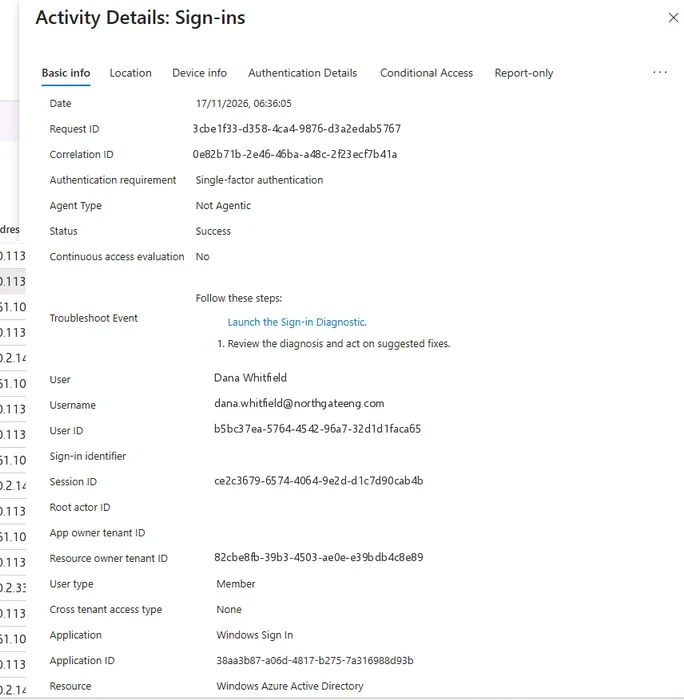
One sign-in's Basic info. Session ID links every sign-in made from the same session, which is how a stolen session is followed. Select the image to open it full size.
Authentication Details lists each factor used and its result, which is the tab that separates a sign-in that met MFA from one that merely satisfied it:
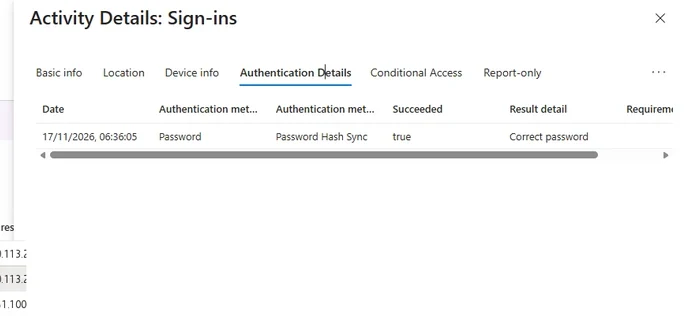
Authentication Details shows each factor used and its result. One row, a password, is a single-factor sign-in. Select the image to open it full size.
And Conditional Access lists every policy with what it did to this sign-in:
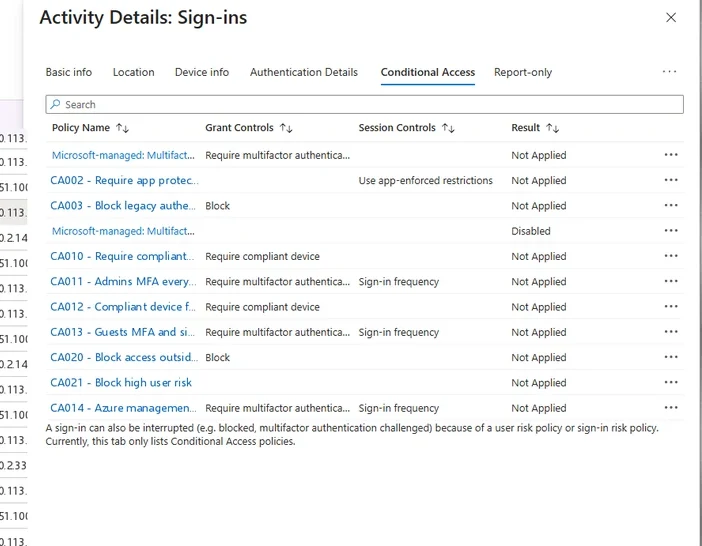
The Conditional Access tab lists every policy and what it did to this sign-in. Not Applied means the policy's conditions did not match. Select the image to open it full size.
In Graph PowerShell the same records come from Get-MgAuditLogSignIn, which Microsoft documents as returning interactive sign-ins and successful federated sign-ins, and which needs AuditLog.Read.All and a reader role such as Security Reader. A user and a date narrow it to the sign-ins that matter:
PS C:\> Connect-MgGraph -Scopes 'AuditLog.Read.All', 'Policy.Read.All'
PS C:\> $f = "userPrincipalName eq 'tom.reyes@example.com' and " +
    'createdDateTime ge 2026-11-16T00:00:00Z'
PS C:\> $city = @{n='City'; e={ $_.Location.City }}
PS C:\> $ca = @{n='CA'; e={ $_.ConditionalAccessStatus }}
PS C:\> Get-MgAuditLogSignIn -Filter $f -Top 5 | Select-Object CreatedDateTime,
    AppDisplayName, IpAddress, $city, $ca

CreatedDateTime        AppDisplayName   IpAddress     City      CA
---------------        --------------   ---------     ----      --
11/16/2026 2:00:41 PM  Outlook Mobile   203.0.113.24  London    success
11/16/2026 11:16:20 AM OfficeHome       198.51.100.77 Amsterdam success
11/16/2026 11:15:58 AM Microsoft Office 198.51.100.77 Amsterdam success
11/16/2026 9:02:13 AM  Outlook Mobile   203.0.113.24  London    success
Two of these come from an address and a city the others do not, twenty minutes apart from nothing else Tom did, and they are where the investigation starts.
What Conditional Access Decided
One result per policyEvery policy that could apply to a sign-in leaves a result on it. Success means the policy applied and its controls were met. Failure means it applied and the sign-in did not meet it, which ends in a block. Not Applied means its conditions did not match, so it never acted. And a policy in report-only mode evaluates the sign-in and records what it would have done, without doing it.
In Graph, the results are the appliedConditionalAccessPolicies property of each sign-in, which Microsoft documents is returned only if the caller has a policy read permission or one of the reader roles; without it, the property is simply missing:
PS C:\> $s = Get-MgAuditLogSignIn -Filter $f -Top 5 |
    Where-Object IpAddress -eq '198.51.100.77'
PS C:\> $s[0].AppliedConditionalAccessPolicies | Select-Object DisplayName, Result

DisplayName                                     Result
-----------                                     ------
CA001 - Require MFA for all users               success
CA007 - Require compliant device                reportOnlyFailure
CA006 - Block access outside allowed countries  notApplied
Three policies, three different results, and the one that matters most is the one that did nothing. CA007 evaluated the Amsterdam sign-in and found no compliant device, but it is in report-only mode, so it only wrote down that it would have blocked.
Report-only results are among the most useful lines in the log, because they show exactly what a policy would catch before it is switched on, and Module 3 uses them that way.
How the results combine is the other thing to know. Every policy whose conditions match applies, not just the first or the most specific one, so a sign-in has to satisfy all of them together. A block in any applicable policy wins over every grant. Within one policy, the conditions narrow who and what it applies to, and the grant controls say what must be true for access.
That is why a gap is rarely in a single policy: it is in the combination, a user excluded from one policy who is not covered by another, or an application left out of every policy's scope. Reading the Conditional Access tab of one suspicious sign-in shows the combination as it actually applied, policy by policy, which no amount of reading the policies themselves can.
What Ends a Session
Reset, revoke, and what neither touchesWhen a session is suspected, the response actions do less than their names suggest, and Microsoft documents exactly how much in its refresh token revocation table. A password changed by the user revokes refresh tokens and browser cookies that were obtained with the password, and leaves those obtained without one, such as through Windows Hello or a passkey.
An administrator resetting the password in the Entra admin center revokes more, but still leaves non-password browser cookies. Revoking all of a user's refresh tokens, by the user or by an administrator, revokes every class. Microsoft adds one more detail: for a B2B guest, refresh tokens are revoked in the guest's home tenant, not in yours.
What each response action actually ends, from Microsoft's refresh token revocation table. A password reset is not a sign-out; revoking sessions is the step that reaches everything refreshable.
In the admin center, Revoke sessions on the user's page is the action; in PowerShell it is one cmdlet:
PS C:\> Revoke-MgUserSignInSession -UserId 'tom.reyes@example.com'

Value
-----
 True
None of it recalls an access token already issued. A token minted at 11:15 is accepted until it expires, unless the service receiving it supports continuous access evaluation and hears about the revocation.
That is the gap between the button and the result, and it is why a response to a stolen session is always three steps: revoke the sessions, fix what let the session be taken, and watch for the access tokens still in flight to run out.
Continuous Access Evaluation
Closing the gap for the services that support itContinuous access evaluation lets a service subscribe to critical events in Entra ID and act on them before a token expires. Microsoft lists the events: the user account is deleted or disabled, the password is changed or reset, MFA is enabled for the user, an administrator explicitly revokes all refresh tokens, and Entra ID Protection detects high user risk.
The initial implementation covers Exchange, Teams and SharePoint Online, and those services, with Microsoft Graph, can also enforce key Conditional Access location policies within the service.
Continuous access evaluation is set in a Conditional Access policy's session controls:
Entra Admin Center
Entra ID › Conditional Access › Policies › New policy
Session
Customize continuous access evaluationUnder Session, select Customize continuous access evaluation and read the options for your users; the default behavior applies where no policy changes it.
Most tenants never change the default, which is reasonable; the point of reading the setting is to know which events will cut a session short and which will wait for the token to expire.
Microsoft is precise about the timing: the goal is near real time, latency of up to 15 minutes may be observed, and enforcement of IP-based named locations is instant. In exchange, tokens in CAE sessions can live up to 28 hours, because revocation is driven by events rather than by the clock; clients that are not CAE-capable keep the one-hour default.
Critical event evaluation does not depend on any Conditional Access policy, so it works in every tenant. For a defender, CAE is what turns Revoke sessions from a promise about the next hour into an action against the mailbox, files and chats an attacker is using now.
Its limits are as specific as its strengths. CAE acts in the services that implement it, so an access token for an API that does not will run its course. Its location enforcement covers IP-based named locations, not every location condition a policy can use.
And it acts on events, so a session that triggers none, because the attacker is careful to stay within the user's normal locations, is not ended by CAE at all. It shortens the window after a response; it does not replace one.
Applications sign in too, and their sign-ins follow a shorter path. A service principal presents its secret or certificate, there is no user, no MFA and no browser, and the sign-in lands in the service principal sign-ins log; a managed identity's sign-ins have a log of their own. Conditional Access policies written for users do not apply to them.
Policies can target workload identities, the service principals of single-tenant applications, but that capability carries its own license, so in most tenants nothing evaluates an application's sign-in beyond its credential. That is the sign-in path behind every application attack in lesson 0.3, and it is why the service principal log matters as much as the user ones.
Why Attackers Want the Token
MFA done, checks passedPut the pieces together and the attacker's preference is plain. A password needs MFA, Conditional Access and a sign-in that the log records in full. A token, cookie or PRT taken from a session that already passed has done all of that; its later sign-ins satisfy MFA by claim, can come from anywhere a location policy allows, and keep refreshing for up to ninety days.
Device code phishing, adversary-in-the-middle proxies and token theft from endpoints, Modules 4 and 5, are all ways of getting one. And the controls that work against them are the ones that check something the attacker cannot carry: a compliant device, a token bound to the device it was issued to, a sign-in frequency that forces a fresh prompt, and continuous access evaluation that ends the session when anything changes.
A sign-in that met MFA with a claim already in the token is recorded as such, and in the lab tenant those rows belong to an attacker:
SigninLogs
| where TimeGenerated > ago(30d)
| where AuthenticationMethodsUsed == "SatisfiedByClaimInToken"
| summarize SignIns = count(), Addresses = make_set(IPAddress)
    by UserPrincipalName
Nobody was prompted for any of them, because the token already said MFA had been done. Module 4 follows these rows back to the phishing page that produced the token.
The sign-in log is also where a stolen session gives itself away, because a token cannot hide where it is used.
The same session ID from two cities within minutes; a non-interactive refresh from an address the user has never used, while their interactive sign-ins continue from home; an MFA requirement satisfied by claim from a device with no device ID; a new application appearing in a user's sign-ins straight after an unusual one.
None of these needs the password to have been stolen, and all of them are visible in the fields this lesson has read. Lesson 0.10 covers keeping the logs long enough to find them, and Module 5 builds the detections.
Asking Copilot Whether It Was MFA
Delegate, then verifyAfter a user reports an MFA prompt he did not expect, the first question is whether his sign-ins were protected. Asked of Copilot in the admin center, the answer reads like this prepared example:
- All four sign-ins passed MFA, so they are Tom's own. (Sign-in logs, interactive)
- The compliant device policy is in report-only mode and blocked nothing. (Sign-in logs, Conditional Access tab)
- Every sign-in came from London. (Sign-in logs, interactive)
- Resetting Tom's password will end all of his sessions. (Microsoft documentation)
The prompt asks for the sign-ins as rows with the fields that decide whose they were, rather than asking whether MFA protected them. Claim 1 cites the interactive tab, which records that MFA was required, not who completed it; claim 3 cites the same tab, whose location column contradicts it.
The list view supports claim 1 on its face: every row shows Multifactor authentication as the requirement and Success for Conditional Access. The answer is in the Authentication Details of the Amsterdam rows:
Previously satisfied, MFA requirement satisfied by claim in the token. Nobody completed a second factor from Amsterdam; the session arrived with the claim already in it. Claim 1 fails, and so does claim 3, since two of the four sign-ins came from Amsterdam.
Claim 4 fails on Microsoft's own revocation table: a password reset is not a sign-out of every session, and issued access tokens outlive it. Claim 2 holds, and it is the most useful line in the answer: the policy that would have stopped this session was written, tested and left in report-only mode.
The record you keep says that the requirement was met and the prompt was not, that the session should be revoked rather than only the password reset, and that CA007 is ready to enforce.
Practice
Was it really MFA? prepared evidenceThe scenario below holds Copilot's answer, the user's sign-ins, the authentication details of each, and the Conditional Access results for the first Amsterdam sign-in. Work it as delegate, verify, record: check each claim, find the sign-ins that never met a second factor, and decide what ends the session behind them.
If you have a tenant of your own, open your own most recent sign-ins and read the Authentication Details of a few: most will say Previously satisfied, which is single sign-on doing its job. Then ask Copilot the same question about your account and compare.
A sign-in runs the checks once and hands out tokens: an access token for about an hour, a refresh token for up to ninety days, a cookie and on a joined device a PRT, and an MFA claim that later sign-ins reuse without a prompt.
The sign-in log records every factor and every policy result, and Authentication Details is the tab that tells a met requirement from a satisfied one. A password reset ends less than it suggests; revoking sessions ends every refresh token, continuous access evaluation shortens what is left, and the controls that hold against a stolen token are the ones that check what the attacker cannot carry.
Resources
Microsoft revises these pages; where a page and this lesson disagree, the page is newer.