
Reading width
Wide uses the full column for everything, text, diagrams, code, and exercises. Narrow keeps the standard reading width.
Text size
Scales the body text. Headings and code blocks keep their size.
In this section
0.4 Devices
Introduction
A device in Entra ID is an identity in its own right. Once a laptop is joined, signing in to Windows signs its user in to everything, and every request it makes carries the device's identity to Conditional Access, which may let it through precisely because it is a known, managed, compliant device.
That trust is the reason attackers go after devices: steal what a trusted device holds, or make a device of their own look trusted, and the controls built on device trust wave them through.
This lesson covers the three device identities, the Primary Refresh Token that makes a device trusted, compliance and device-based Conditional Access, the device settings and their defaults, local administrators and BitLocker keys, what disabling and deleting do, and the audit record. It ends with Copilot answering which devices would pass a compliant-device policy, and you checking it.
Three Device Identities
Registered, joined and hybrid joinedMicrosoft lists three ways for a device to get an identity: Microsoft Entra registration, Microsoft Entra join and Microsoft Entra hybrid join. Registration is for personal devices and phones: the user keeps signing in with their own account and adds a work account to it. Join is for organization-owned Windows devices, and Windows Server in Azure: the user signs in to Windows with the work account. Hybrid join is a device joined to on-premises Active Directory and registered in Entra ID as well, which Microsoft calls an interim step on the road to Entra join.
All three can coexist in one tenant.
Hybrid join is worth understanding in detail because it ties the device to the on-premises directory. The computer account lives in Active Directory, Entra Connect synchronizes it to Entra ID, and the device then completes its registration; its state in Entra ID follows its state on-premises.
Microsoft's guidance on cleaning up hybrid joined devices makes the dependency explicit: disable or delete the computer in Active Directory and let Entra Connect carry the change, because deleting a Windows 10 or newer hybrid device only in Entra ID brings it back at the next synchronization as a new object waiting to register.
Whoever controls the on-premises computer objects, therefore, has a say in which devices the cloud trusts, and Module 10 follows that route.
Three device identities, one list in the admin center. Join type tells you who owns the device; MDM and Compliant tell you whether the organization controls it.
Graph records which one a device is in its trustType property: Workplace for a personal registered device, AzureAd for a cloud-joined device, ServerAd for a device joined to on-premises AD and to Entra ID.
Separately from how it joined, two properties say whether the organization controls it. isManaged is true when a mobile device management service manages it, and isCompliant is true when it meets that service's policies; Microsoft documents that only Intune, or an approved MDM app for Windows, can set them. Nothing else, and no user, can mark a device compliant.
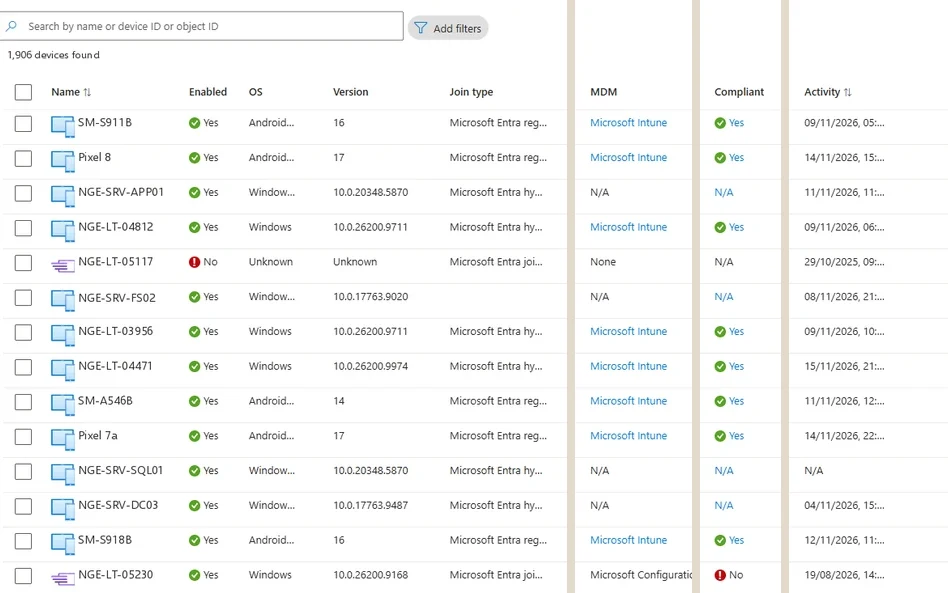
The All devices list. Join type, MDM and Compliant are the three columns that decide what each device is trusted with; Activity shows when it last signed in. Select the image to open it full size.
The list is where every device question starts, and the columns that matter are often hidden in the default view:
Entra Admin Center
Entra ID › Devices › All devices
Add the Join type, MDM and Compliant columns if they are hidden, then sort by Registered to see the newest. A registered device with no MDM is a personal device the organization does not control.
In PowerShell the same three properties sort the whole estate in one pass:
PS C:\> $s = 'Device.Read.All', 'Policy.Read.All', 'BitlockerKey.ReadBasic.All'
PS C:\> Connect-MgGraph -Scopes $s
PS C:\> $p = 'DisplayName', 'TrustType', 'IsManaged', 'IsCompliant'
PS C:\> Get-MgDevice -All -Property $p |
    Group-Object TrustType, IsManaged, IsCompliant |
    Select-Object Count, Name

Count Name
----- ----
  612 AzureAd, True, True
   41 AzureAd, True, False
  377 ServerAd, True, True
  208 Workplace, True, True
  163 Workplace, False,
The last line is the one to read: 163 personal registrations that no MDM manages. Each is a device that a user, or someone with that user's session, added to the tenant, and the organization knows nothing about its state. Listing the newest of them, with their owners, is a standing check:
PS C:\> $f = "trustType eq 'Workplace' and isManaged eq false"
PS C:\> $p = 'DisplayName', 'OperatingSystem', 'RegistrationDateTime'
PS C:\> $own = { $_.RegisteredOwners.AdditionalProperties.userPrincipalName }
PS C:\> Get-MgDevice -All -Filter $f -Property $p -ExpandProperty registeredOwners |
    Sort-Object RegistrationDateTime -Descending |
    Select-Object -First 3 DisplayName, OperatingSystem, RegistrationDateTime,
        @{n='Owner'; e=$own}

DisplayName    OperatingSystem RegistrationDateTime  Owner
-----------    --------------- --------------------  -----
DESKTOP-K2V7Q9 Windows         11/14/2026 3:02:11 AM tom.reyes@example.com
Pixel 7a       Android         11/12/2026 6:40:58 PM owen.hughes@example.com
iPad           iPadOS          11/9/2026 9:15:22 AM  leah.brennan@example.com
A Windows machine registered as a personal device at three in the morning, with a default desktop name, is the kind of entry that starts an investigation. The scenario at the end of this lesson follows exactly that one.
What a Trusted Device Is Trusted With
The Primary Refresh TokenDevice trust is carried by the Primary Refresh Token. Microsoft describes it as a secure artifact issued to Microsoft's own token brokers to enable single sign-on across the applications on a device.
On a joined or hybrid joined device it is issued when the user signs in to Windows with their work account; on a registered device, when the user adds a work account. From then on the PRT requests access and refresh tokens for every application, so Microsoft 365, Azure and other cloud apps open without another prompt.
How the lab tenant's sign-ins split by the trust each device carries:
SigninLogs
| where TimeGenerated > ago(30d)
| summarize SignIns = count()
    by TrustType = tostring(DeviceDetail.trustType),
        Compliant = tostring(DeviceDetail.isCompliant)
| order by SignIns desc
The row with no trust type is the one to watch: those sign-ins came from a device Entra ID does not know, so nothing about the device can be checked, and every attacker's own machine falls in it.
What a trusted device is trusted with: one sign-in becomes tokens for every application, carrying the device's identity to Conditional Access. The controls that end it are the same three a responder reaches for.
Microsoft protects it by binding it to the device. Where the device has a working TPM, the device key and the PRT's session key are held in the TPM, no other part of the operating system can reach them, and Entra ID rejects requests from the device that are not signed with the session key.
A PRT is valid for 90 days and renewed while the device is used; on Windows it is renewed every four hours during sign-in.
The same binding reaches the browser. When a signed-in user opens a Microsoft site, the browser receives a session cookie derived from the PRT, and Microsoft documents that on later requests the session key is validated, binding the cookie to the device and preventing replays from elsewhere.
That is the protection attackers work around rather than through. They do not steal the PRT itself from a TPM; they use the device while it is unlocked, run code as the signed-in user so the token broker issues tokens to them, or take tokens that are not device-bound once issued.
Module 5 takes those routes apart, and they share one requirement: the attacker has to be on, or acting through, a device the tenant already trusts.
Three things end it, and they are the three a responder reaches for. A PRT is invalidated when the user is disabled or deleted, when the device is disabled or deleted, and, if the PRT was obtained with a password, when that password is changed.
Microsoft ties the last of these to a PRT obtained with a password, so a password change is not a reliable way to end a session that began with Windows Hello or a passkey, which is why lesson 0.6 and Module 5 treat revoking sessions as a separate step from resetting a password.
Compliance and Conditional Access
Why device trust is worth fakingMicrosoft states the reason device identity matters: it is a prerequisite for device-based Conditional Access policies and for managing devices with Intune.
A policy can require that a sign-in come from a device marked compliant, or from a hybrid joined device, and each request from a trusted device carries the identity that lets Conditional Access check it. A password and an MFA prompt prove who someone is; the device requirement adds where they are signing in from.
A policy that requires a compliant device is built on the Grant control:
Entra Admin Center
Entra ID › Conditional Access › Policies › New policy
Grant
Require device to be marked as compliantState
Report-only firstUnder Grant, select Require device to be marked as compliant, scope the policy to the users and applications that need it, and start it in report-only.
Report-only shows which sign-ins would fail before anyone is locked out, which is how a tenant learns how many of its sign-ins come from devices it does not know.
That is what makes a device requirement one of the strongest controls in the tenant, and also what makes devices a target. An attacker who phishes a password and passes MFA still fails a policy that requires a compliant device, because their own machine has no compliance state.
Their options are the ones this course follows: take the tokens off a device that already passes, which is Module 5; or register a device of their own and look for a policy that only checks for a registered or joined device rather than a compliant one, which is Module 3.
A registration is not compliance. The difference between the two words in a Conditional Access policy is the difference between a control and a formality.
Conditional Access offers the device requirement in two forms of grant control: require the device to be marked as compliant, which only Intune or an approved MDM can satisfy, and require a Microsoft Entra hybrid joined device, which only a device joined to the on-premises domain can satisfy. A policy can accept either.
Policies can also be scoped with a filter for devices, which matches on device properties such as its operating system or an extension attribute. Each is only as strong as the property it reads and whoever can set that property, the same rule lesson 0.2 applied to dynamic groups. A filter on a property that a device owner or an application can write is a filter an attacker can match.
The Settings That Decide Who Adds Devices
Defaults worth changingWho can add a device is a tenant setting, and the defaults are generous. Microsoft documents them: users may join devices to Microsoft Entra ID is set to All; requiring MFA to register or join devices is No; and a user may have up to 50 joined or registered devices, adjustable up to 100 or set to Unlimited, a limit that does not apply to hybrid joined devices.
Microsoft recommends the Conditional Access user action Register or join devices over the MFA setting, so the requirement can be scoped and reported like any other policy.
Entra Admin Center
Entra ID › Devices › Device settings
Users may join devices to Microsoft Entra
AllRequire multifactor authentication to register or join devices
NoMaximum number of devices per user
50Defaults in a new tenant: anyone may join, MFA to register or join is No, and a user may have up to 50 devices. Microsoft recommends the Register or join devices user action in Conditional Access over the MFA setting.
The device registration policy holds the same values in Graph, read with a direct request:
PS C:\> $r = Invoke-MgGraphRequest -Uri 'v1.0/policies/deviceRegistrationPolicy'
PS C:\> $r | Select-Object userDeviceQuota, multiFactorAuthConfiguration

userDeviceQuota multiFactorAuthConfiguration
--------------- ----------------------------
             50 notRequired
Read together, the defaults mean that any user, or anyone holding a user's session, can register a device without a second factor, and do it fifty times. Module 4 shows how attackers who phish a session use exactly this to register a device and obtain a PRT of their own.
The changes that close it are small. Limit who may join devices to the group that provisions them, or to the administrators who do; require a strong sign-in for the Register or join devices user action in Conditional Access, so a stolen session alone is not enough to add a device; and lower the per-user device limit to something a real person needs.
None of these stops a user with a new phone, and each one turns an attacker's quiet registration into a step that fails outright or stands out in the logs.
Local Administrators, LAPS and BitLocker Keys
What a device record unlocksA device record in Entra ID is also the key to the machine itself. On Microsoft Entra joined devices, users listed in Manage Additional local administrators are assigned the Microsoft Entra Joined Device Local Administrator role, which makes them local administrators on every joined device in the tenant, and a separate setting decides whether the user who joins a device becomes its local administrator.
Microsoft's Local Administrator Password Solution, enabled in the same settings, stores a managed local administrator password for each device in Entra ID. And the BitLocker recovery keys of joined devices are stored there too.
Each device's own page shows what it carries:
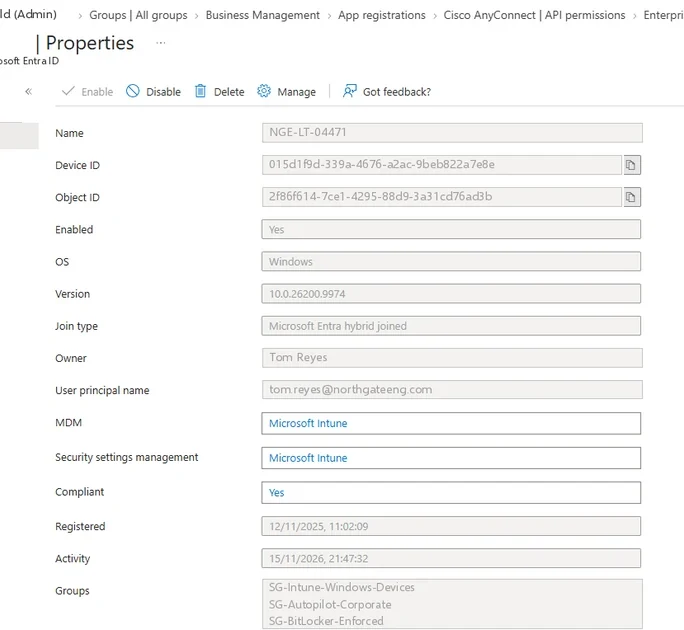
One device's Properties page. Device ID and Object ID are different values, and logs use the first. Select the image to open it full size.
A device's Properties page shows two identifiers. Device ID is the value in sign-in logs and in Intune; Object ID is the directory object, the one most Graph cmdlets take. Owner and user principal name show who registered it, and Groups shows the dynamic and assigned groups it belongs to, which is often how it reaches a compliance policy or an application.
Each of these is a privilege that lives in Entra ID rather than on the machine, and each is easy to overlook. Membership of the Joined Device Local Administrator role, through the additional local administrators setting, makes an account a local administrator on every Entra joined device at once, so it belongs on the same review as the directory roles in lesson 0.5.
A LAPS password read from Entra ID gives the reader local administrator on that one device, which is what makes the read itself worth auditing. And a BitLocker key unlocks the disk of a lost or stolen laptop, the scenario the key exists for and also the one an attacker who has stolen both the laptop and a user's session would choose.
The device's BitLocker keys are listed in Graph by device ID. Listing them returns the key identifiers but never the key itself, which takes a separate read:
PS C:\> $d = Get-MgDevice -Filter "displayName eq 'LT-0412'"
PS C:\> $f = "deviceId eq '$($d.DeviceId)'"
PS C:\> Get-MgInformationProtectionBitlockerRecoveryKey -Filter $f |
    Select-Object Id, CreatedDateTime, VolumeType

Id                                   CreatedDateTime     VolumeType
--                                   ---------------     ----------
b465e4e8-e4e8-b465-e8e4-65b4e8e465b4 3/2/2025 9:41:07 AM operatingSystemVolume
Reading a key is privileged and recorded. Microsoft documents that selecting Show Recovery Key creates an audit entry in the KeyManagement category, and by default the registered owner of a device can read their own device's keys, a setting that can be restricted. A key read by anyone else, outside a helpdesk ticket, means someone had a reason to unlock a disk without its owner.
Disable or Delete
Stopping a device without losing the evidenceWhen a device is suspected, the first action is to disable it, not delete it. Microsoft documents that disabling a device prevents it from authenticating via Microsoft Entra ID and revokes the Primary Refresh Token and any refresh tokens on it.
Deleting is described as a nonrecoverable activity that Microsoft does not recommend unless it is required, and it takes the device record, its owners and its history with it. Disabling needs Intune Administrator or Cloud Device Administrator.
PS C:\> $d = Get-MgDevice -Filter "displayName eq 'DESKTOP-K2V7Q9'"
PS C:\> Update-MgDevice -DeviceId $d.Id -AccountEnabled:$false
PS C:\> Get-MgDevice -DeviceId $d.Id -Property DisplayName, AccountEnabled |
    Select-Object DisplayName, AccountEnabled

DisplayName    AccountEnabled
-----------    --------------
DESKTOP-K2V7Q9          False
One command stops the device everywhere Entra ID is asked about it, and the record stays for the investigation.
The same order applies to housekeeping, where it matters for a different reason. Microsoft defines a stale device as one that hasn't accessed any cloud apps for a set time, and advises against deleting one straight away: disable it for a grace period first, because a deletion cannot be undone if the device turns out to be in use.
Deleting a device also deletes its BitLocker keys, with no way to recover them, and devices managed by Autopilot should not be deleted at all. The device's activity timestamp is only refreshed when it is more than 14 days old, give or take five days, so Microsoft warns not to treat anything younger than 21 days as stale.
A defender's interest in stale devices is simpler than an administrator's: every enabled device nobody uses is a trusted identity nobody would notice being used again.
PS C:\> $dt = (Get-Date).AddDays(-90)
PS C:\> $p = 'DisplayName', 'TrustType', 'AccountEnabled'
PS C:\> $p += 'ApproximateLastSignInDateTime'
PS C:\> Get-MgDevice -All -Property $p |
    Where-Object { $_.AccountEnabled -and $_.ApproximateLastSignInDateTime -le $dt } |
    Group-Object TrustType | Select-Object Count, Name

Count Name
----- ----
   38 AzureAd
   61 ServerAd
   94 Workplace
Ninety-four personal registrations, enabled and unused for three months, are ninety-four devices an attacker could revive with nobody expecting them to sign in. It does nothing to the user's other devices or sessions; those are separate actions on the user, which lesson 0.6 and Module 11 cover.
The Record It Leaves
Device operations in the audit logMicrosoft lists what the device audit logs hold: device creation and owners or users added to a device, changes to device settings, device operations such as updates and deletions, and bulk operations such as downloading the device list.
New registrations appear as Add device, initiated by the Device Registration Service, with Add registered owner to device beside them. Compliance updates from Intune appear as Update device. Key reads appear in the KeyManagement category.
The reading discipline is the same as for users and groups: the actor and the time first. A registration by the Device Registration Service during a laptop rollout is routine.
A registration at three in the morning followed, minutes later, by the same account reading another person's BitLocker key is an intrusion in two lines. The same two activities in PowerShell, filtered on their display names, put the registration and the key read side by side:
PS C:\> $f = "activityDisplayName eq 'Add device' or " +
    "activityDisplayName eq 'Read BitLocker key'"
PS C:\> $who = { $i = $_.InitiatedBy; $i.User.UserPrincipalName + $i.App.DisplayName }
PS C:\> Get-MgAuditLogDirectoryAudit -Filter $f -All |
    Select-Object ActivityDateTime, ActivityDisplayName, @{n='Actor'; e=$who}

ActivityDateTime      ActivityDisplayName Actor
----------------      ------------------- -----
11/14/2026 3:19:40 AM Read BitLocker key  tom.reyes@example.com
11/14/2026 3:02:11 AM Add device          Device Registration Service
11/3/2026 9:12:05 AM  Add device          Device Registration Service
Three lines, and the first two are seventeen minutes apart. Lesson 0.10 covers where these entries go and how long they stay.
Asking Copilot Which Devices Count
Delegate, then verifyBefore turning on a policy that requires a compliant device, a defender asks which devices would pass it. Asked of Copilot in the admin center, the answer looks like this prepared example:
- There are five devices registered to users in the tenant. (Devices)
- Every Windows device is managed by Intune and compliant. (Devices)
- DESKTOP-K2V7Q9 is a company laptop assigned to Tom Reyes. (Devices)
- Registered devices pass a policy that requires a compliant device. (Microsoft documentation)
The prompt asks for the four columns that decide compliance before it asks for the verdict, so the verdict can be checked against them. Claims 2 and 3 both cite the device list, which shows the join type and management state that contradict them: a right source read carelessly.
Check each claim against the device list itself, row by row:
| Name | OS | Join type | Owner | MDM | Compliant | Activity |
|---|---|---|---|---|---|---|
| LT-0412 | Windows | Microsoft Entra joined | alex.morgan@example.com | Microsoft Intune | Yes | 11/16/2026 |
| LT-0533 | Windows | Microsoft Entra hybrid joined | sam.patel@example.com | Microsoft Intune | Yes | 11/16/2026 |
| iPhone 15 | iOS | Microsoft Entra registered | priya.raman@example.com | Microsoft Intune | Yes | 11/15/2026 |
| DESKTOP-K2V7Q9 | Windows | Microsoft Entra registered | tom.reyes@example.com | None | N/A | 11/14/2026 |
| Pixel 8 | Android | Microsoft Entra registered | elena.novak@example.com | Microsoft Intune | No | 11/2/2026 |
Claim 1 holds: five devices. Claim 2 fails on DESKTOP-K2V7Q9, a Windows device with no MDM and no compliance state at all. Claim 3 fails on the same row: its join type is Microsoft Entra registered, the identity for a personal device, so nothing on this list says it is a company laptop, and its creation at 3:02 AM says it may not be Tom Reyes's at all.
Claim 4 is the dangerous one: registration never makes a device compliant, because only Intune or an approved MDM can set that property. A policy written on Copilot's understanding would let exactly the wrong device through. The record you keep says the policy blocks two devices, not none, and that one of them needs an investigation before anything else.
Practice
Which devices does the tenant trust? prepared evidenceThe scenario below holds Copilot's answer, the device list, and two weeks of device and key management entries from the audit log. Work it as delegate, verify, record: check each claim, find the devices a compliant-device policy would block, and find the entry that should never have happened.
If you have a tenant of your own, open Devices, Device settings and read the four settings in section 4, then run the device query in section 1 and list your newest unmanaged registrations. Ask Copilot the same question first and compare.
A device identity comes in three kinds, and only management and compliance, set by Intune, make a device trustworthy rather than merely known. A trusted device holds a Primary Refresh Token that turns one sign-in into tokens for everything and carries the device's identity to Conditional Access, which is why attackers either steal from trusted devices or register their own where policies settle for registration.
The device settings decide how easily they can, disabling stops a device without losing the evidence, and the audit log records every registration and every key read.
Resources
Microsoft revises these pages; where a page and this lesson disagree, the page is newer.
- Microsoft Learn: What is a device identity?
- Microsoft Learn: What is a Primary Refresh Token?
- Microsoft Learn: Manage device identities using the Microsoft Entra admin center
- Microsoft Learn: How to manage stale devices in Microsoft Entra ID
- Microsoft Graph: device resource type
- Microsoft Graph: deviceRegistrationPolicy resource type
- Microsoft Graph: List recoveryKeys